
Application Note - IPSEC VPN
Topology Setup
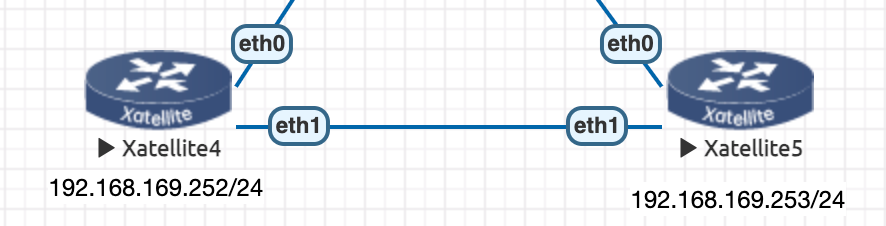
- This functionality will be demonstrated based on the following topology environment.
- The main interfaces involved are Xatellite4 eth1 and Xatellite5 eth1.
Function Configuration Process and Function Verification
Device Xatellite 4 IPSEC Function Configuration
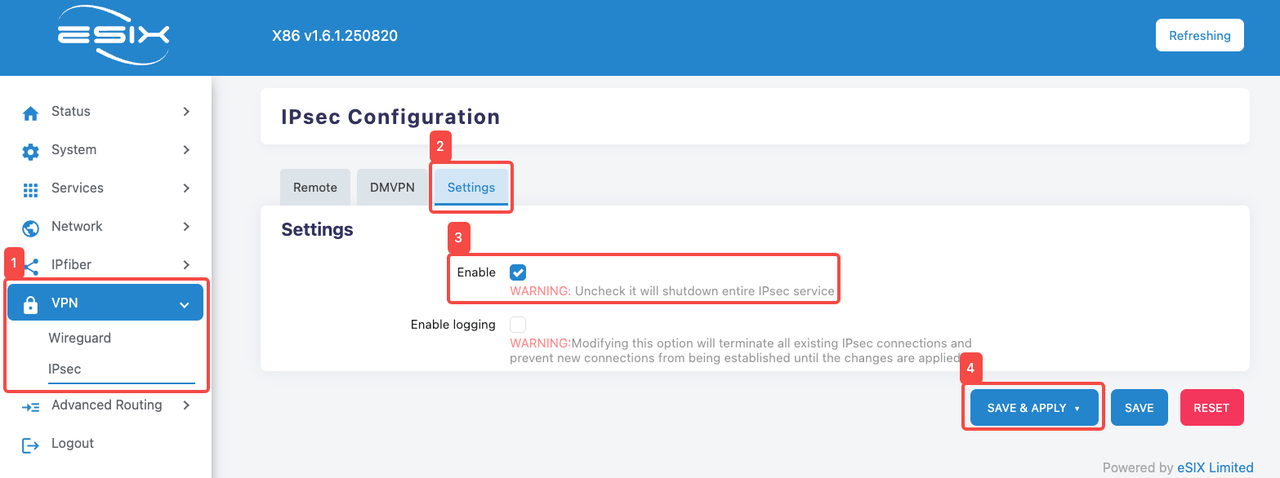
- Enter IPSEC configuration interface
- Click the "VPN" tab.
- Click the "IPSEC" tab.
- Click the "Setting" tab
- Click "Enable" to enable the "IPSEC" function
- Click "SAVE & APPLY" to save the current configuration
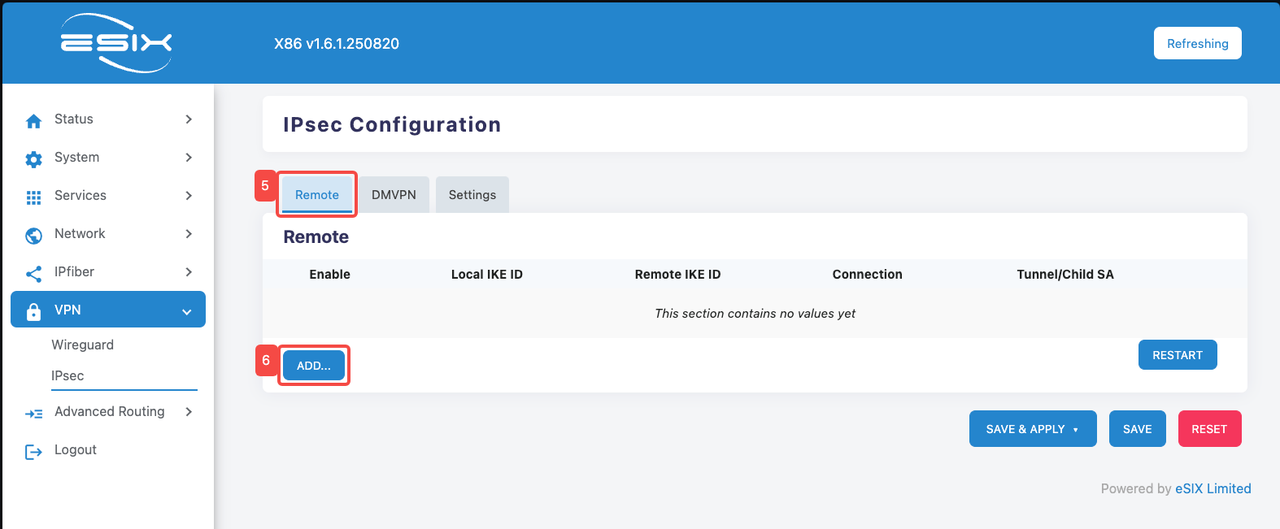
- Click the "Remote" tab
- Click the "ADD" tab
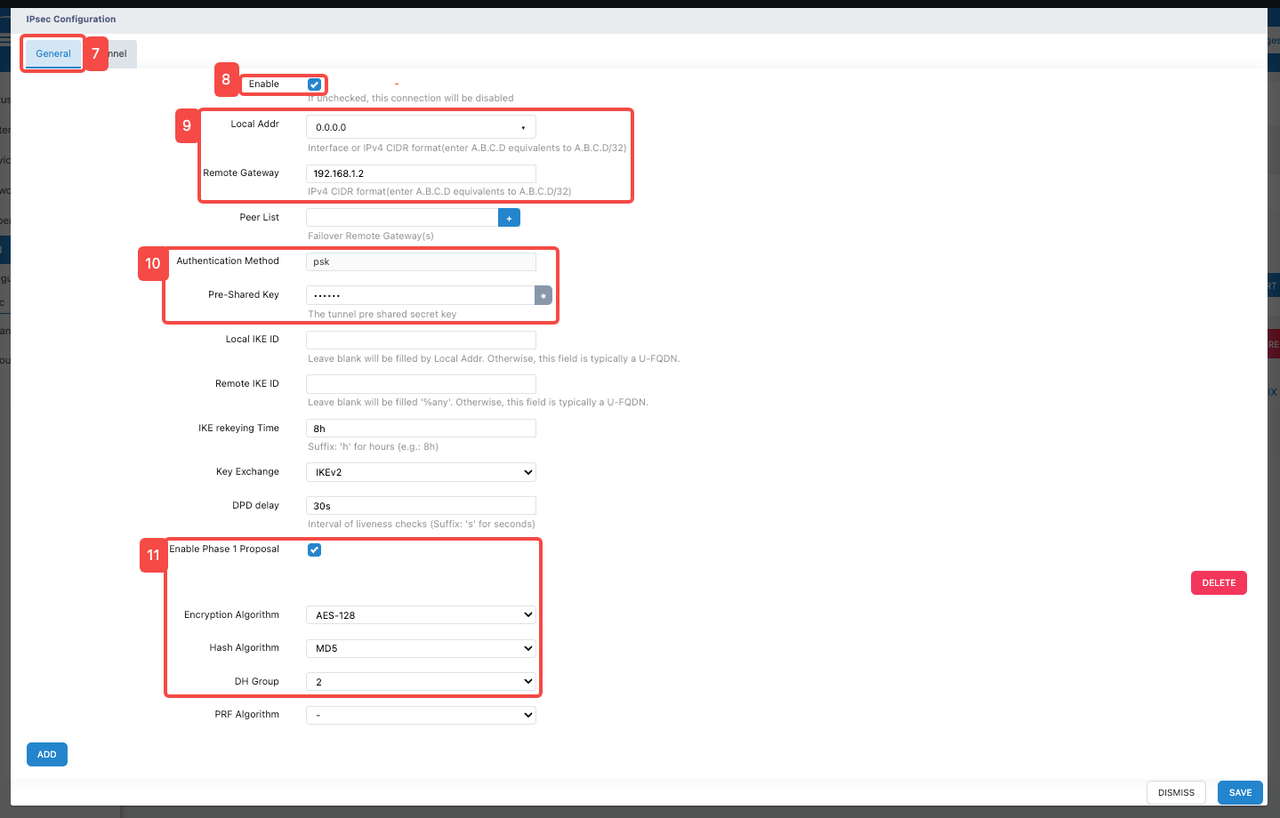
Click the "General" tab
Click the "Enable" tab to enable the function
Configure IPSEC function related addresses
- Fill in the address in "Local Addr". In this function demonstration, "0.0.0.0" will be filled in.
- Fill in the peer communication address in "Remote Gateway". In this function demonstration, "192.168.1.2" will be filled in.
- Configure "Pre-Shared Key"
- Enter a custom key in "Pre-Shared Key". This key needs to be configured uniformly on both devices.
- Configure "Phase 1 Proposal"
- Click "Enable Phase 1 Proposal" to enable.
- Click "Encryption Algorithm" and select an appropriate encryption algorithm from its dropdown list. In this demonstration, the encryption algorithm "AES-128" is used, which is the Advanced Encryption Standard using 128-bit keys and provides security and reliability.
- Click "Hash Algorithm" and select an appropriate hash algorithm from its dropdown list. In this demonstration, the hash algorithm "MD5" is used.
- Click "DH Group" and select an appropriate DH group from its dropdown list. In this demonstration, "DH Group 2" is used.

- Click the "Tunnel" tab
- Click the "ADD" button
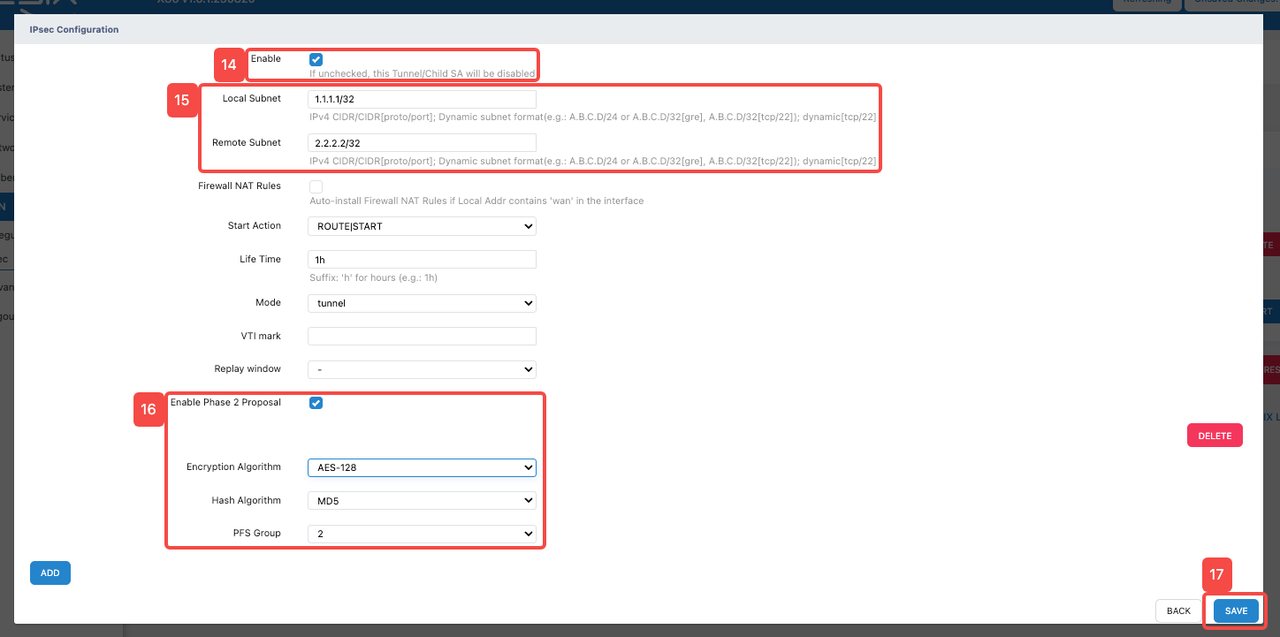
- Click the "Enable" tab to enable the "Tunnel" function and its related parameter configuration
- Configure address information related to "Tunnel"
- Fill in the source address in IPv4 CIDR format in "Local Subnet". (The loopback interface IP address: 1.1.1.1/32 here is only filled in for temporary demonstration. Please fill in the source address or source network segment of the data that needs to be encrypted according to the actual situation)
- Fill in the destination address in IPv4 CIDR format in "Remote Subnet". (The loopback interface IP address: 2.2.2.2/32 here is only filled in for temporary demonstration. Please fill in the destination address or destination network segment of the data that needs to be encrypted according to the actual situation)
- Configure "Enable Phase 2 Proposal"
- Check "Enable Phase 2 Proposal" to enable.
- Click "Encryption Algorithm" and select an appropriate encryption algorithm from its dropdown list. In this demonstration, the encryption algorithm "AES-128" is used, which is the Advanced Encryption Standard using 128-bit keys and provides security and reliability.
- Click "Hash Algorithm" and select an appropriate hash algorithm from its dropdown list. In this demonstration, the hash algorithm "MD5" is used.
- Click "PFS Group" and select an appropriate DH group from its dropdown list. In this demonstration, "PFS Group 2" is used.
- Click "SAVE" to save the above configuration
Device Xatellite 5 IPSEC Function Configuration
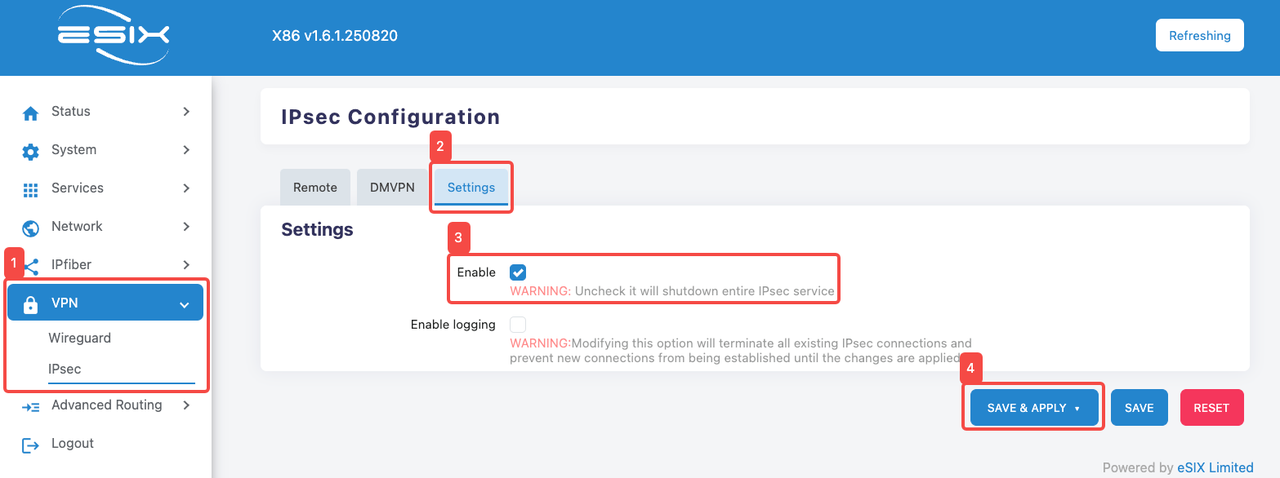
- Enter IPSEC configuration interface
- Click the "VPN" tab.
- Click the "IPSEC" tab.
- Click the "Setting" tab
- Click "Enable" to enable the "IPSEC" function
- Click "SAVE & APPLY" to save the current configuration
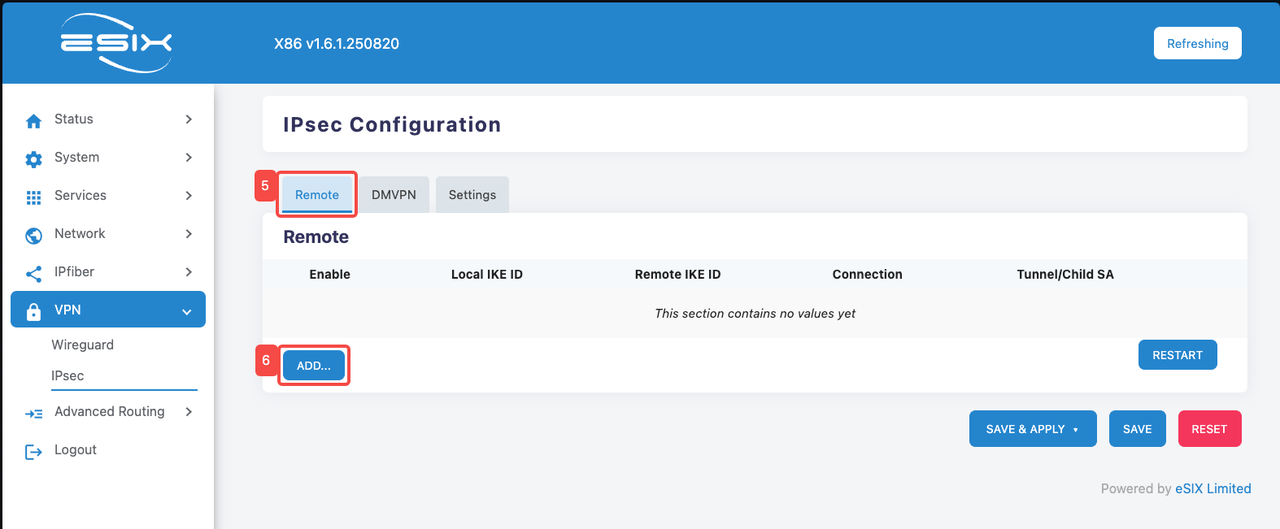
- Click the "Remote" tab
- Click the "ADD" tab
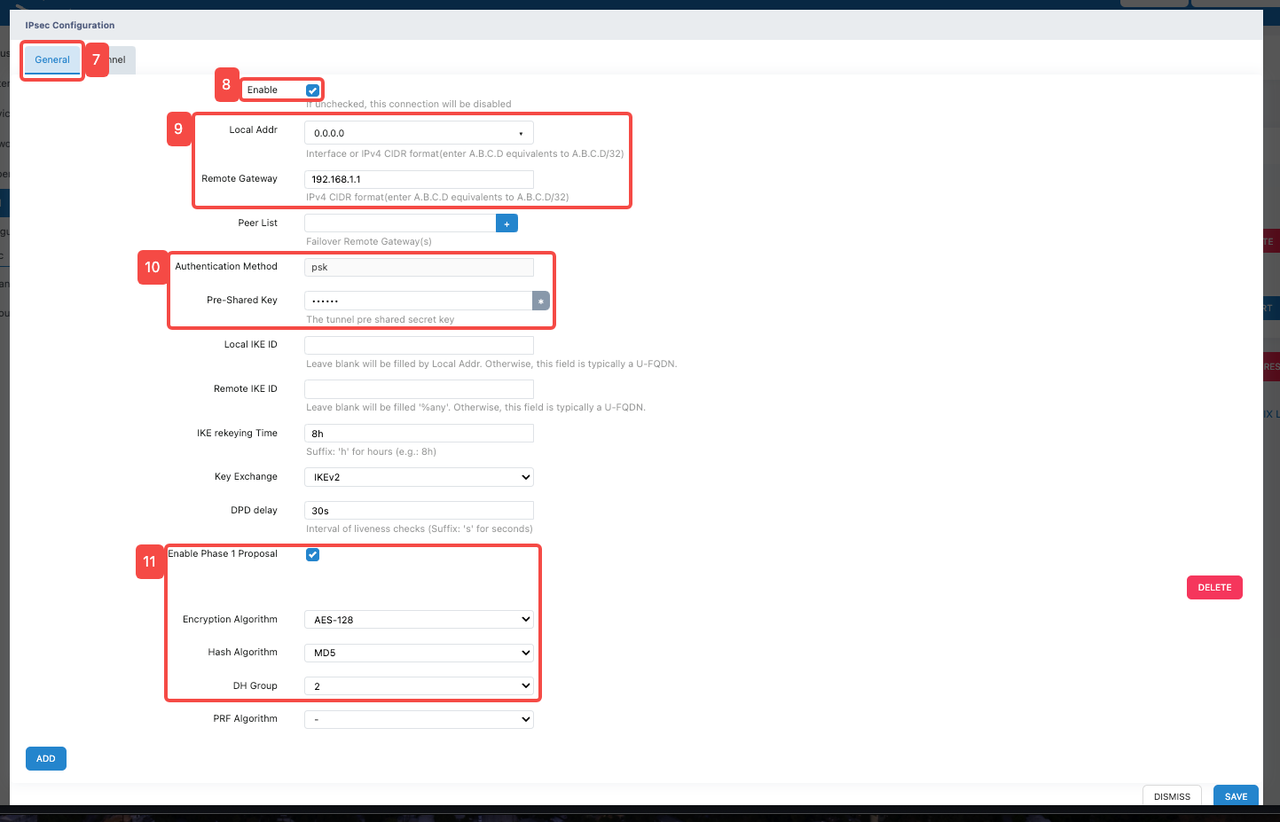
Click the "General" tab
Click the "Enable" tab to enable the function
Configure IPSEC function related addresses
- Fill in the address in "Local Addr". In this function demonstration, "0.0.0.0" will be filled in.
- Fill in the peer communication address in "Remote Gateway". In this function demonstration, "192.168.1.1" will be filled in.
- Configure "Pre-Shared Key"
- Enter a custom key in "Pre-Shared Key". This key needs to be configured uniformly on both devices.
- Configure "Phase 1 Proposal"
- Click "Enable Phase 1 Proposal" to enable.
- Click "Encryption Algorithm" and select an appropriate encryption algorithm from its dropdown list. In this demonstration, the encryption algorithm "AES-128" is used, which is the Advanced Encryption Standard using 128-bit keys and provides security and reliability.
- Click "Hash Algorithm" and select an appropriate hash algorithm from its dropdown list. In this demonstration, the hash algorithm "MD5" is used.
- Click "DH Group" and select an appropriate DH group from its dropdown list. In this demonstration, "DH Group 2" is used.

- Click the "Tunnel" tab
- Click the "ADD" button
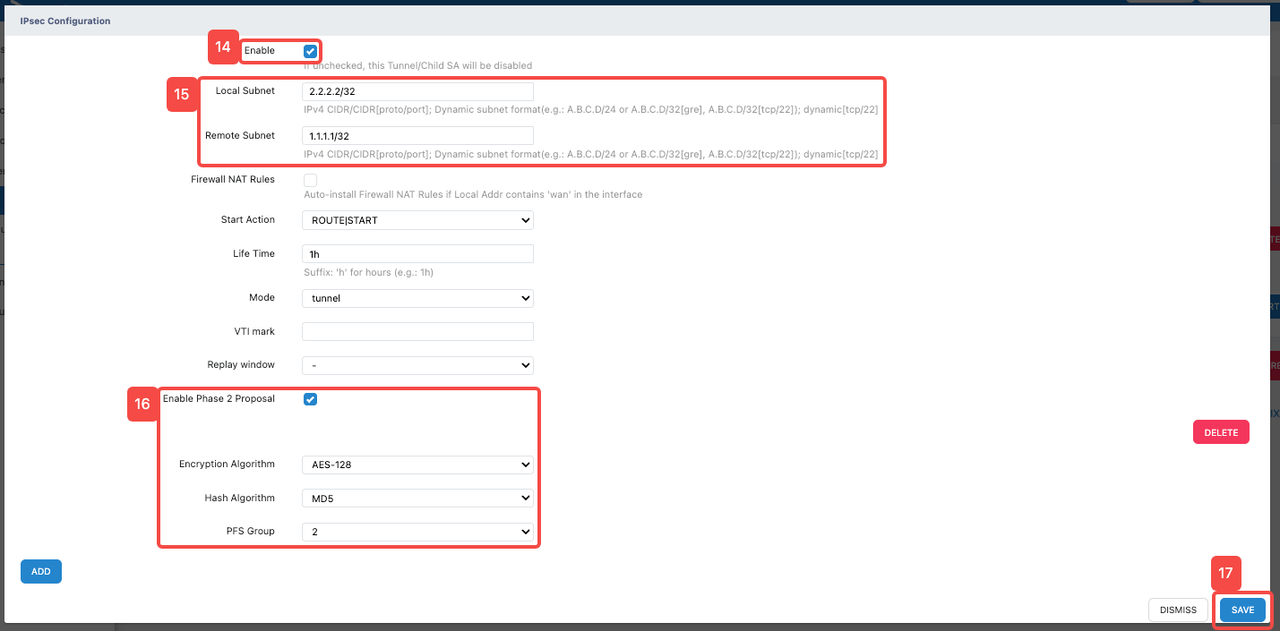
- Click the "Enable" tab to enable the "Tunnel" function and its related parameter configuration
- Configure address information related to "Tunnel"
- Fill in the source address in IPv4 CIDR format in "Local Subnet". (The loopback interface IP address: 2.2.2.2/32 here is only filled in for temporary demonstration. Please fill in the source address or source network segment of the data that needs to be encrypted according to the actual situation)
- Fill in the destination address in IPv4 CIDR format in "Remote Subnet". (The loopback interface IP address: 1.1.1.1/32 here is only filled in for temporary demonstration. Please fill in the destination address or destination network segment of the data that needs to be encrypted according to the actual situation)
- Configure "Enable Phase 2 Proposal"
- Check "Enable Phase 2 Proposal" to enable.
- Click "Encryption Algorithm" and select an appropriate encryption algorithm from its dropdown list. In this demonstration, the encryption algorithm "AES-128" is used, which is the Advanced Encryption Standard using 128-bit keys and provides security and reliability.
- Click "Hash Algorithm" and select an appropriate hash algorithm from its dropdown list. In this demonstration, the hash algorithm "MD5" is used.
- Click "PFS Group" and select an appropriate DH group from its dropdown list. In this demonstration, "PFS Group 2" is used.
- Click "SAVE" to save the above configuration
Test IPSEC VPN Availability and Encryption
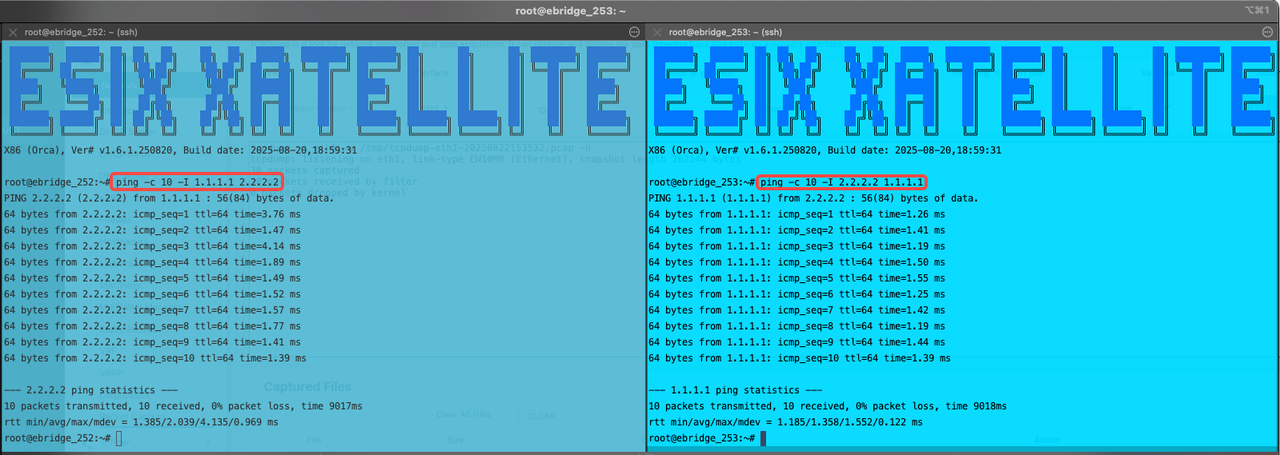
- It can be seen that ICMP packets from Xatellite 4 with IP address "1.1.1.1/32" can successfully reach Xatellite 5 "2.2.2.2/32".
- It can be seen that ICMP packets from Xatellite 5 with IP address "2.2.2.2/32" can successfully reach Xatellite 4 "1.1.1.1/32".
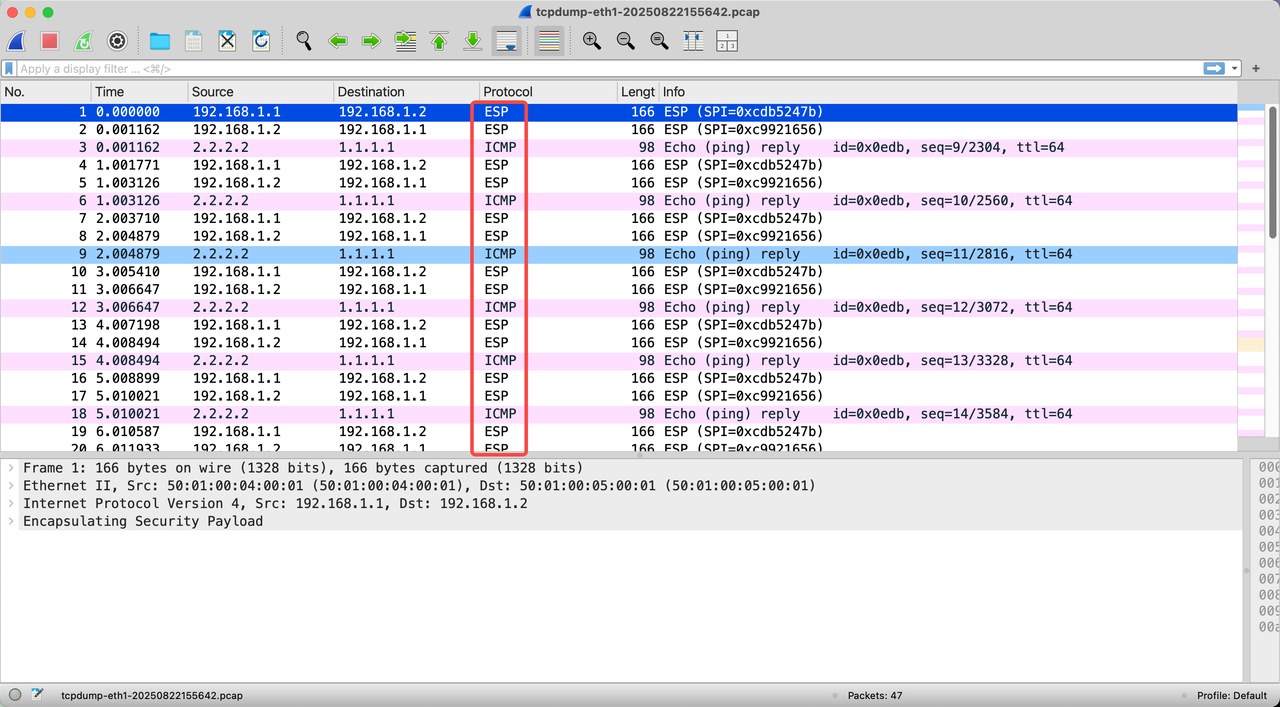
- Through packet capture, it can be seen that encrypted data communication already exists in the IPSEC VPN, where packets related to the ESP protocol are encrypted packets, and packets related to the ICMP protocol are decrypted data packets.