1. Overview
Function of Link Tracking:
Configure different routing and ePBR policies for the system based on the link liveness check status. There are two liveness check methods: checking IP reachability (ping) and checking port reachability (nc). There are three liveness check statuses: UP, DOWN, and UNKNOWN.
2. Configuration Instructions
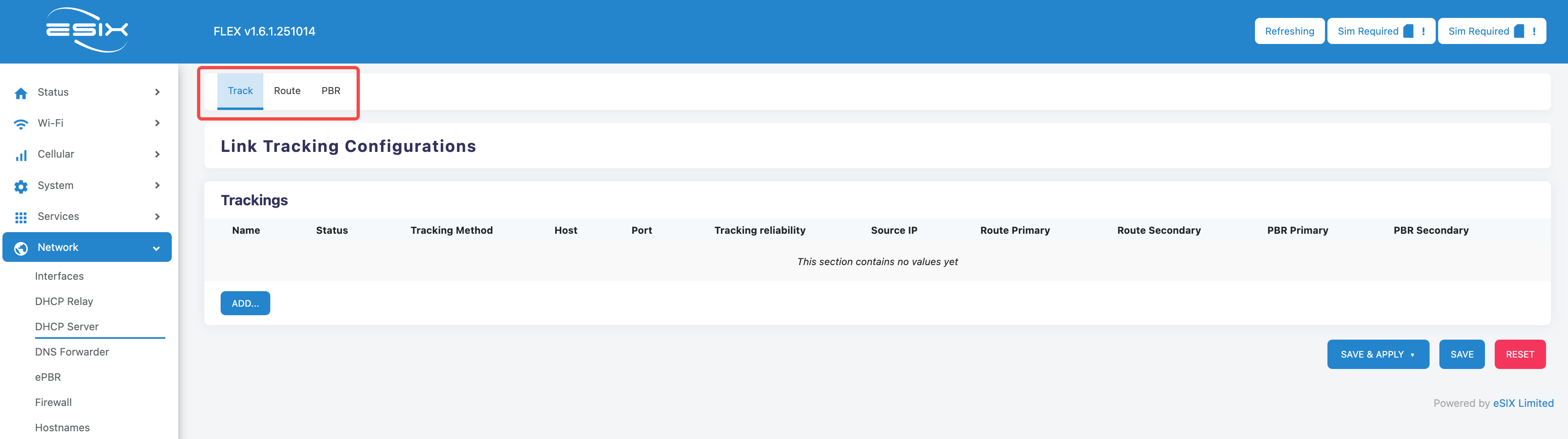
The Link Tracking configuration page is located in the left sidebar menu under "Network" -> "Link Tracking".
The configuration page has three child labels, namely Track (Detection and Tracking Page), Route (Routing Page), and PBR (Policy Page), as shown in the following figure:
2.1 Route & PBR
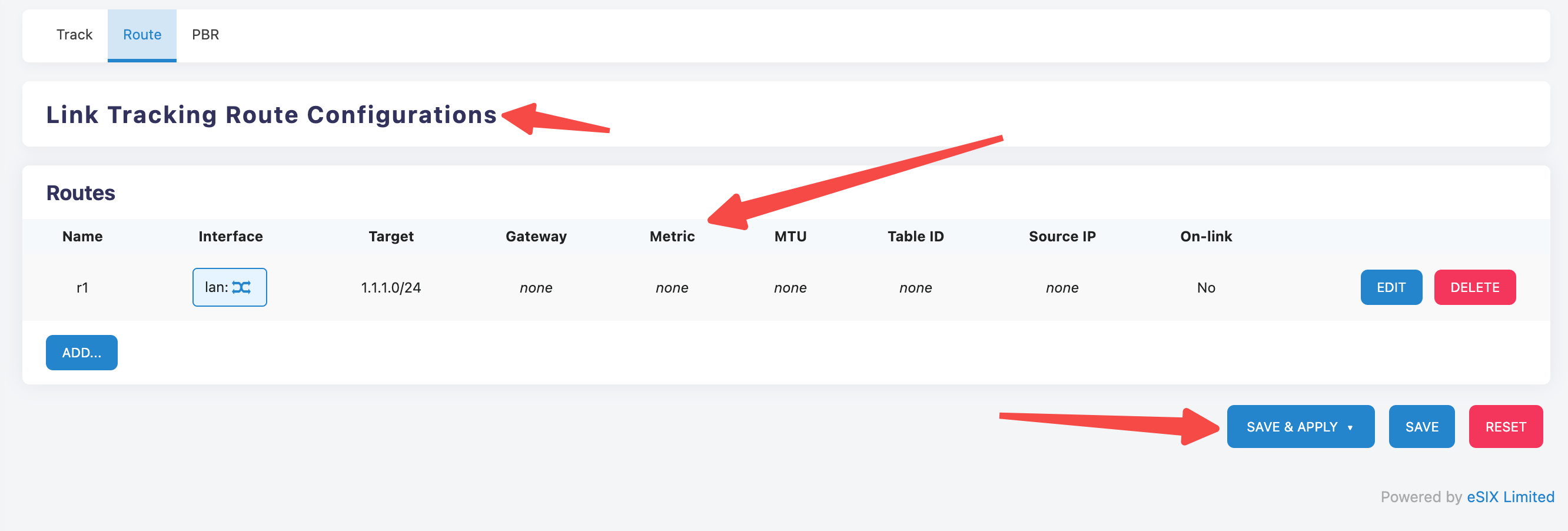
The layout of the Route and Policy Based Routing (PBR) tabs is the same, with the page divided into three parts: title, pre-configured list, and bottom buttons.
As shown in the figure:
Click the "ADD" button in the lower left corner of the pre-configured list, or click the "Edit" button to the right of any item in the list, and the item editing form will appear on the page:
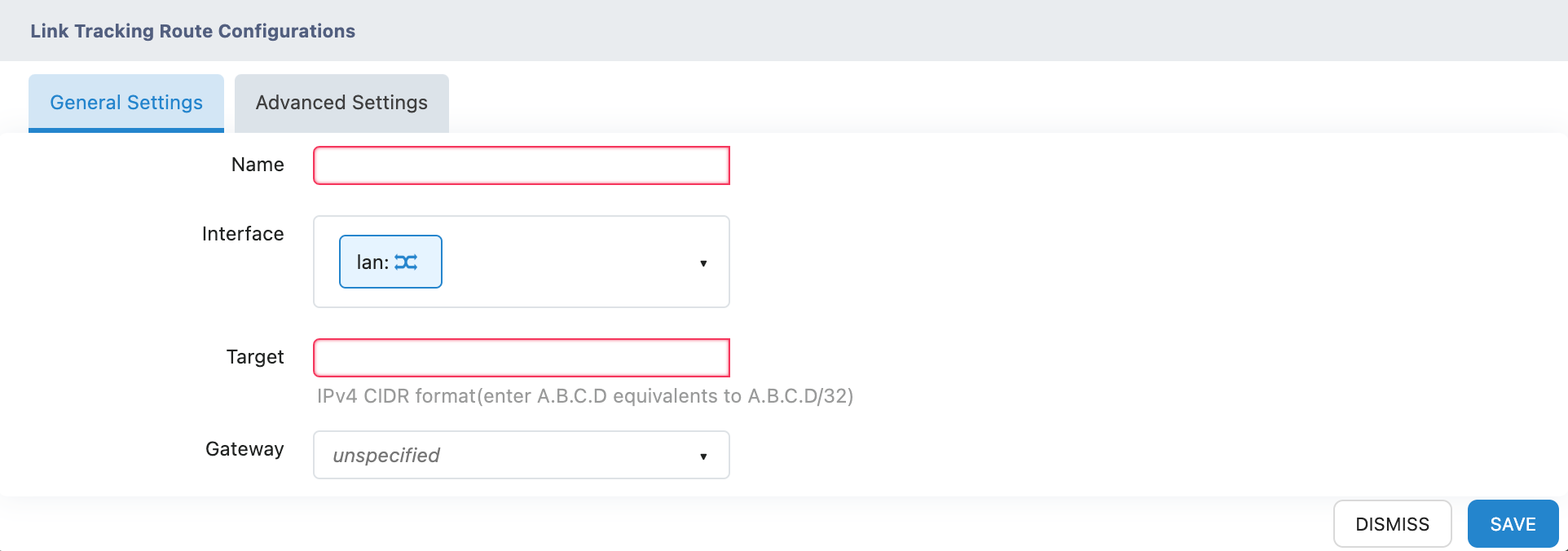
The routing entry editing form is consistent with the configuration method of static routes (in the left sidebar menu, "Network" -> "Static Routes") in this system;
The strategy entry editing form is consistent with the ePBR configuration method in this system (left sidebar "Network" -> "ePBR"). The only special feature is the "Name" field, which Link Tracking will use to reference this entry in subsequent configurations.
Note that the names of each routing entry or policy entry must not be duplicated with the names of other entries in the pre-configured list!
2.2 Track Tab
The layout of the Track tag page is divided into three parts: title, item list, and bottom button. As shown in the figure:
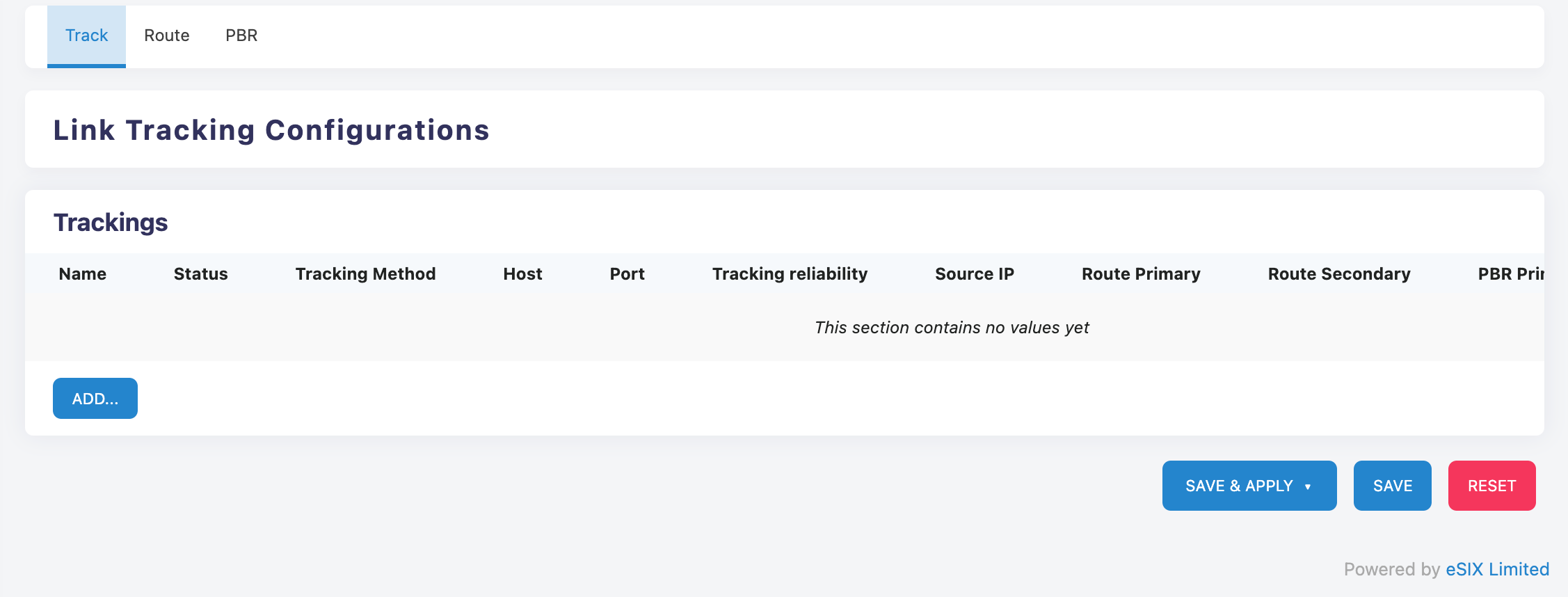
Click the "ADD" button at the bottom left of the item list or the "Edit" button to the right of any item in the item list, and the Track item edit form will appear on the page, as shown in the figure:
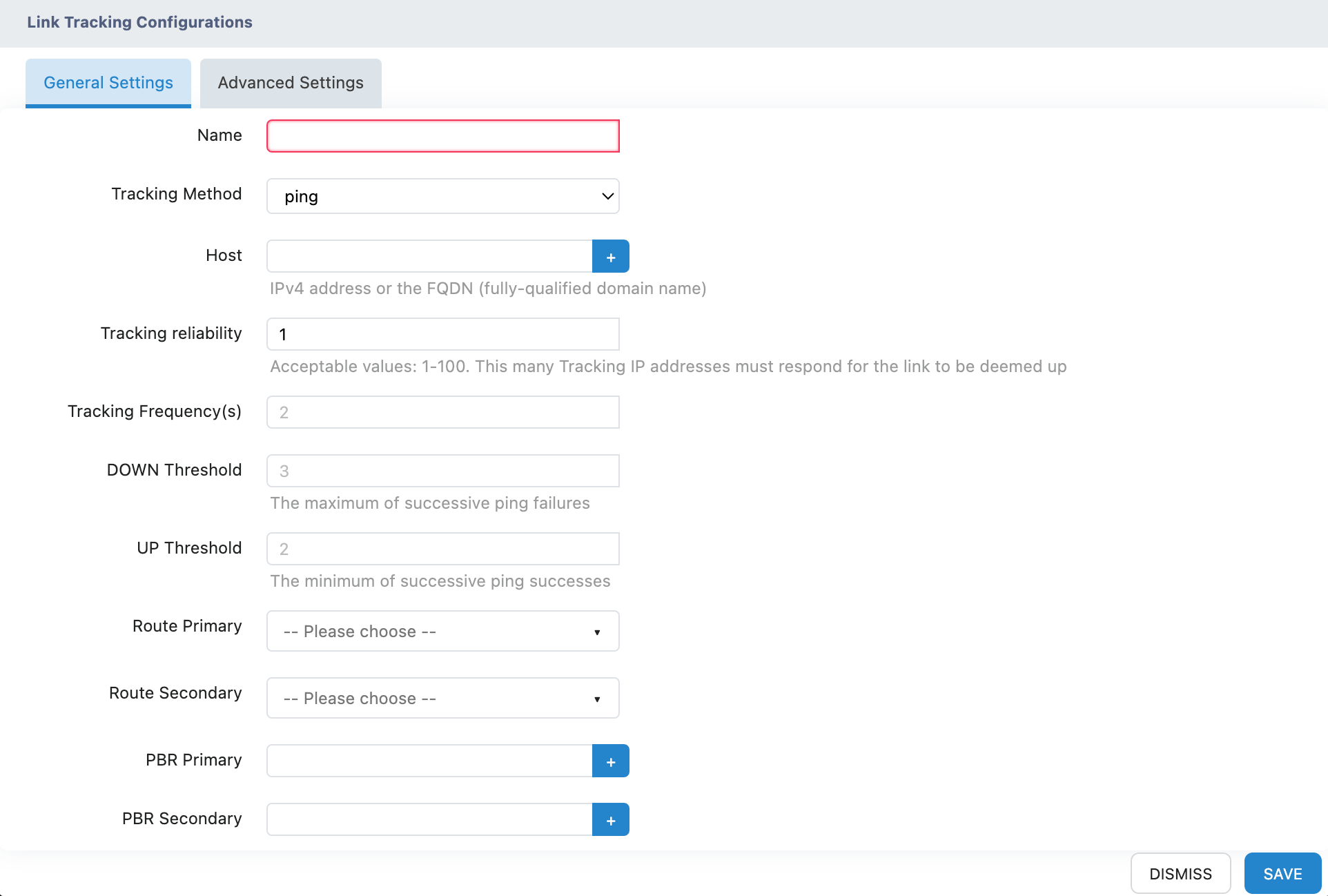
Track entries have two types, ping and nc, and the meanings of their configuration parameters are generally the same. The differences will be separately explained later.
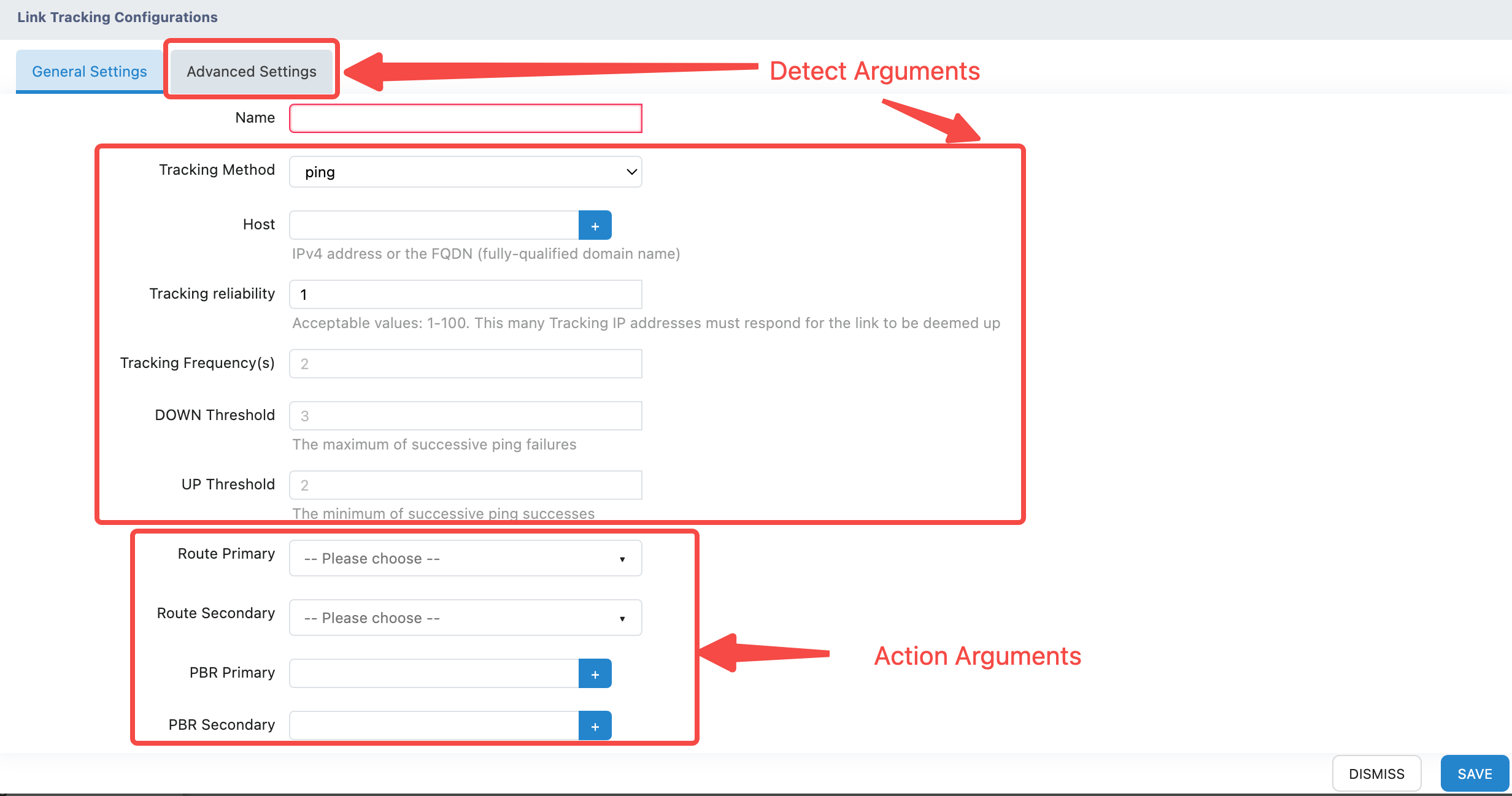
All fields in the Track entry edit form can be divided into two categories:
Detect arguments and Action arguments.
Detection parameters are used to specify the detection object, control the detection frequency, and define the conditions for link state switching.
Action parameters are used to specify pre-configured routes or pre-configured policies that take effect under different states of the link.
The detection parameters are:
   Tracking method,

   Host,

   Tracking reliability,

   Tracking frequency,

   Link Disconnection Judgment Threshold (DOWN threshold),

   Link Reachability Judgment Threshold (UP threshold)

    All parameters in the Advanced Settings
Action parameters include:
Primary Route (Route primary), Secondary Route (Route secondary), Primary Policy (PBR primary), Secondary Policy (PBR secondary)As shown in the figure:
2.2.1 Name
Used to identify a Track entry, do not duplicate the names of other Track entries.
2.2.2 Host
The host refers to the FQDN address of the detection target. Link Tracking supports detecting multiple targets. Click the plus sign on the right side of the host text box to add a new host address text box, as shown in the following figure:
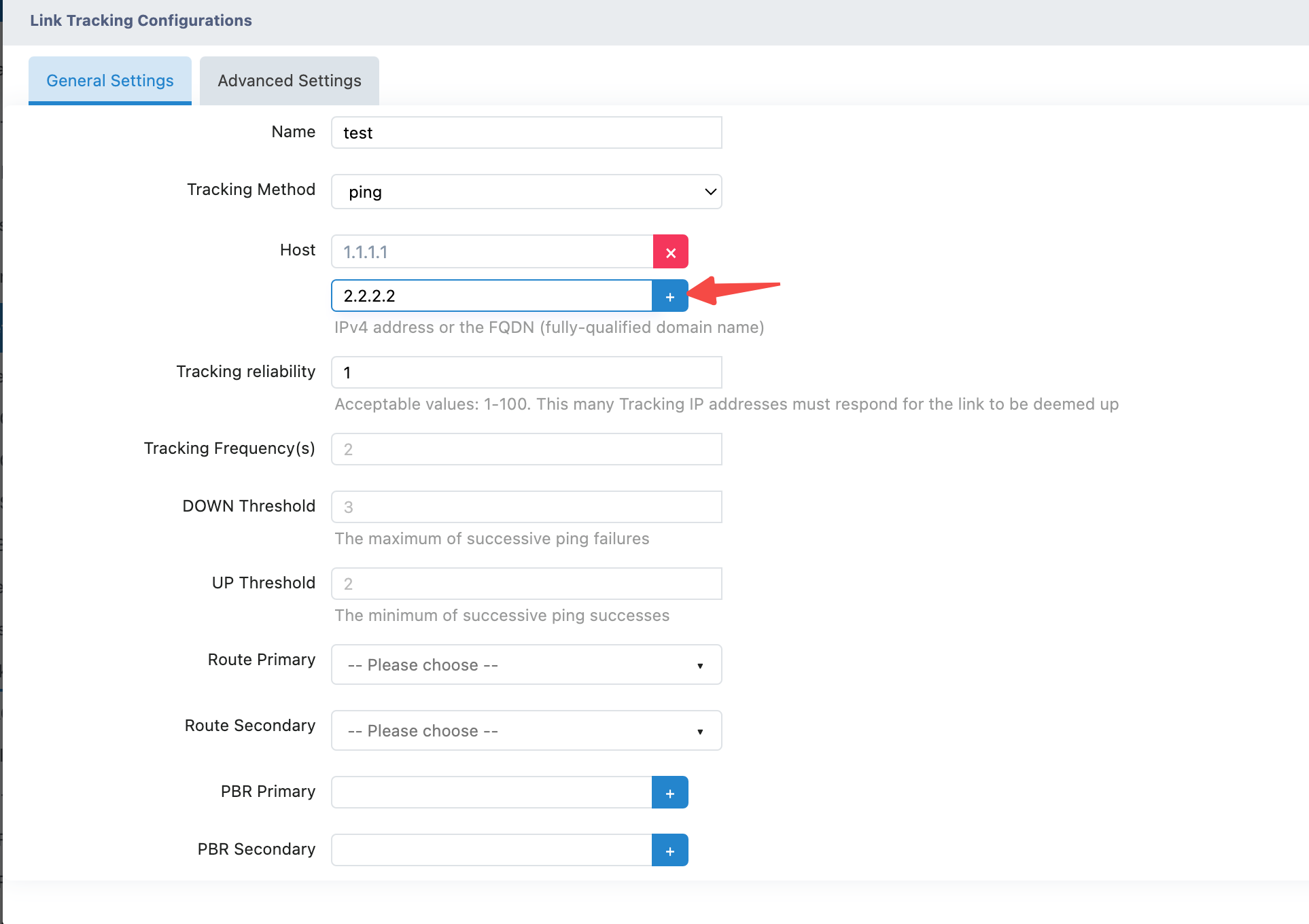
Link Tracking will check one by one according to the list of host addresses.
2.2.3 Tracking and Detection Methods
There are two detection methods: ping and nc.
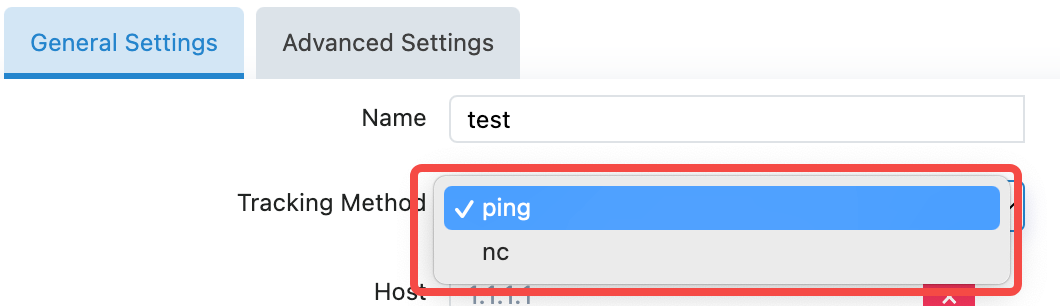
Under General Settings, when the detection method is nc, an additional "Port" field will appear in the form, indicating the TCP Port Number.
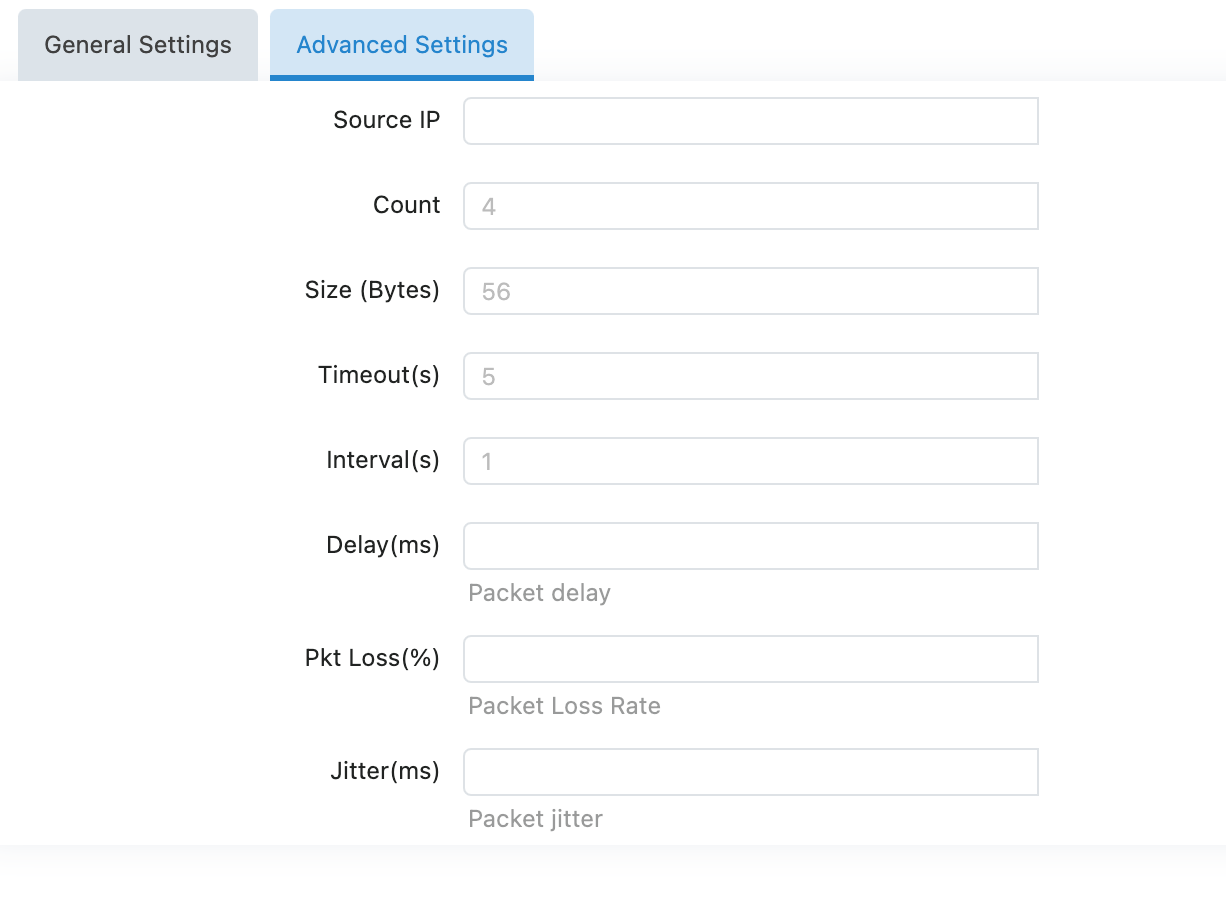
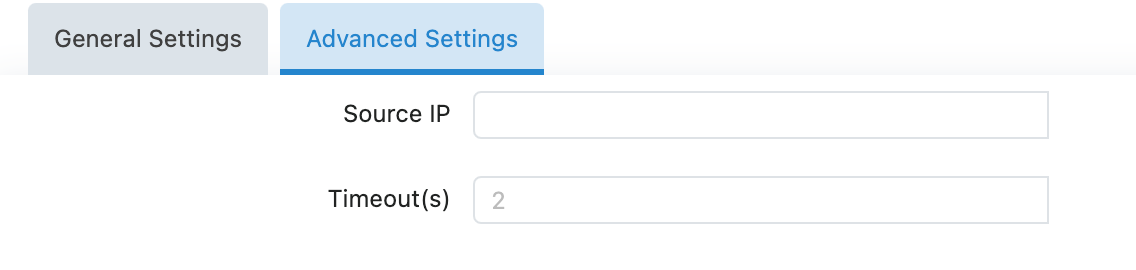
Under Advanced Settings, the parameters of the two are different, as shown in the figure: Ping advanced settings
Nc advanced settings
2.2.3.1 Advanced ping Settings
Source IP Address (Source IP): Specify the source IP for inspection, equivalent to the ping -I parameter.
Count: Specifies the number of ICMP request packets sent per check, equivalent to the ping -c parameter. The default value is 4.
Packet Size (Size): Specifies the payload length of the ICMP request packet, with a default of 56 ByteDance. Equivalent to the ping -s parameter.
Timeout: Specifies the timeout duration to wait for a response packet after sending an ICMP request packet, with the unit in seconds and a default value of 5. Equivalent to the ping -W parameter.
Interval: Specifies the interval for sending code packets of the released version of ICMP requests, with the unit in seconds and a default value of 1. Equivalent to the ping -i parameter.
Delay: Measured in milliseconds (ms), if a delay value is specified, when the average delay of ping detection exceeds this specified delay,
Then the result of this detection will be regarded as a link failure.Packet Loss: Packet loss, measured in percentage. If a packet loss rate is specified, when the packet loss rate detected by ping is greater than the specified value,
Then the result of this test will be considered as a failure.Jitter: Measured in milliseconds. If a jitter value is specified, when the jitter value in the ping test result is greater than this specified value,
Then the result of this test will be considered as a failure. Note that the name of the jitter value in the ping results of different systems or different versions may

No, it's usually jitter or mdev.
2.2.3.2 nc Advanced Settings
Source IP: Specifies the source IP used when nc initiates a port handshake test, equivalent to the nc -s parameter.
Timeout: Specifies the waiting time for each nc port handshake test, with the unit in seconds and a default value of 2. Equivalent to the nc -w parameter.
2.2.4 Port Number
Specify the destination port for the port handshake test performed by Link Tracking. If multiple host addresses are specified in the configuration, by default, Link Tracking uses the port number specified in the "Port" field to detect all host addresses.
As shown in the example in the figure:
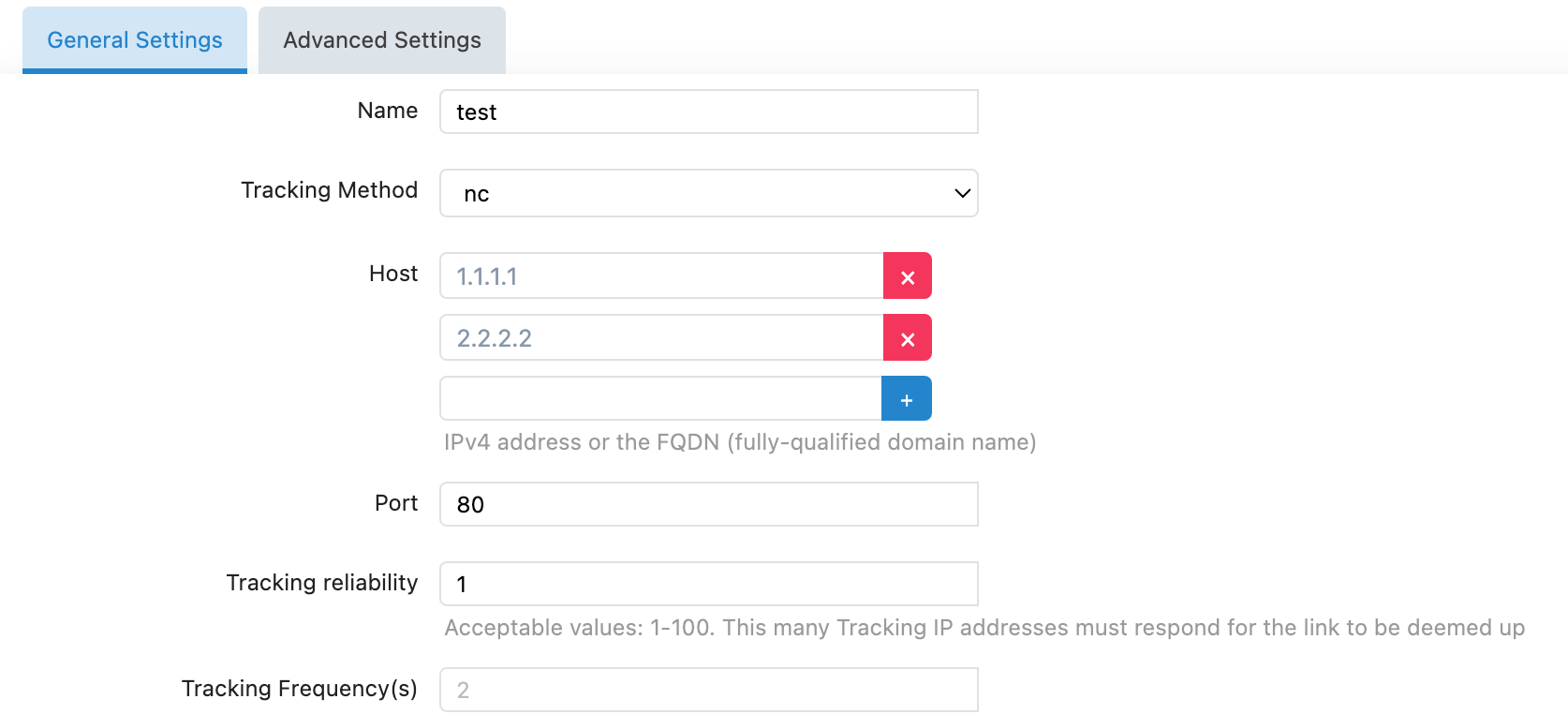
Link Tracking will perform port handshake tests on 1.1.1.1:80 and 2.2.2.2:80 one by one during runtime.
If you need to perform a handshake test on different port numbers at different host addresses, you can fill in the host address in the format IP:PORT, and Link Tracking will preferentially use the port number specified in the host address.
As shown in the example in the figure:
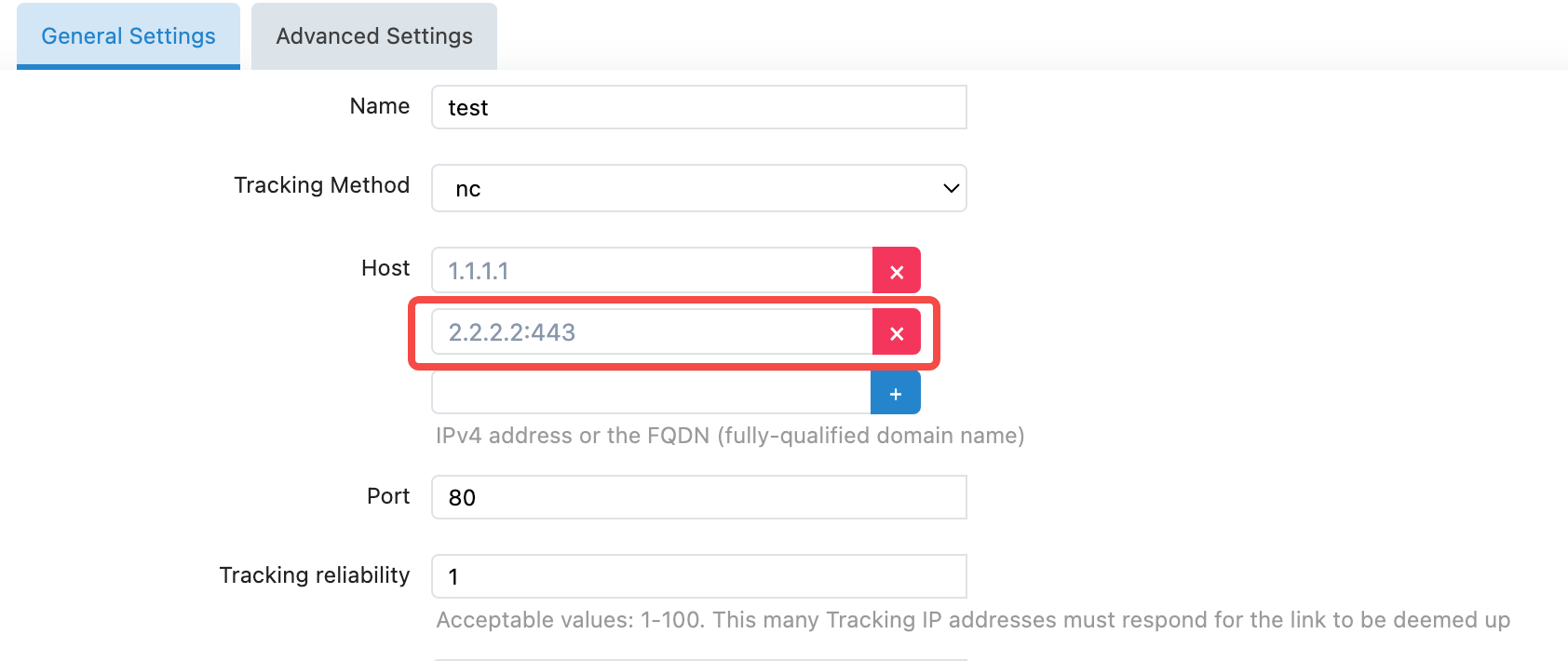
Link Tracking will perform port handshake tests on 1.1.1.1:80 and 2.2.2.2:443 one by one.
2.2.5 Tracking Reliability
Tracking reliability is used to specify the minimum number of objects that pass the detection in each detection, with a default value of 1.
When multiple detection objects (host addresses) are configured, Link Tracking determines whether the current detection is successful (pass) based on the number of objects with accessible links during the detection process.
As shown in the example in the figure:
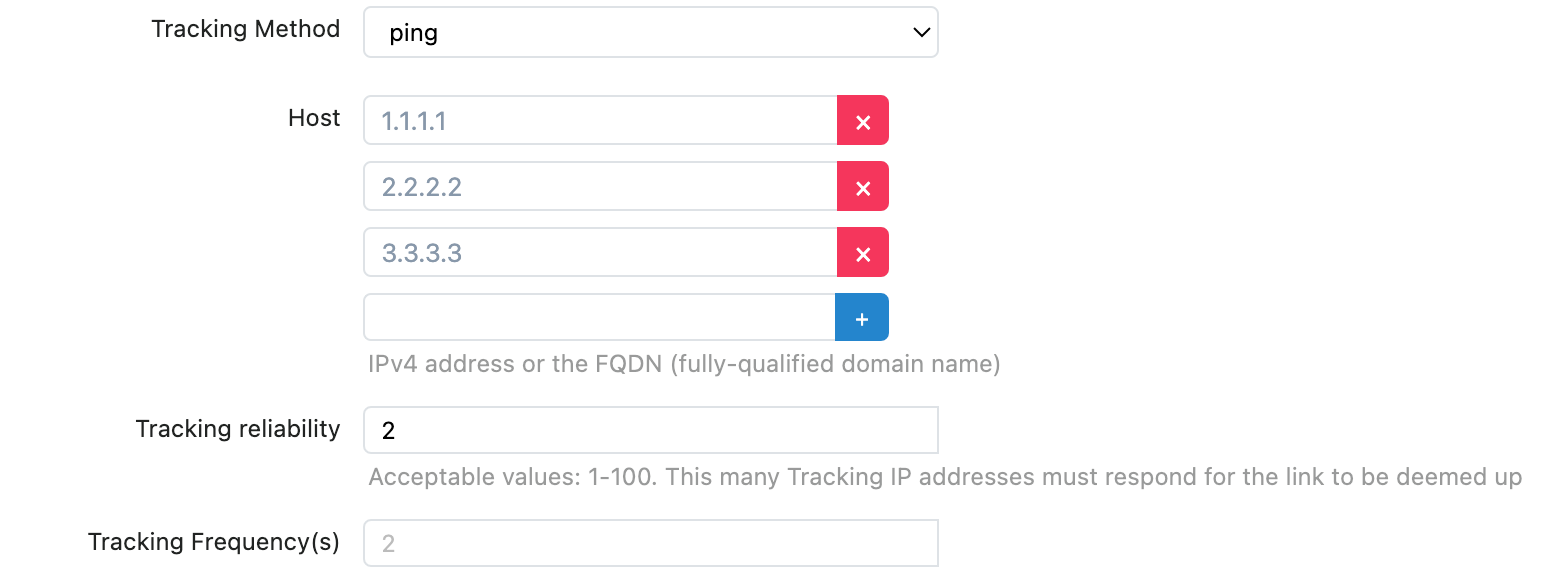
The value of tracking reliability is 2. During each detection process of Link Tracking, if the ping/nc tests of 1.1.1.1 and 2.2.2.2 pass (the link is reachable), the current detection will end and be considered passed; otherwise, the ping/nc test on 3.3.3.3 will continue. If only one of these three detection targets passes the ping/nc test and fails to reach the specified tracking reliability value, the current detection will be considered failed.
2.2.6 Detection Frequency
Tracking Frequency is used to specify the time interval from the end of each detection until the start of the next detection, with the unit in seconds and a default value of 2.
2.2.7 UP/DOWN Threshold
The Link Up Threshold and Link Down Threshold are used to specify the number of consecutive successful/failed detections required to change the status of this Track entry to UP/DOWN.
The default value of the link reachability threshold is 2. When the status of the current Track entry is DOWN and two consecutive detections pass, the status of the current Track entry will be changed to UP, and the primary route (Route Primary) and primary policy (PBR Primary) will take effect, while the secondary route (Route Primary) and secondary policy (PBR Primary) will become invalid.
The default value of the link disconnection threshold is 3. When the status of this Track entry is UP and two consecutive checks fail, the status of this Track entry will be changed to DOWN, and the secondary route (Route Primary) and secondary policy (PBR Primary) will take effect, while the primary route (Route Primary) and primary policy (PBR Primary) will become invalid.
2.2.8 First (Initial) Selection Routing (Policy)
The four configuration items, namely preferred route, preferred policy, secondary route, and secondary policy, are all dropdown lists, which can reference the pre-configured entries added in the route tab and policy tab by entry name.
3. Application Examples
The example topology is as follows:
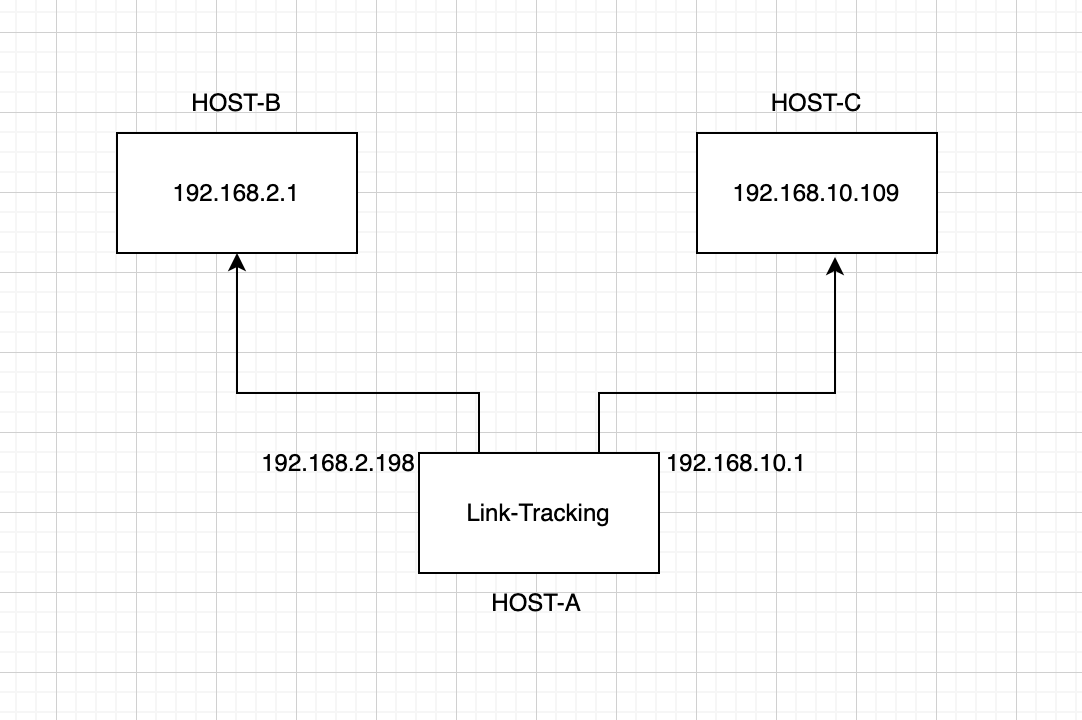
HOST-A is the host where the Link Tracking service resides, connected to HOST-B and HOST-C. The IP Address of each device is shown in the figure.
First, add the required pre-configured entries in the Routing tab and Policy tab.
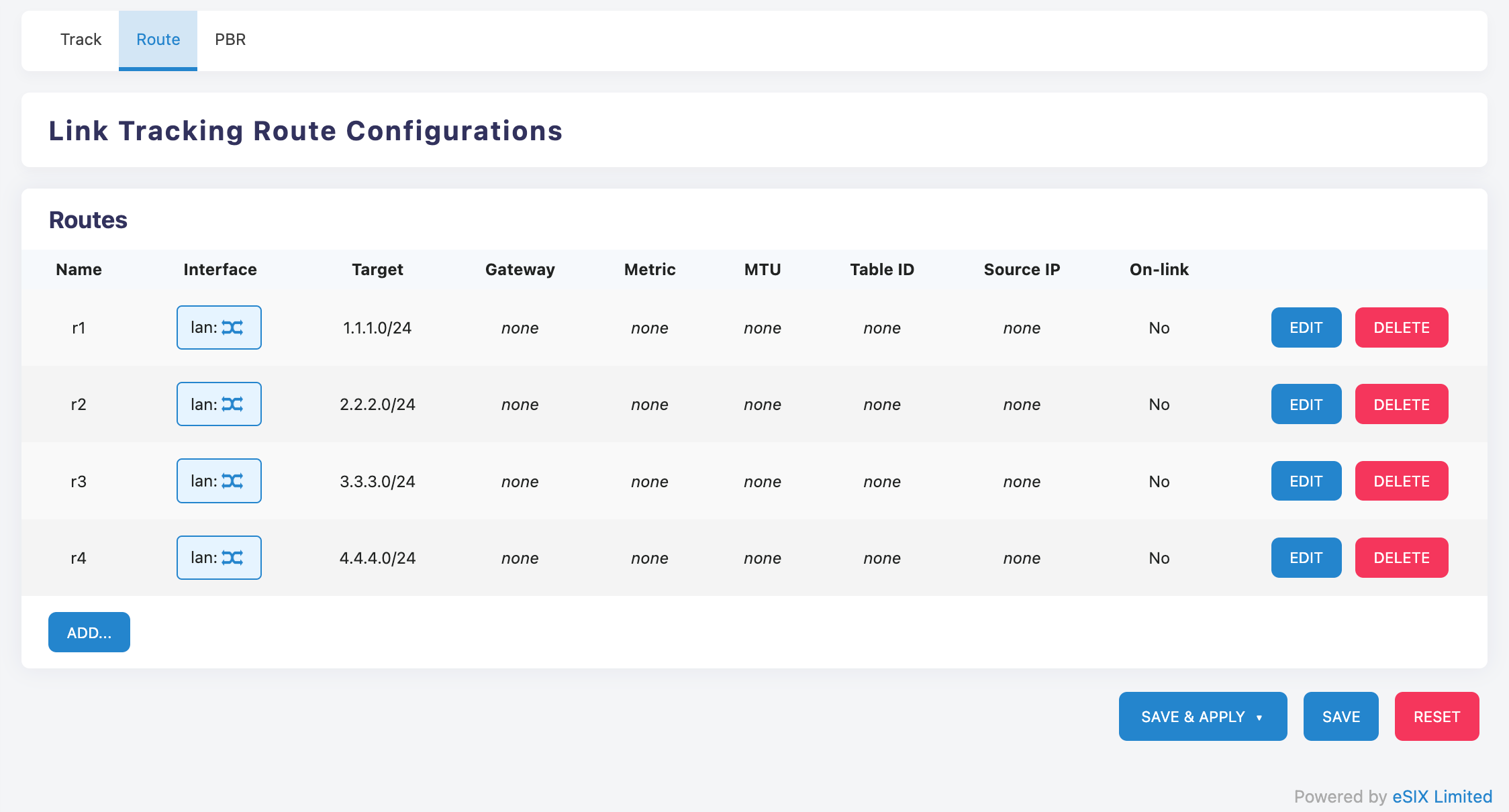
Add r1 - r4 in the routing tab, corresponding to the routes of the four network segments 1.1.1.0/24 - 4.4.4.0/24 respectively, as shown in the following figure:
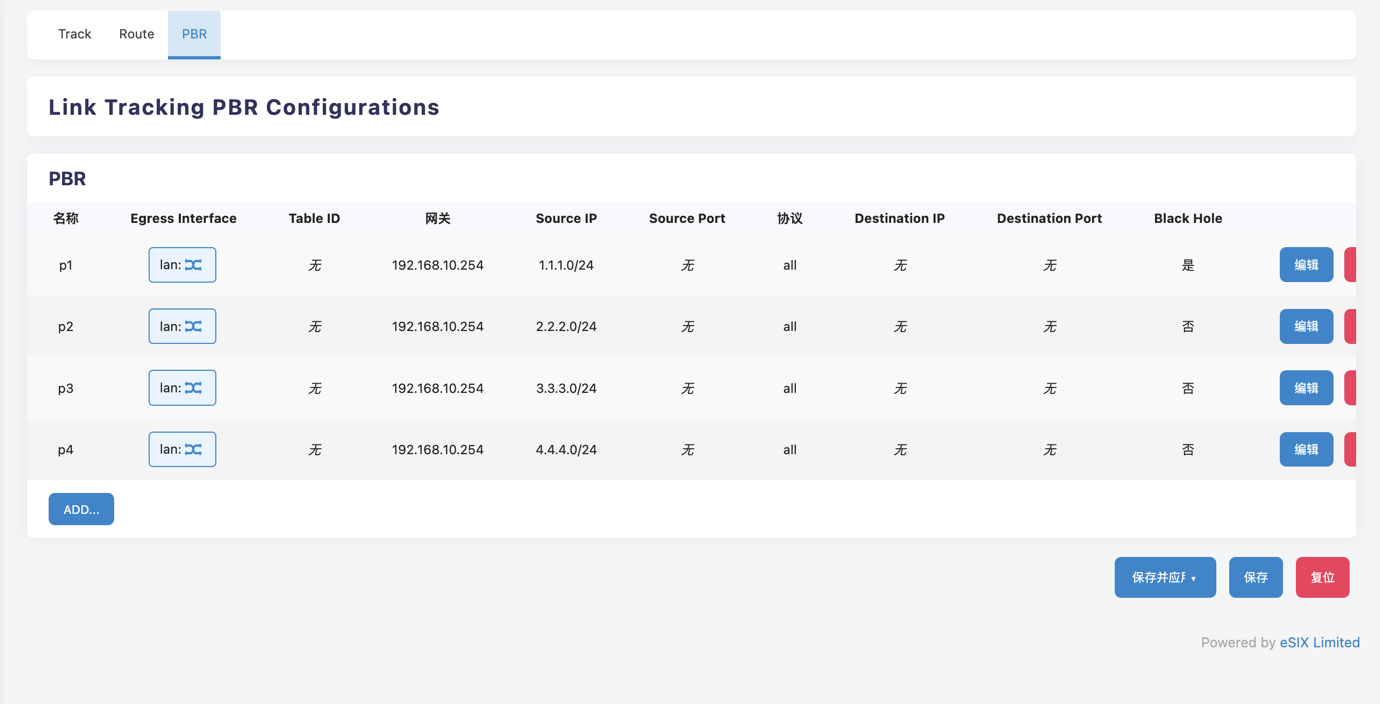
Add p1 - p4 in the Policy tab, corresponding to the routing policies of 1.1.1.0/24 - 4.4.4.40/24 respectively, as shown in the following figure:
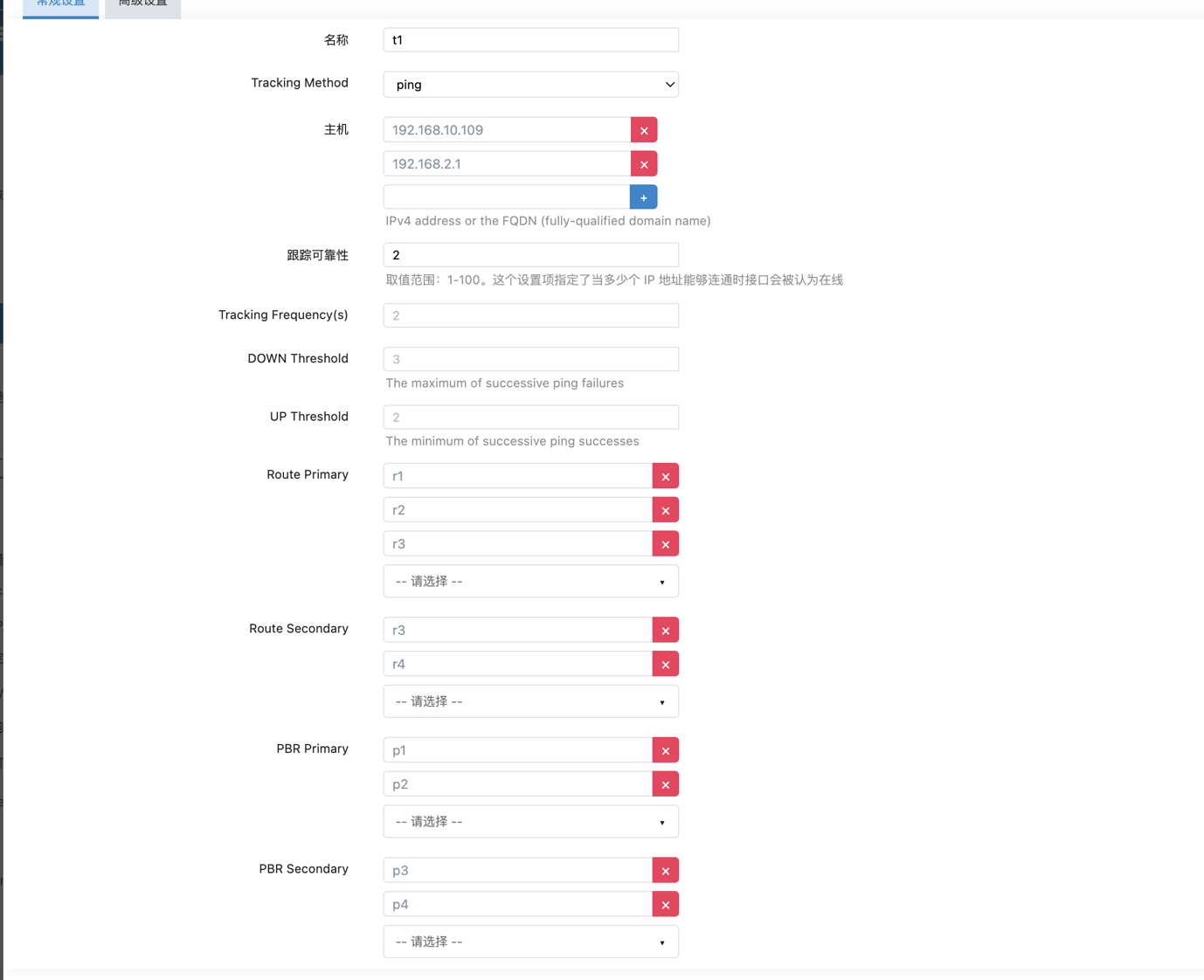
Switch to the Track tab, add a new tracking entry t1. The detection type is ping.
The IP Addresses of the detected host addresses HOST-B and HOST-C are 192.168.10.109 and 192.168.2.1.
Tracking reliability is configured to 2, and the remaining parameters use default values.
The primary routing entry references r1, r2, r3. The secondary routing entry references r3, r4.
The primary policy item references p1, p2. The secondary policy item references p3, p4.
As shown in the figure below:
Configuration is complete. Click the bottom button in the lower right corner "Save and Apply".
The initial state of the Track entry is UNKNOWN, and in this state, all referenced routing/policy entries will not take effect.
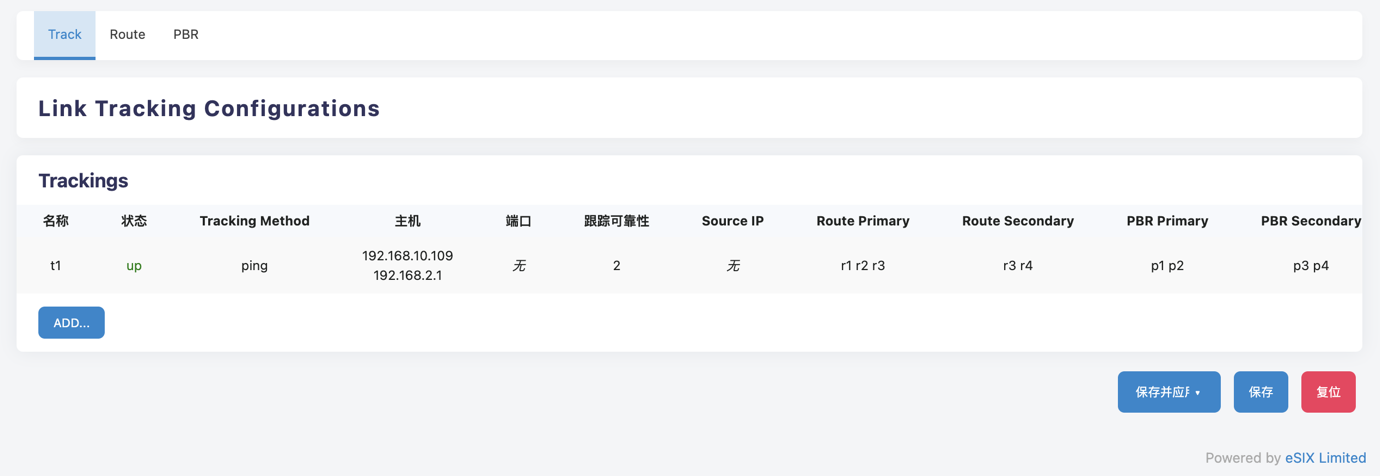
After Link Tracking passes two consecutive detections, it will change the t1 state to UP and activate the preferred route and preferred policy, as shown in the figure below:
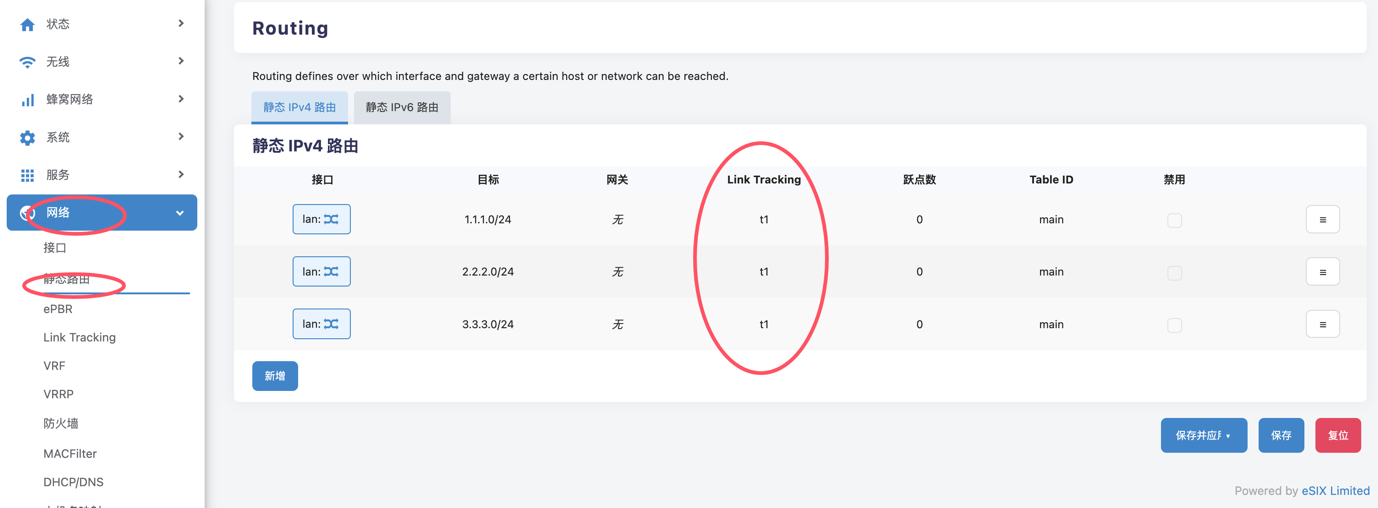
After the preferred routing entry and preferred policy entry take effect, the corresponding configuration items can be found on the static routing and eBPR configuration page.
Click "Network" -> "Static Routes" in the left sidebar menu, and you can see the active t1 preferred route entries (r1, r2, r3), as shown in the figure:
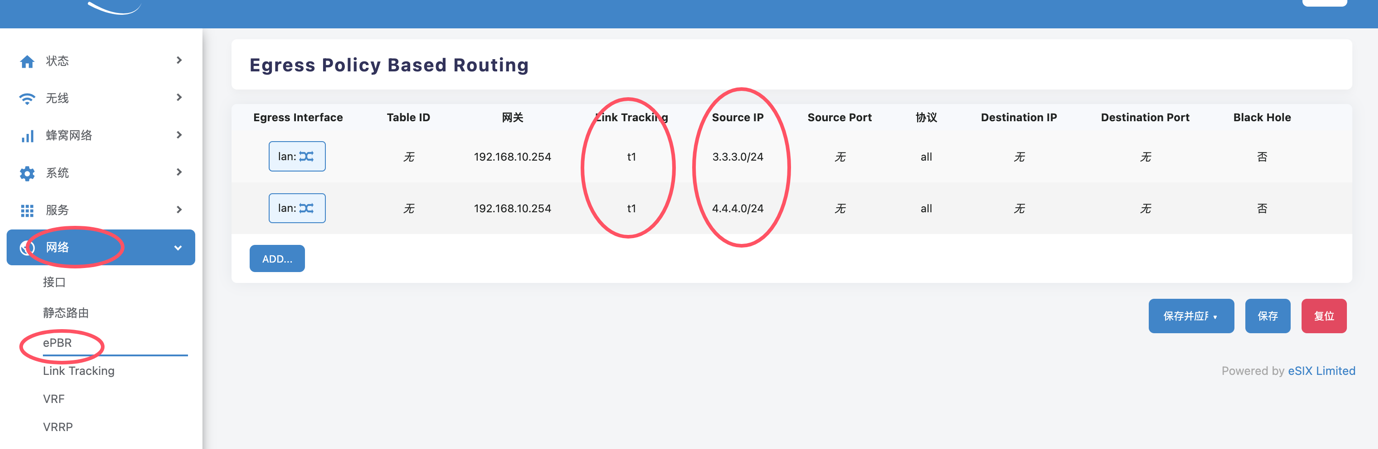
Click "Network" -> "ePBR" in the left sidebar menu, and you will see the effective t1 preferred policy items (p1, p2), as shown in the figure:
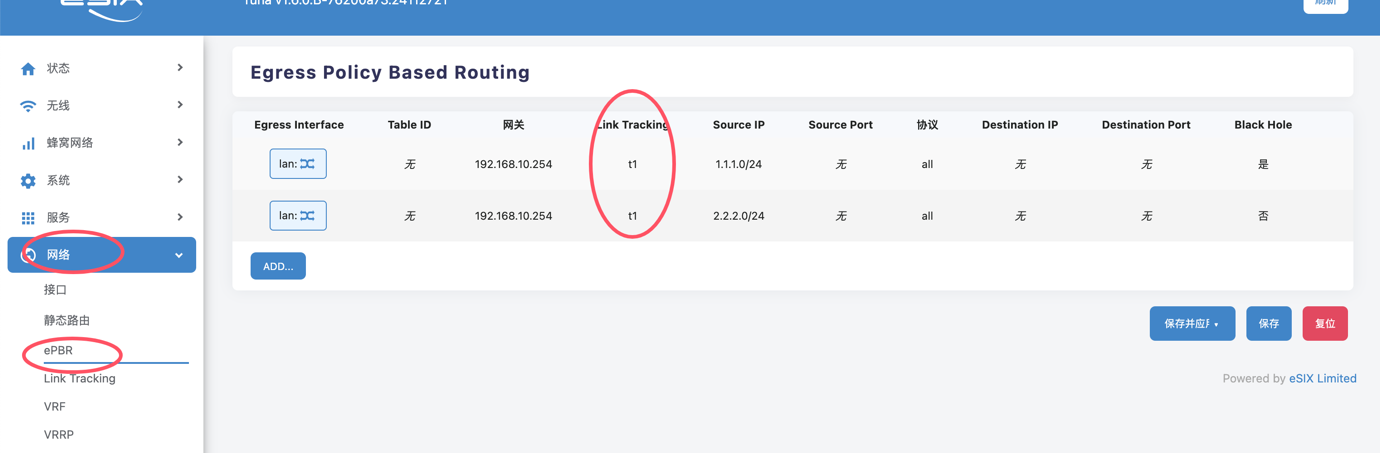
Next, unplug the network cable connecting HOST-A to HOST-B, so that HOST-A cannot ping HOST-B.
Since the configured tracking reliability value is 2, even if HOST-A can ping HOST-C, because the number of objects that pass the detection is less than 2, after 3 consecutive detections (DOWN Threshold), the t1 state changes to DOWN. At this time, the primary route and primary policy become invalid, while the secondary route and secondary policy take effect.
The state of t1 is shown in the figure below:
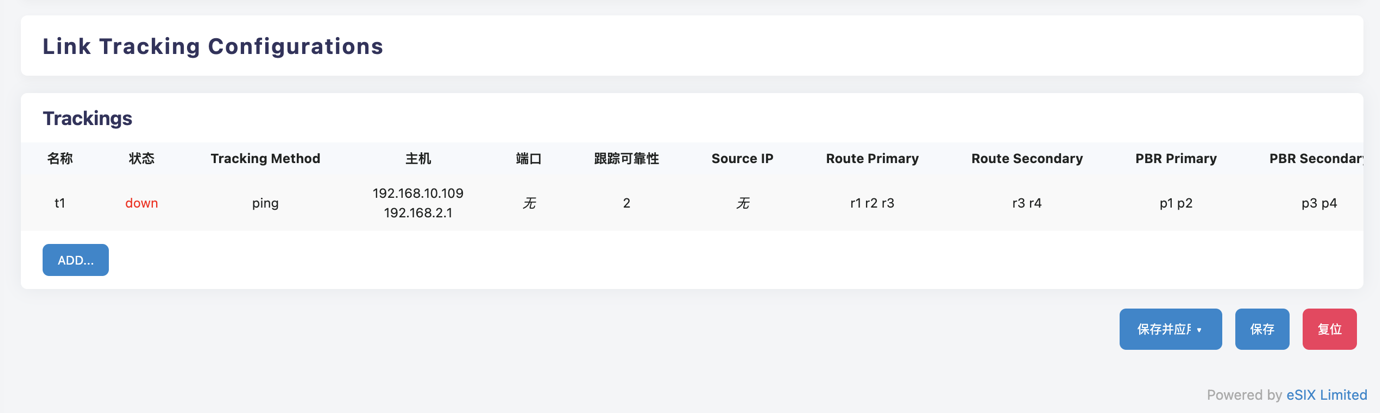
Click on "Network" -> "Static Routes" in the left sidebar menu, and you will see that the effective routing entries have changed to r3 and r4 referenced in the secondary route in t1, as shown in the figure:
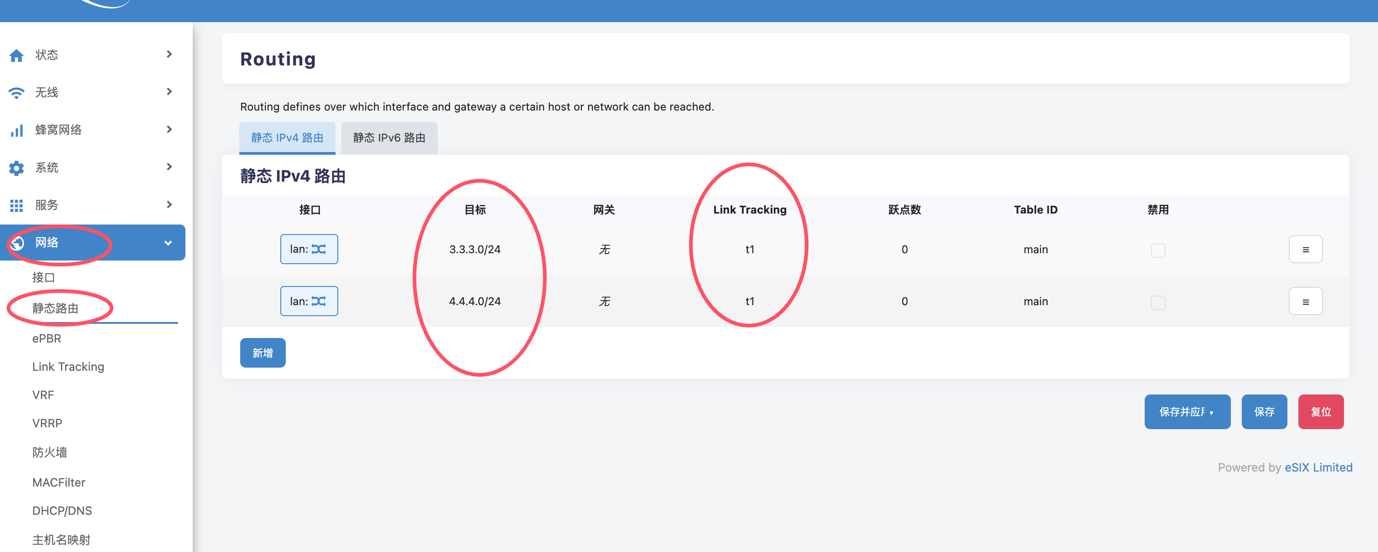
Click "Network" -> "ePBR" in the left sidebar menu, and you will see that the effective policy items have changed to p3 and p4 referenced in the secondary selection policy of t1, as shown in the following figure: