Introduction
eBrain is a cloud-based centralized management platform , is used for deploying and maintaining eBridge and Xatellite series devices, a reliable, uninterrupted, and secure network management solution .
Configuration steps
Login
Enter the eBrain management page in the browser
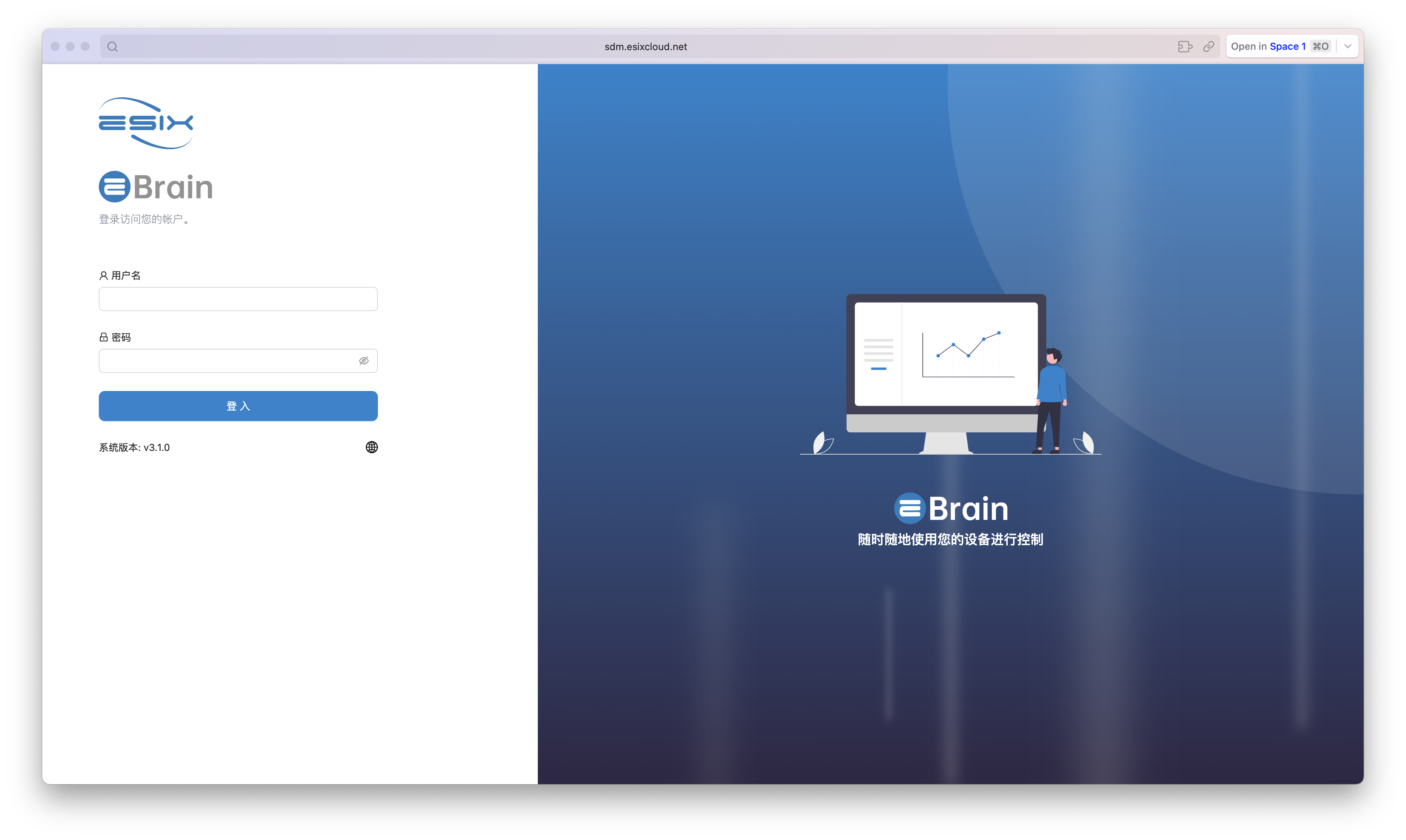
Enter your username and password to log in to the system (default: username: admin / password: eSix*()890)
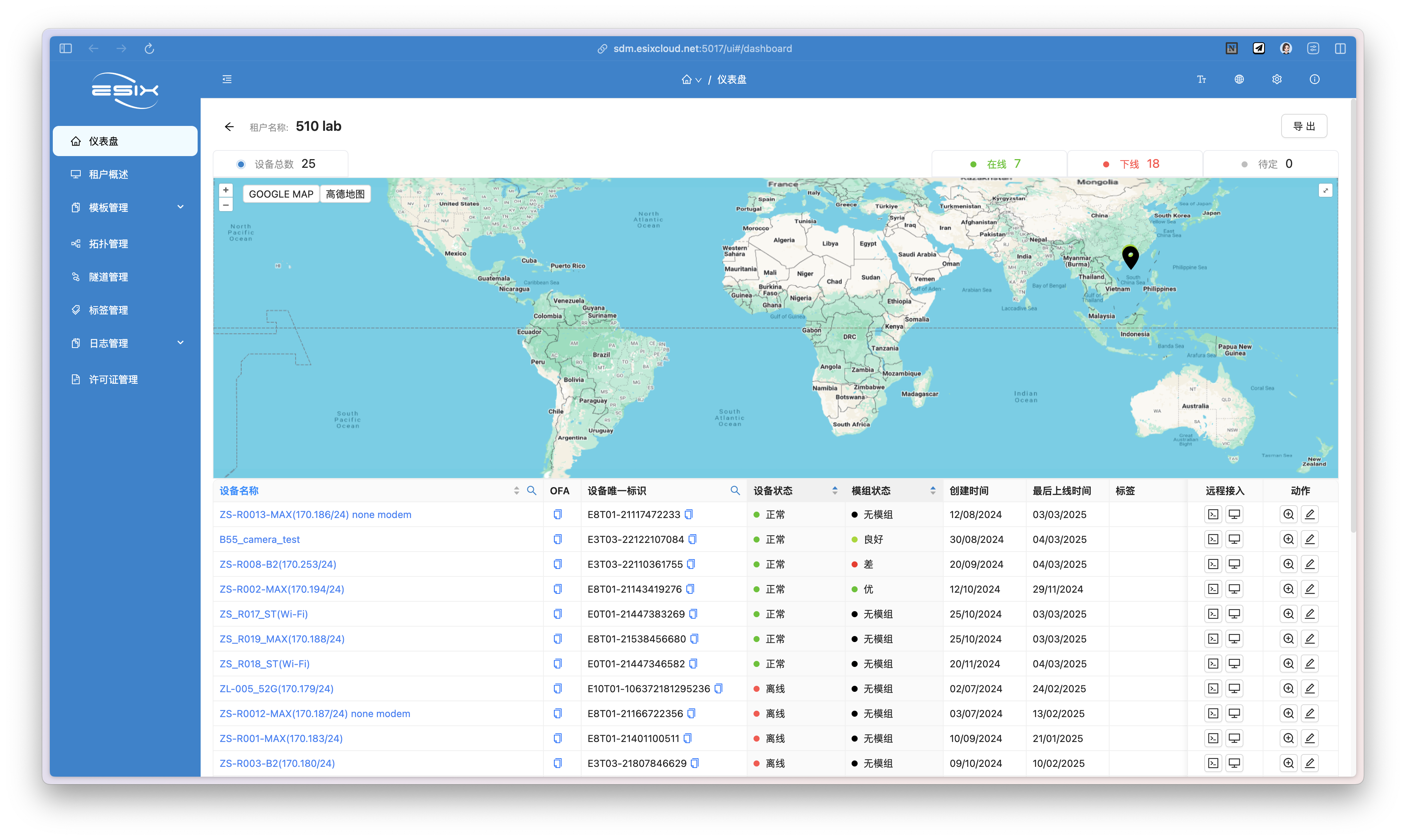
If the user is a platform administrator, they can see all tenants on the 'Dashboard' page.
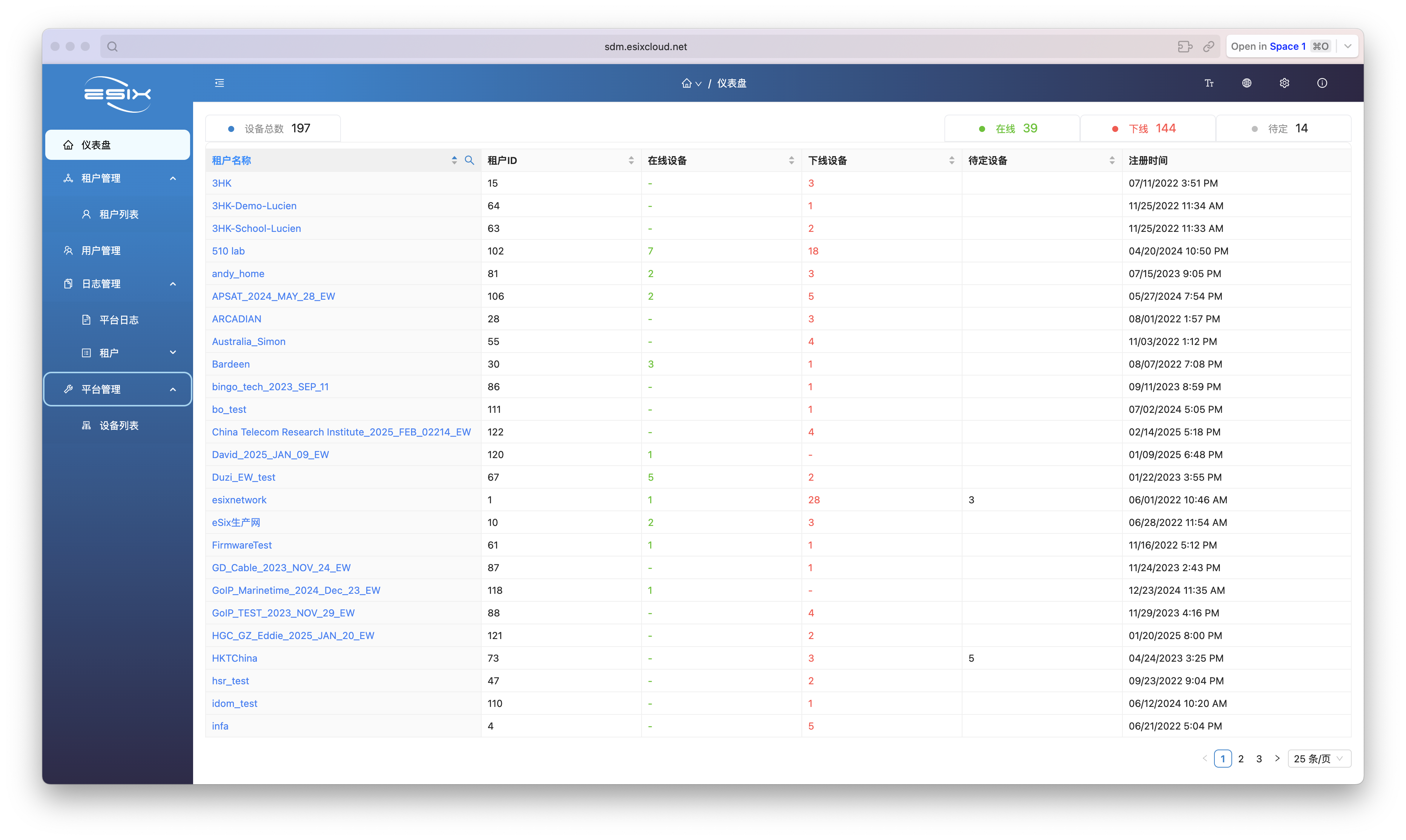
If the user belongs to a tenant's ordinary user, they can only see the devices under that tenant.
Add Tenant
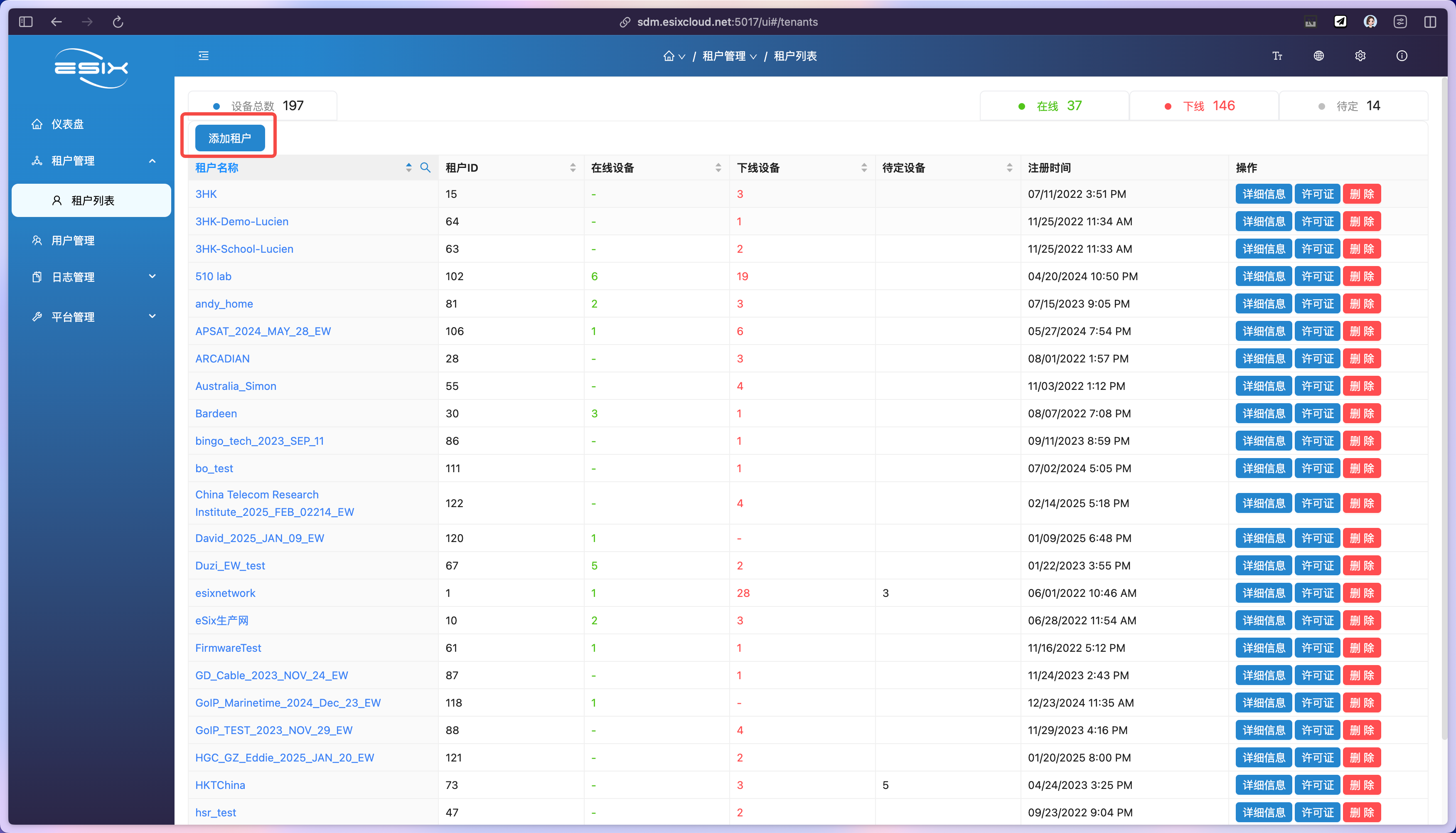
Tenants can be added on the platform administrator's page.
Enter 'Tenant Management > Tenant List' and click 'Add Tenant'
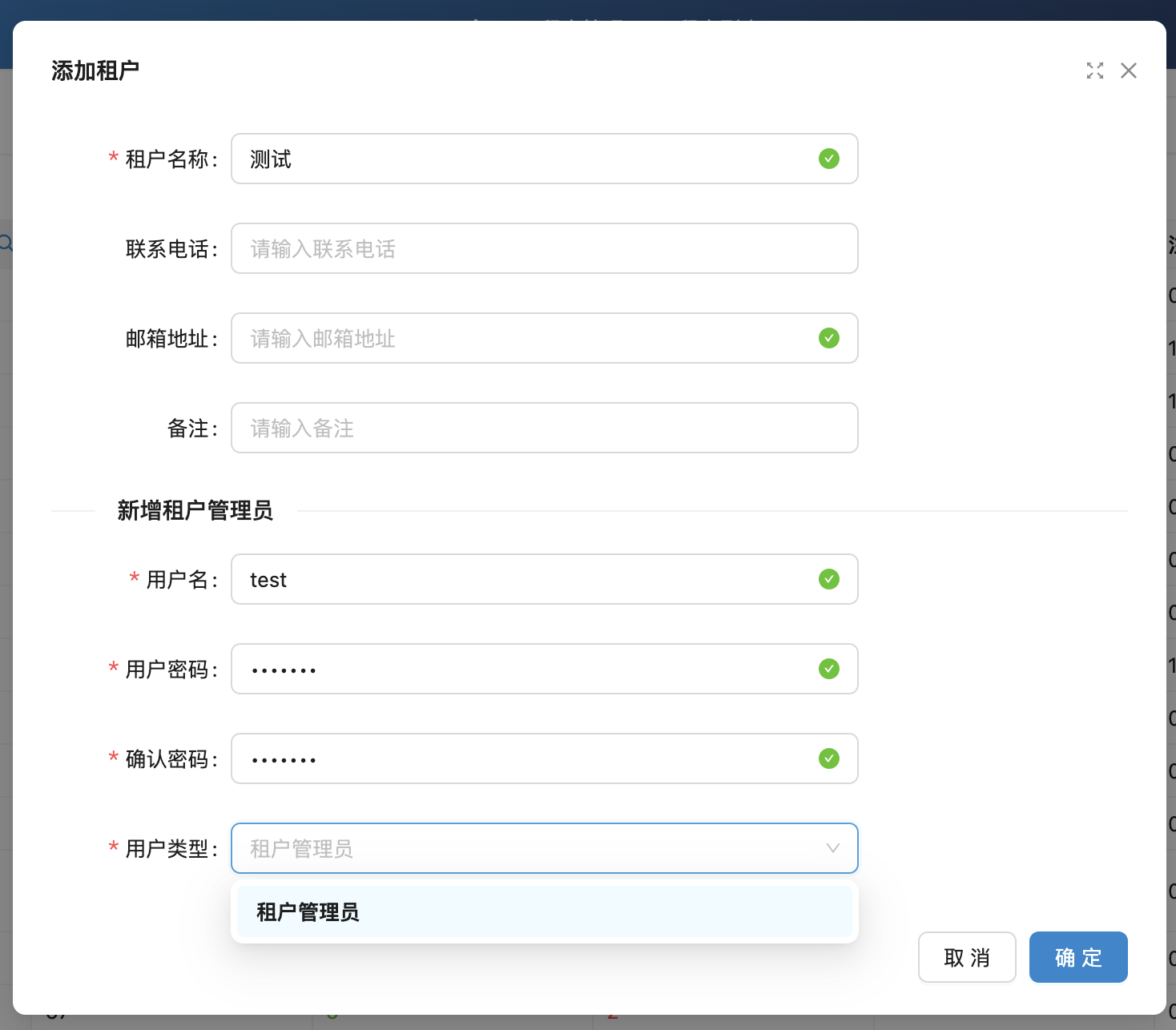
After filling in the information, click 'Confirm' to add a tenant. Subsequently, you can directly log in and manage the tenant using the newly added tenant administrator username.
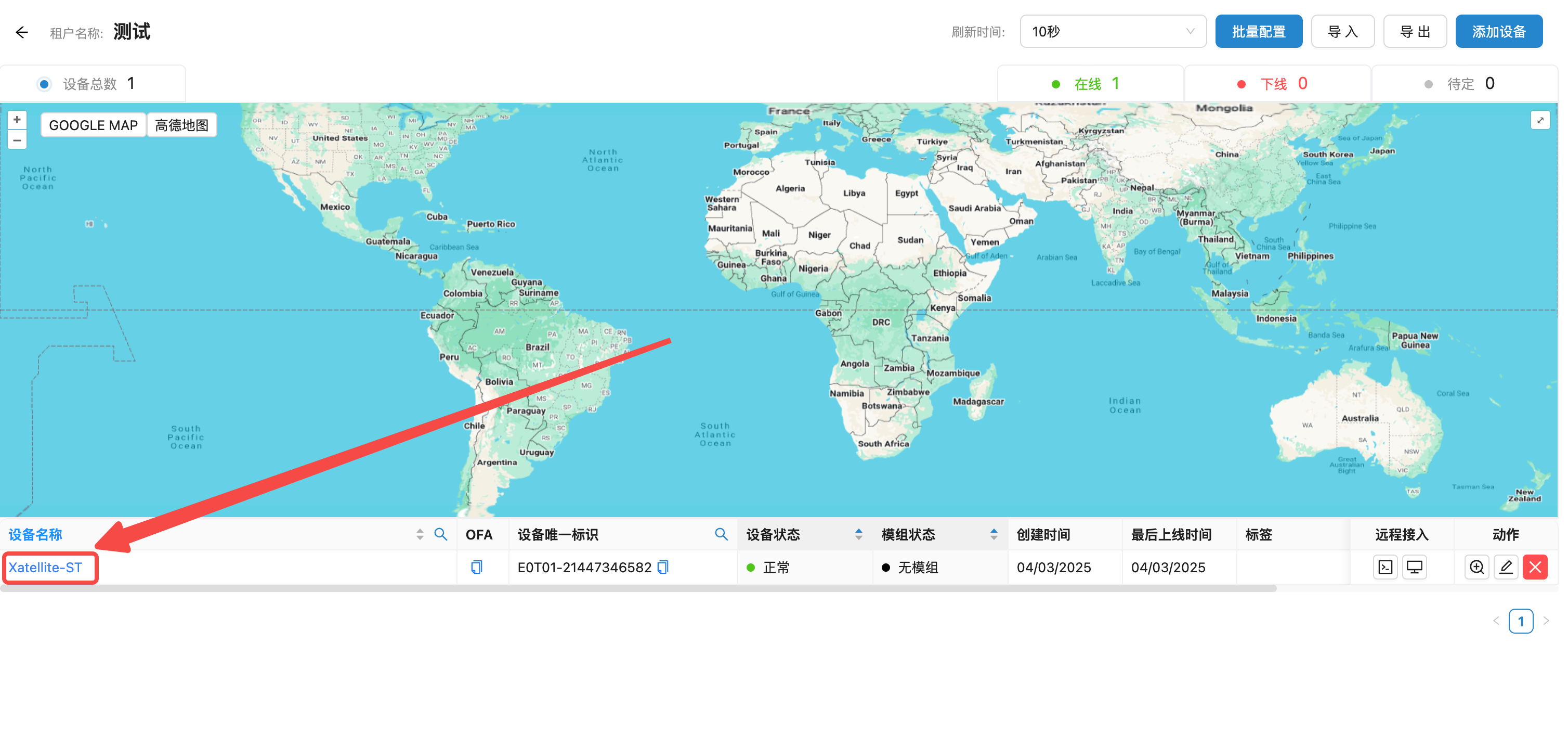
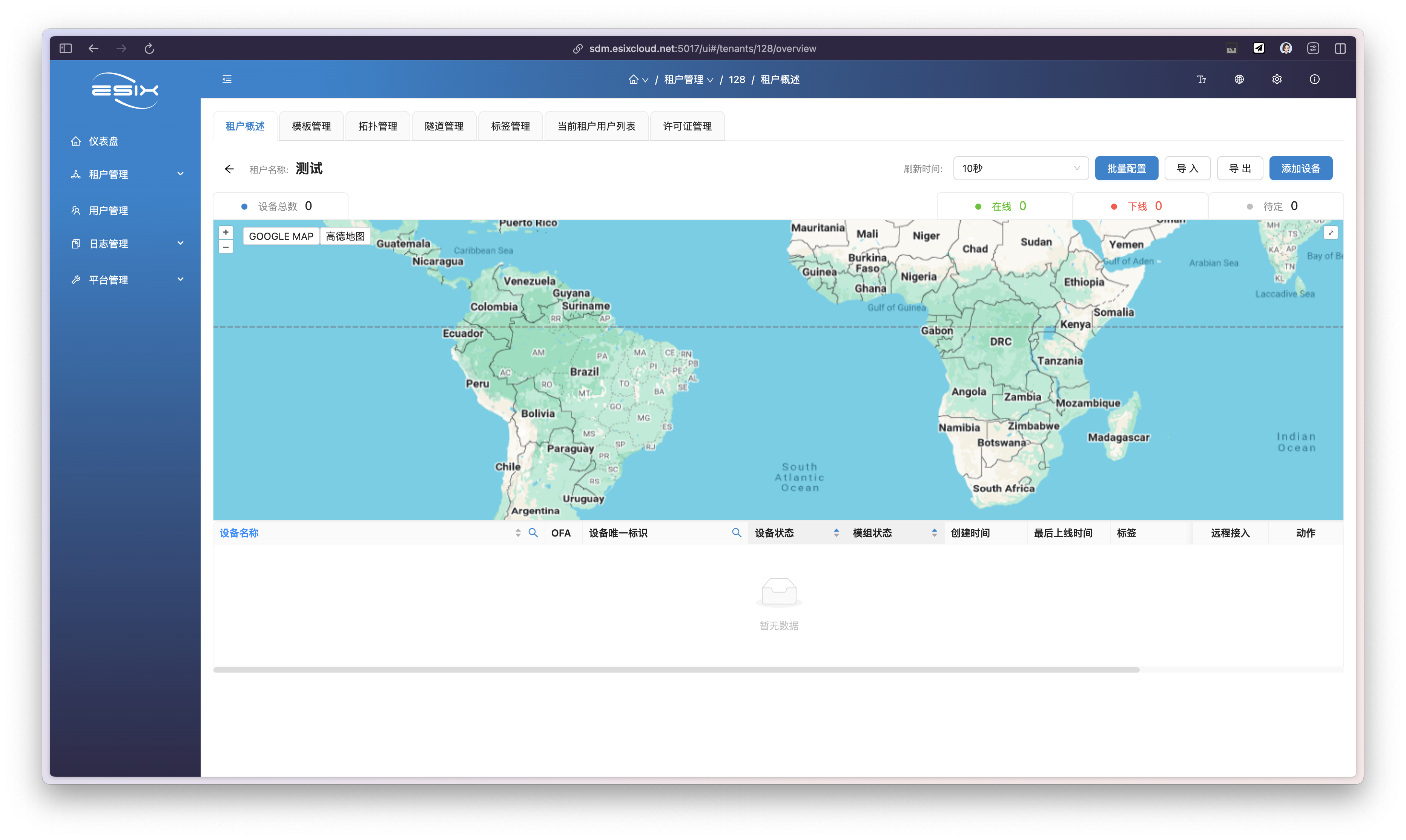
Click on the tenant name to enter the tenant's Facility Management page.
Add Device
Click 'Add Device' on the Tenant Management page
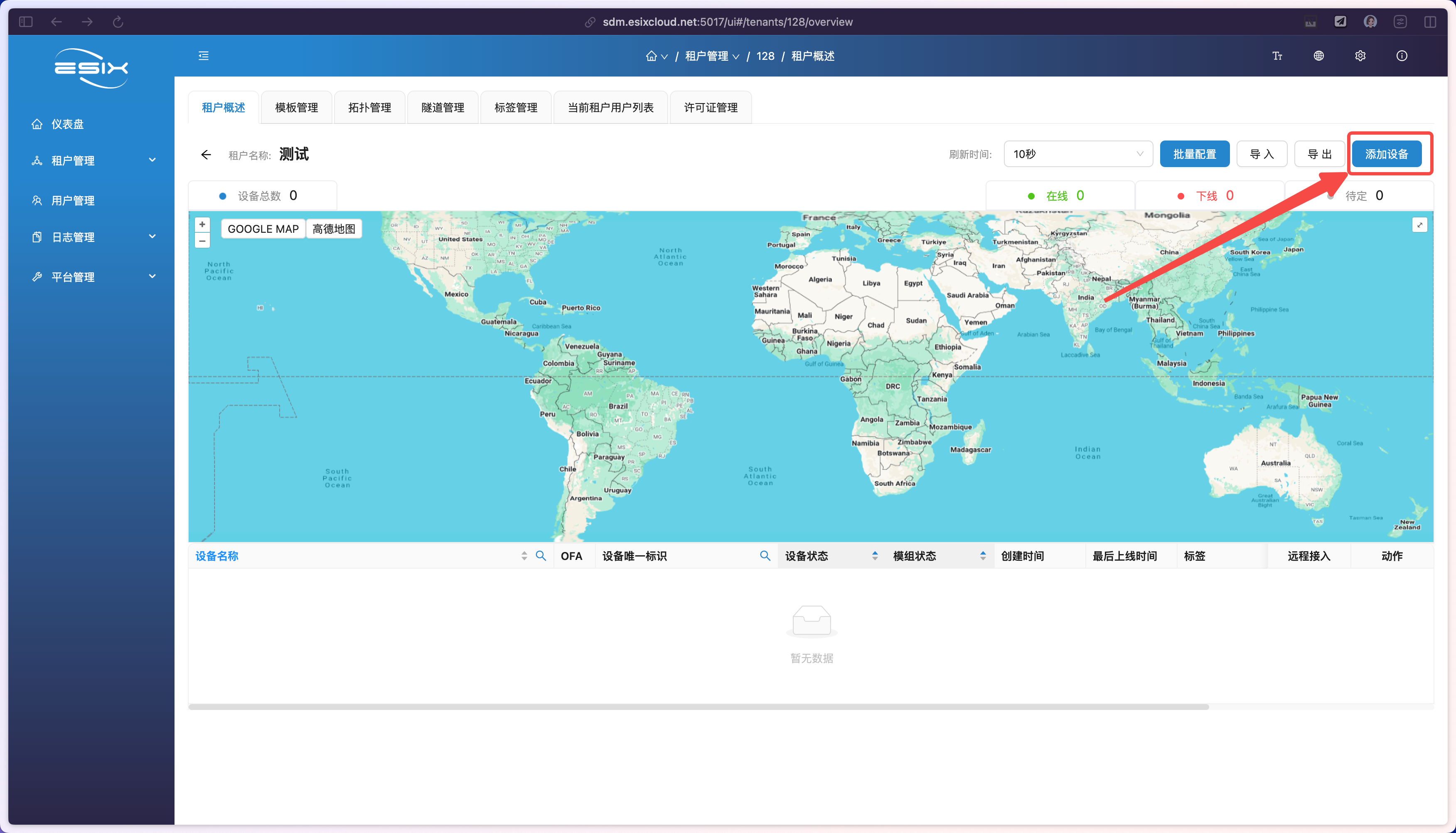
Simply fill in the device name and the device's unique identifier to add a device.
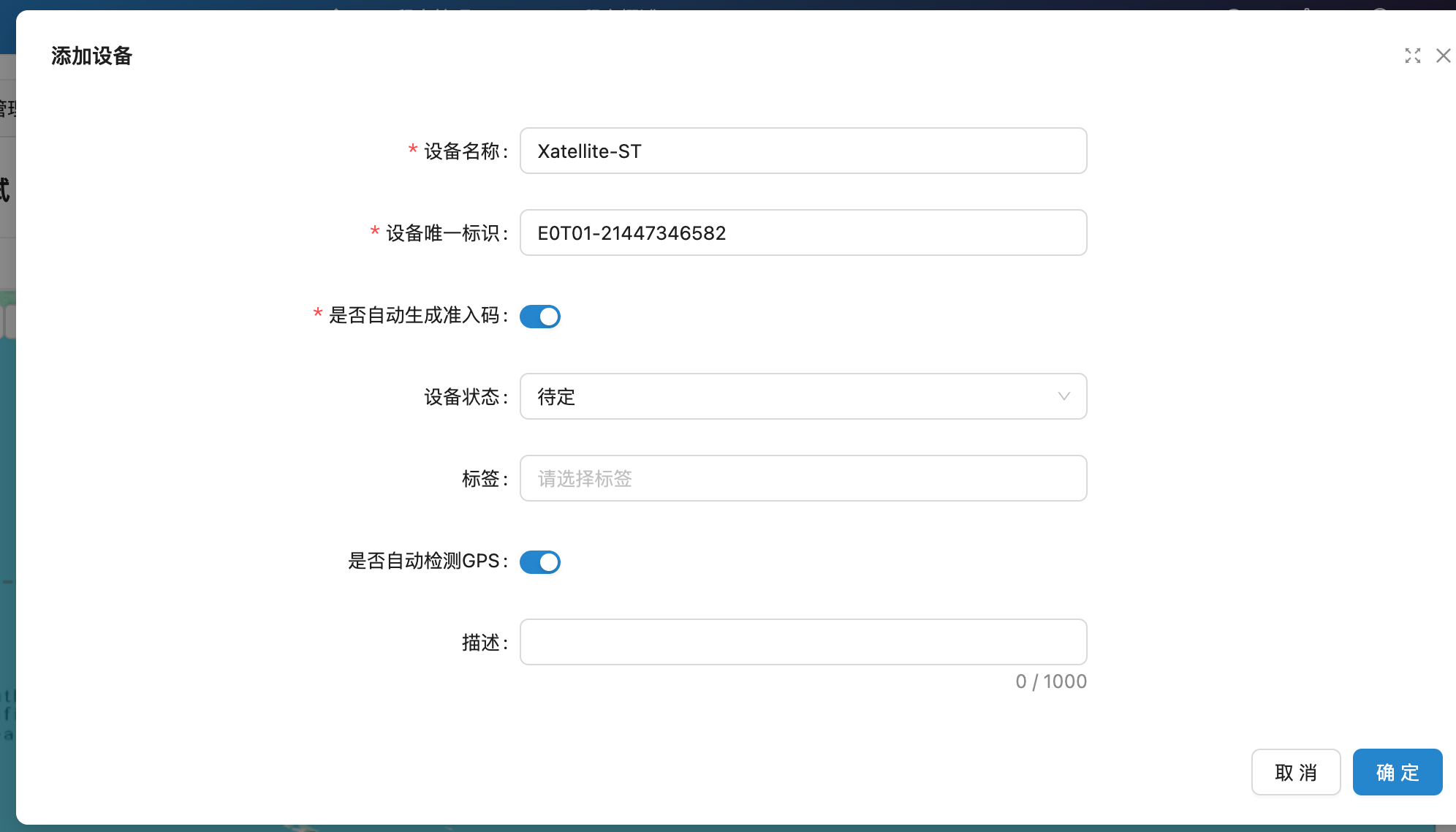
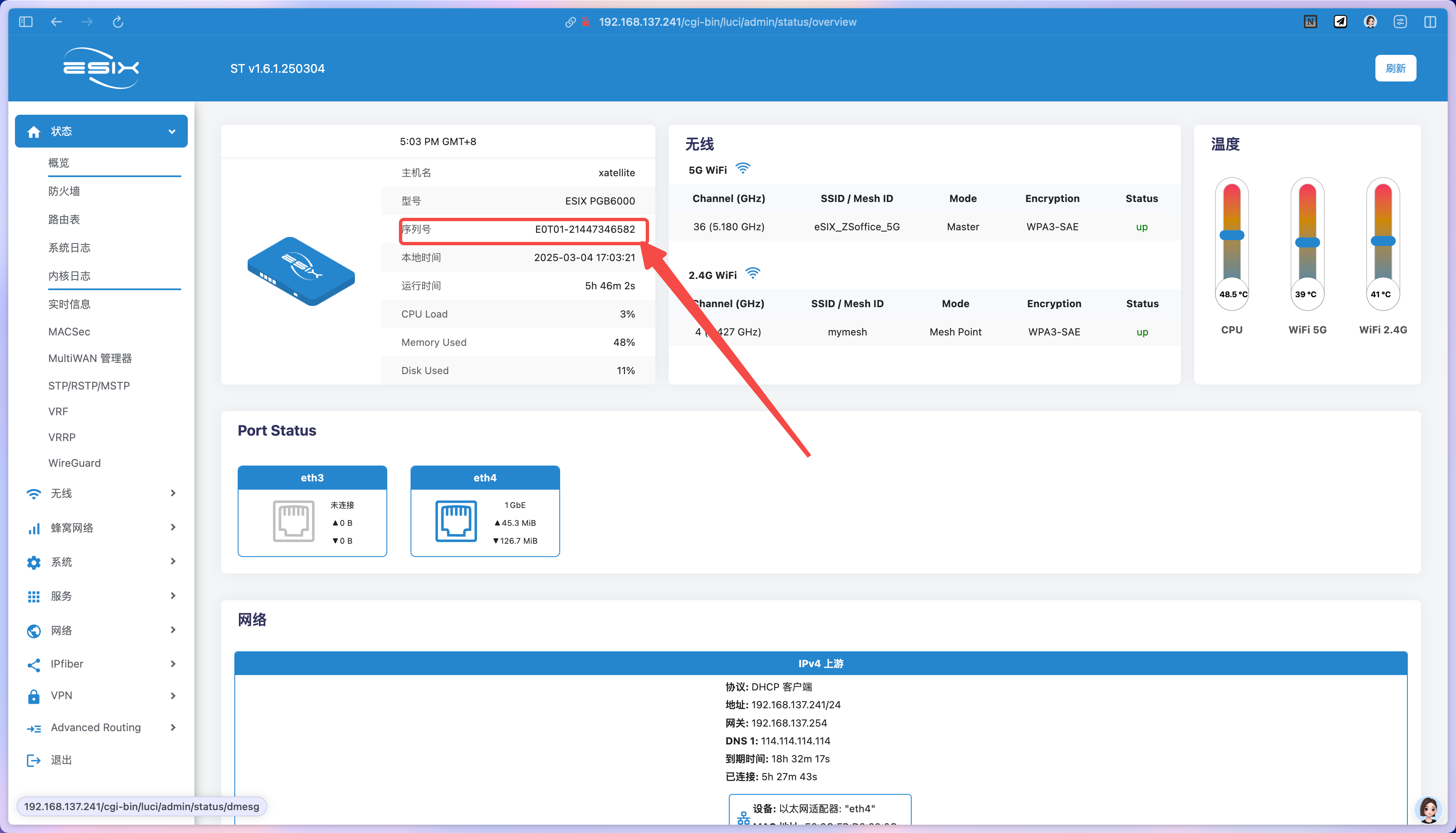
The unique identifier of the device is located in the 'Serial Number' on the 'Status > Overview' page of the ENOS system.
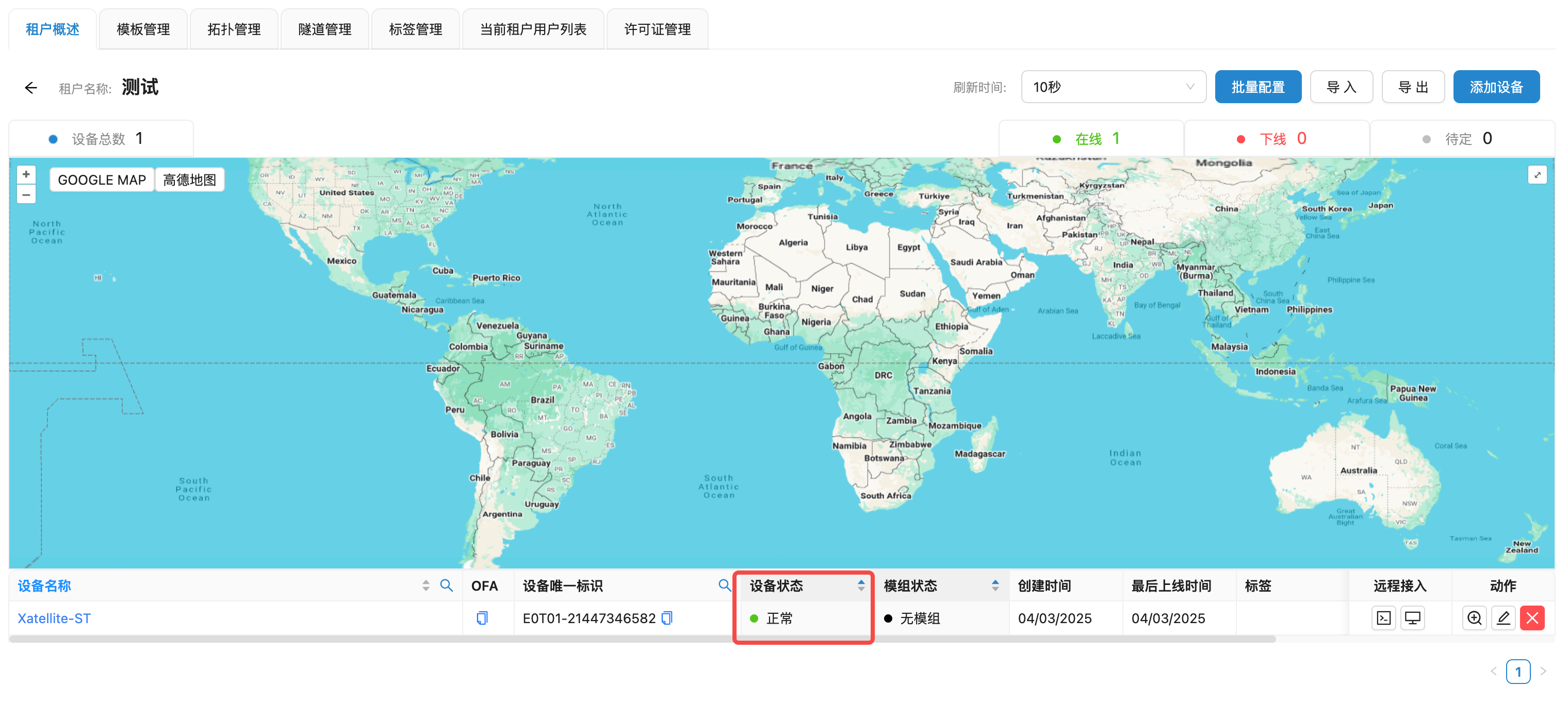
After successfully adding a device, a device with a status of 'Pending' will appear.
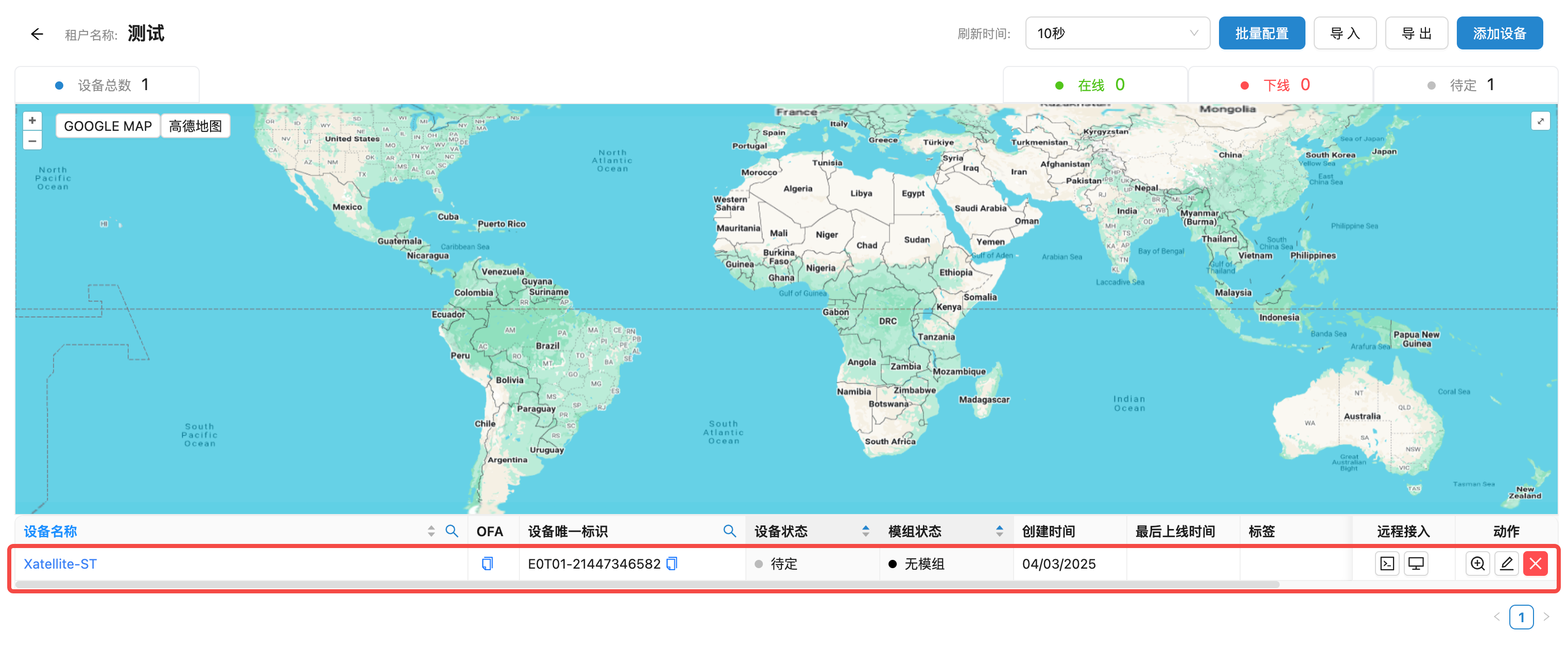
Click to copy the 'OFA' code of this device.

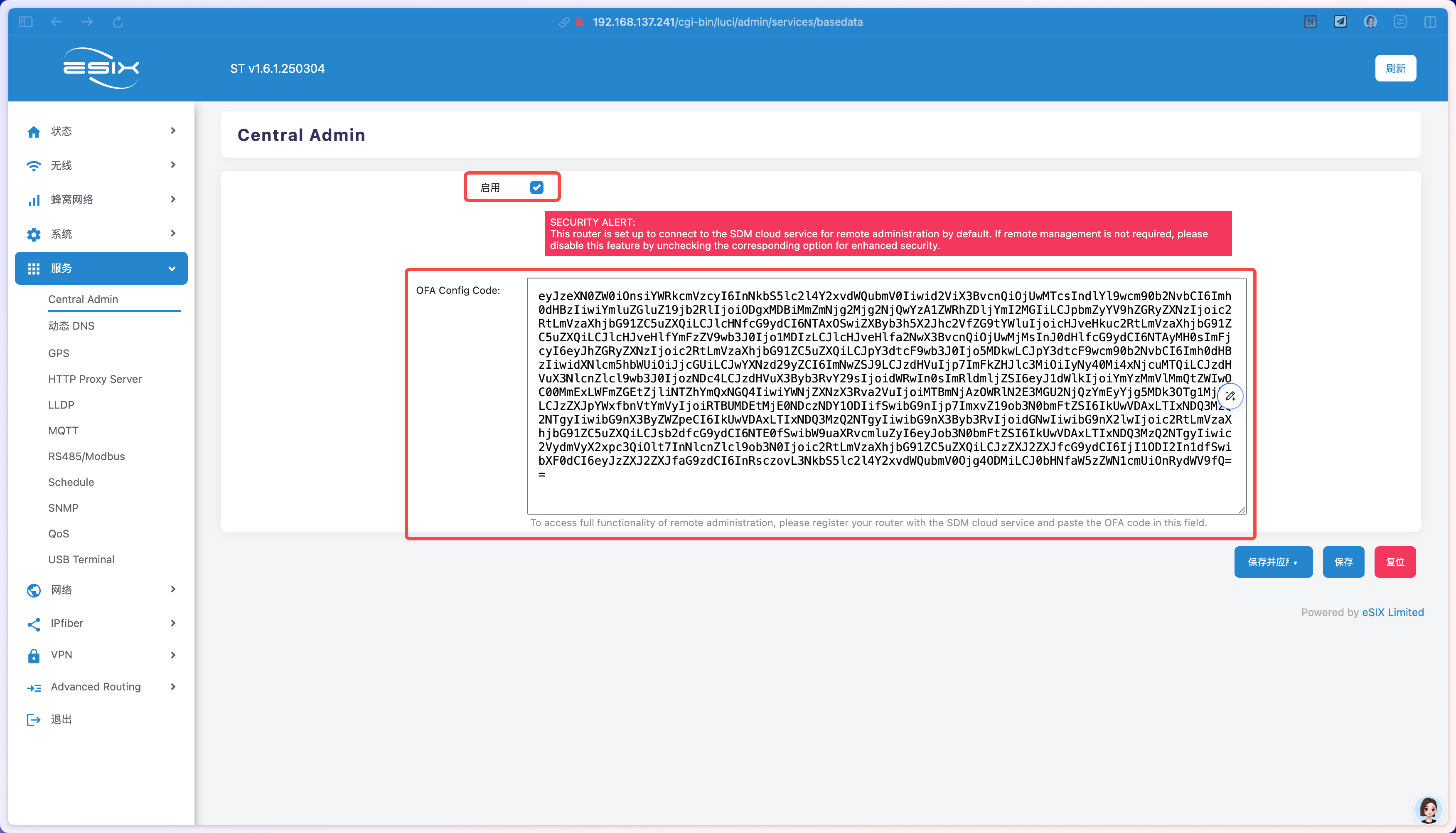
Enter the ENOS Facility Management page, check the 'Enable' option under the 'Services > Central Admin' page, and paste the OFA code.
Click 'Save and Apply' to connect the device to the SDM Manager. (The device needs to be able to reach the SDM Controller address)
After the device is successfully connected, its status can be seen as 'normal' on the SDM management page.
Remote Management
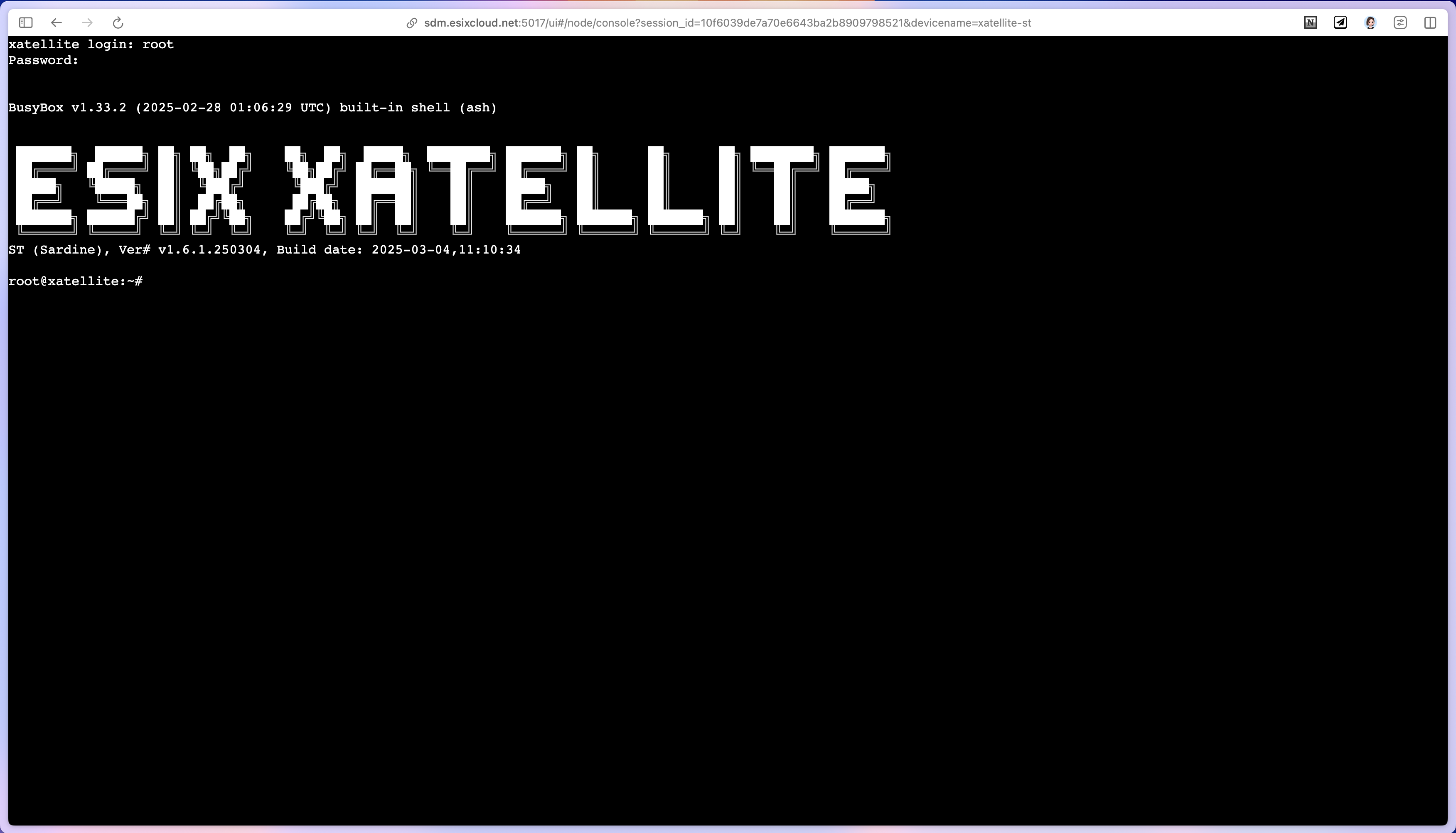
Click the 'Remote Access' button on the device to remotely access the Facility Management page.
The button on the left is 'Connect to End Point', and the button on the right is 'Connect to Management Page'.

Clicking the 'Connect to End Point' button allows direct access to the device end point.
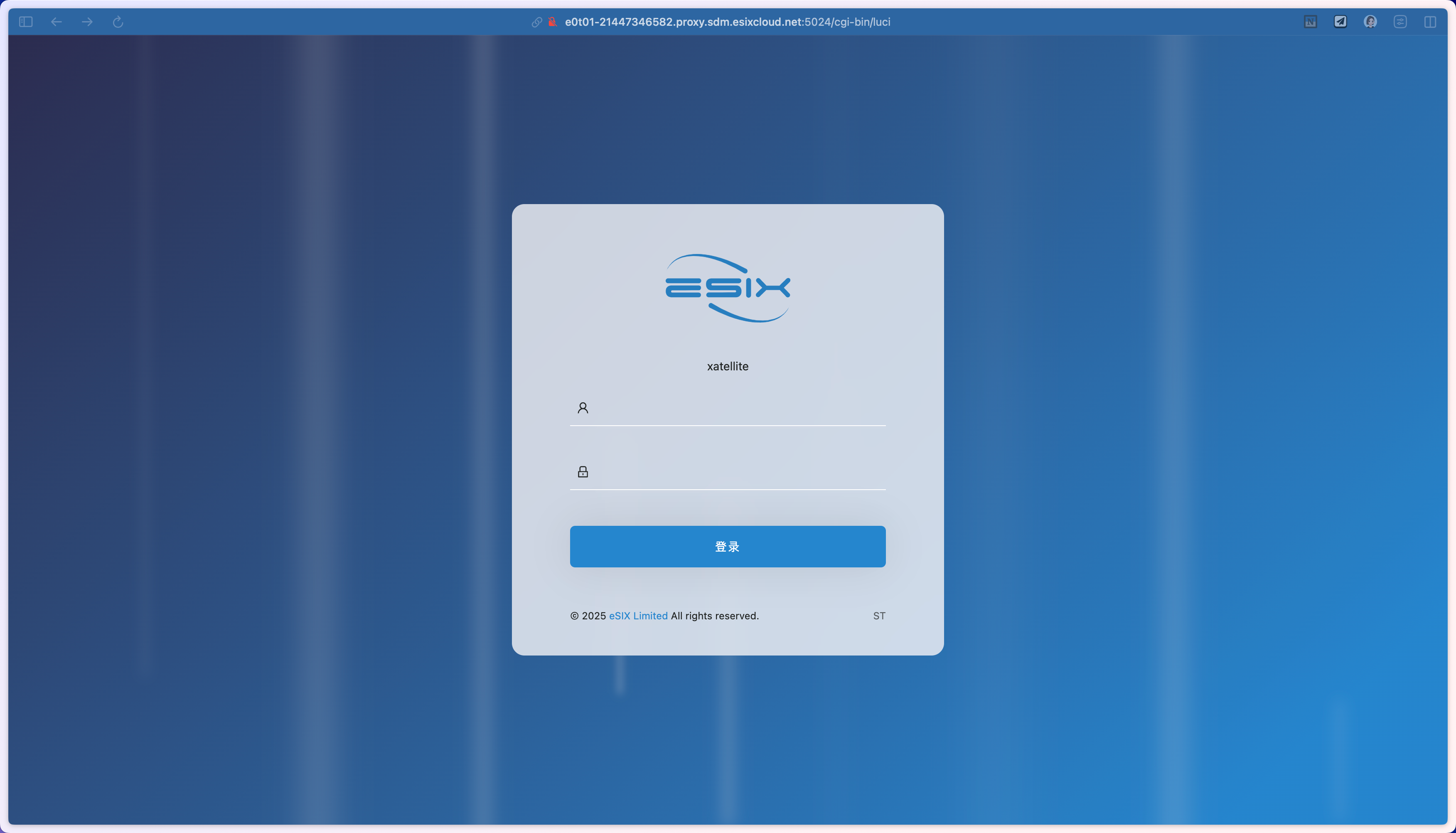
Clicking the 'Connect to Management Page' button can directly lead to the login page of the Facility Management page.
Facility Management
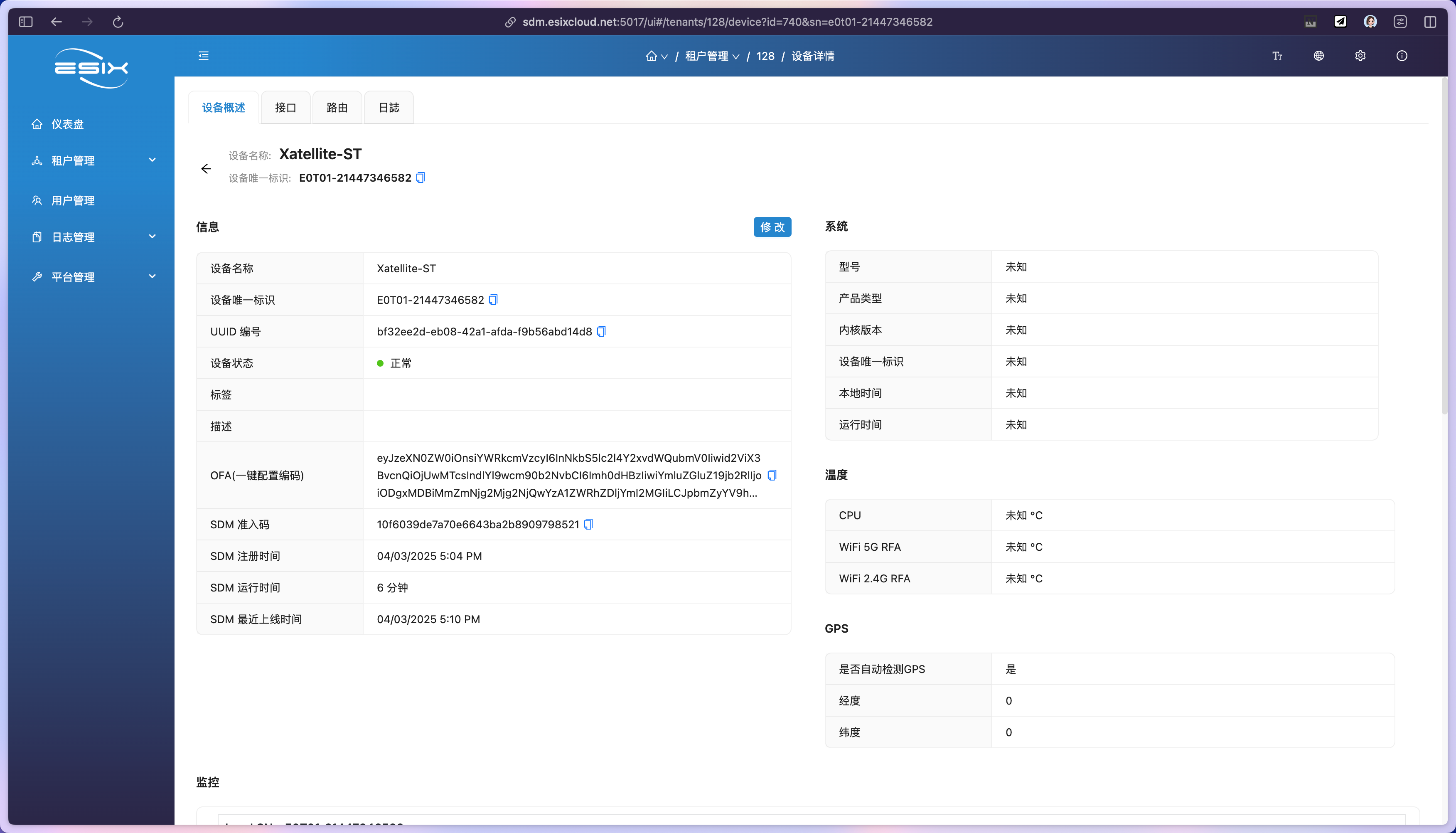
Clicking on the device name allows you to view the device description, detect device interfaces, routes, and logs.