
Xatellite ProX Quick Start Guide
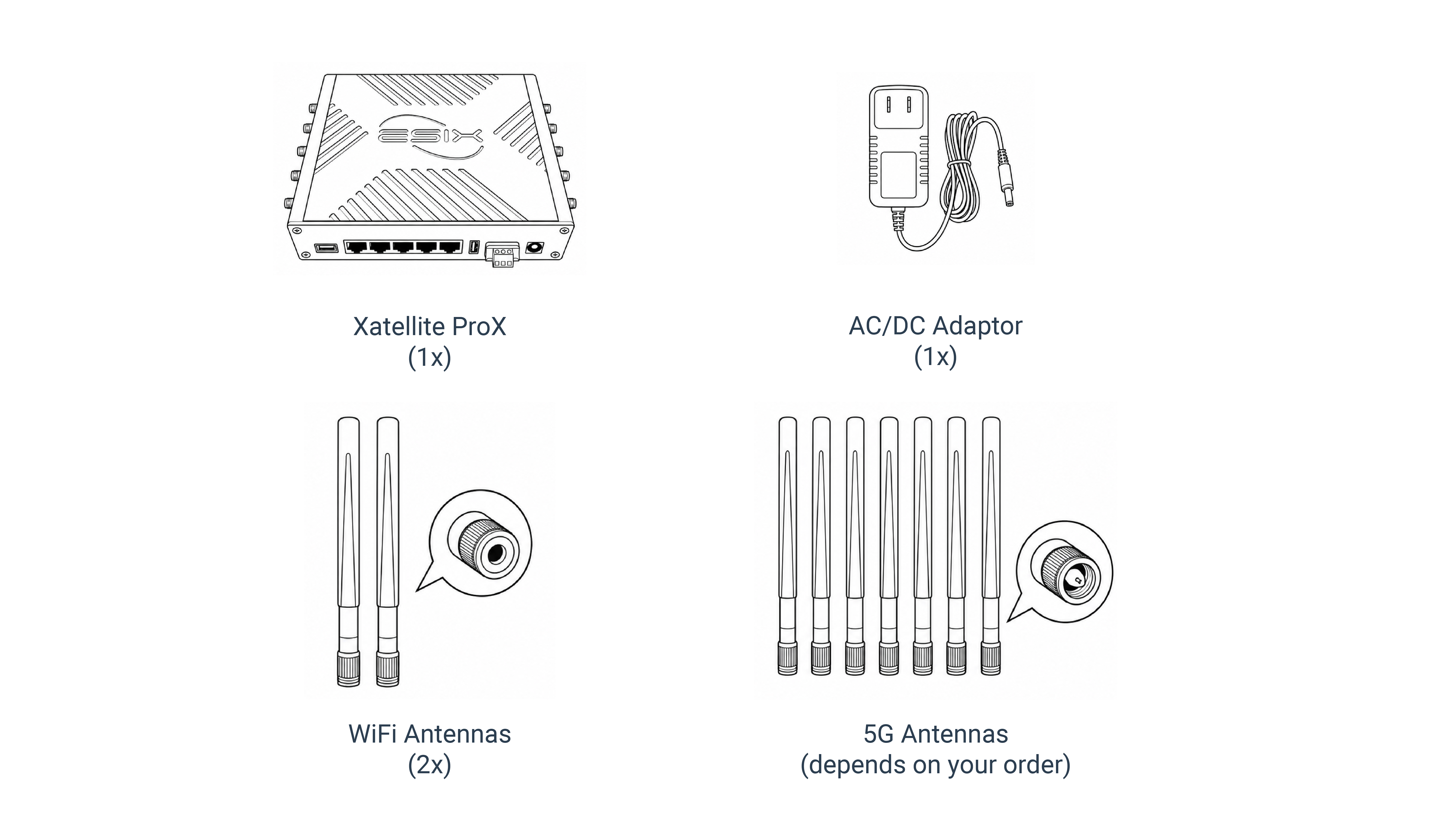
Packing Items
📝 NOTE
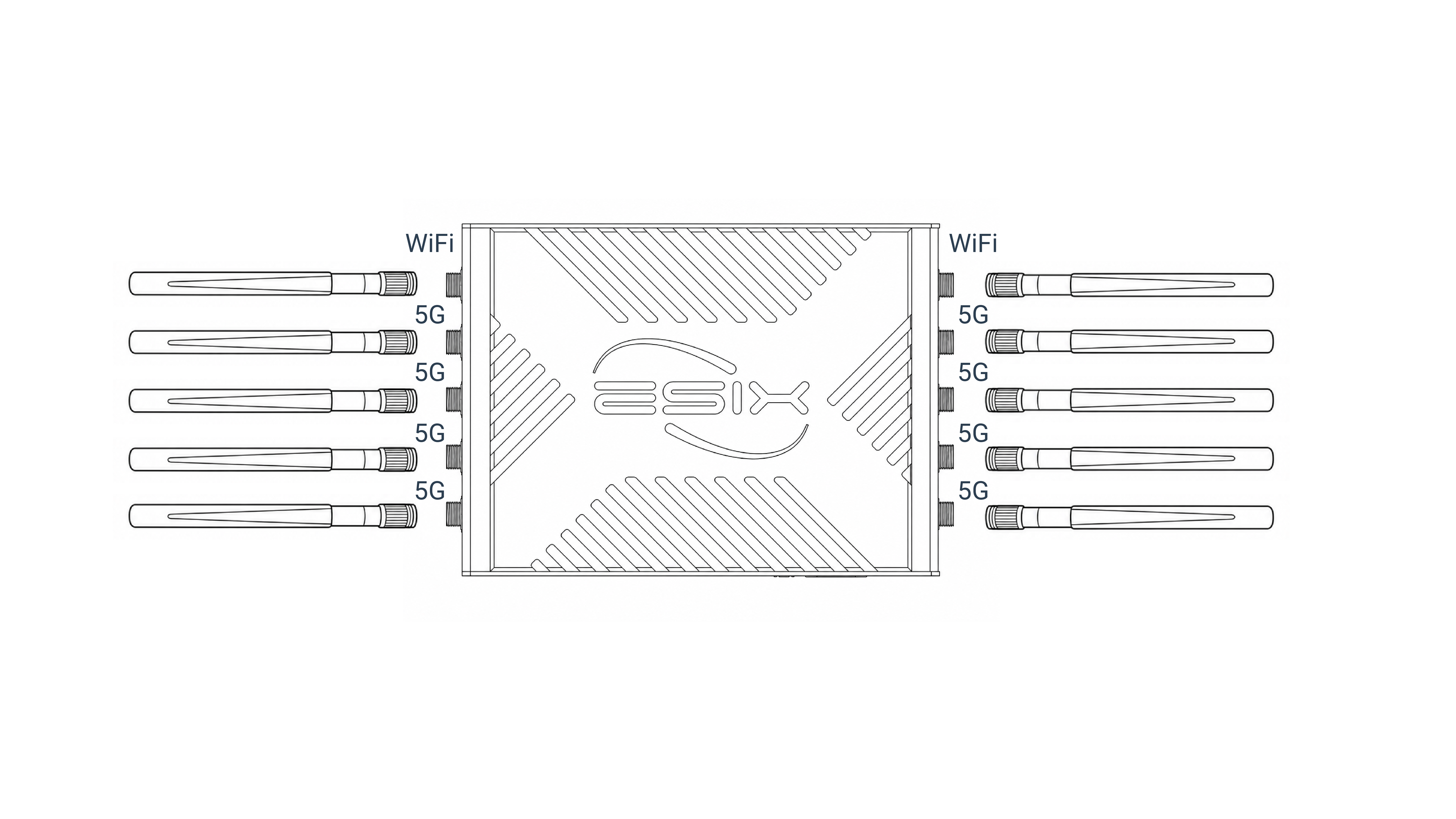
The number of antennas depends on the model and options you ordered. Refer to your order information for details.
Connect the Hardware
a. Install the antennas
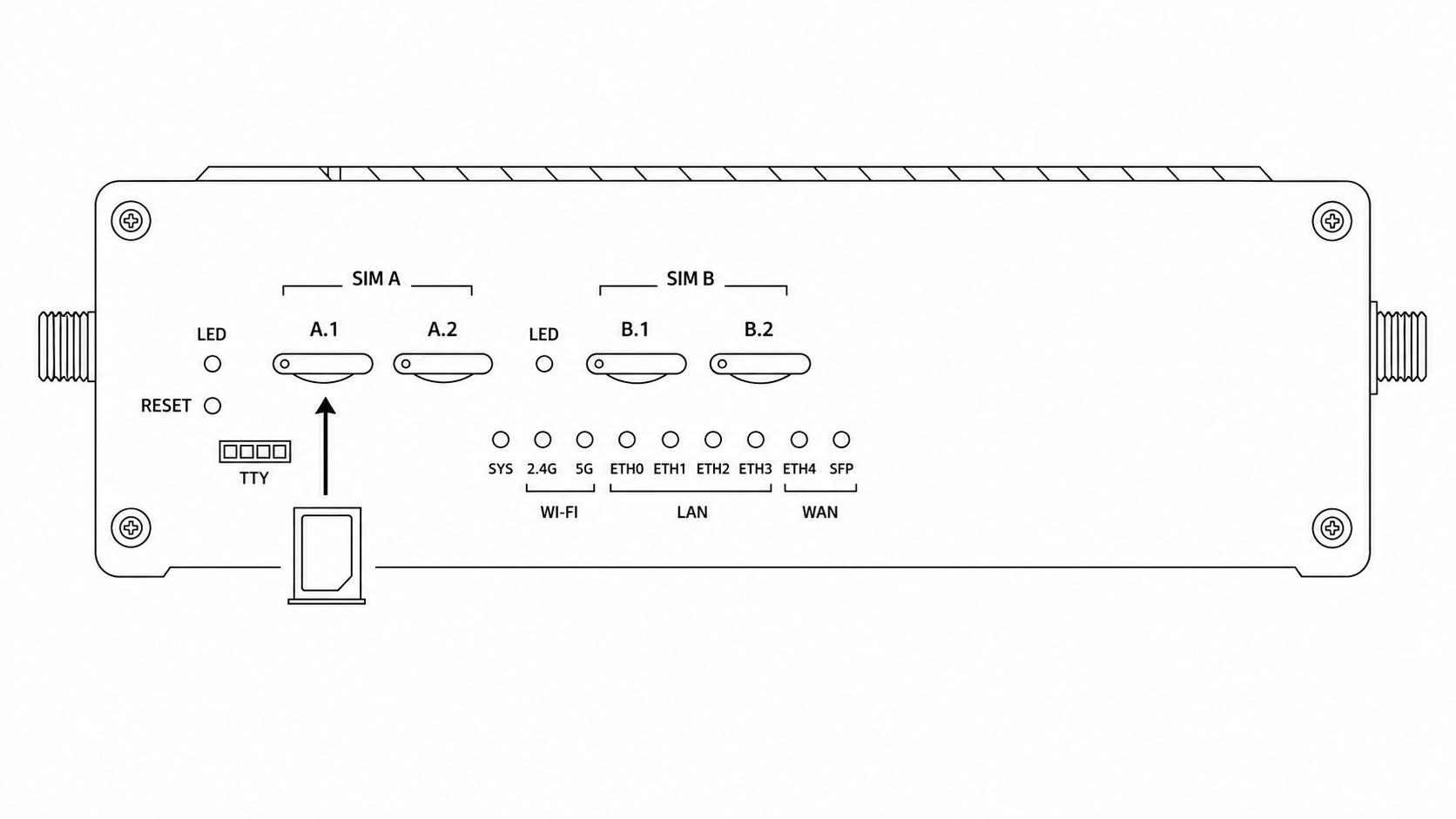
b. Insert the SIM cards into the SIM trays
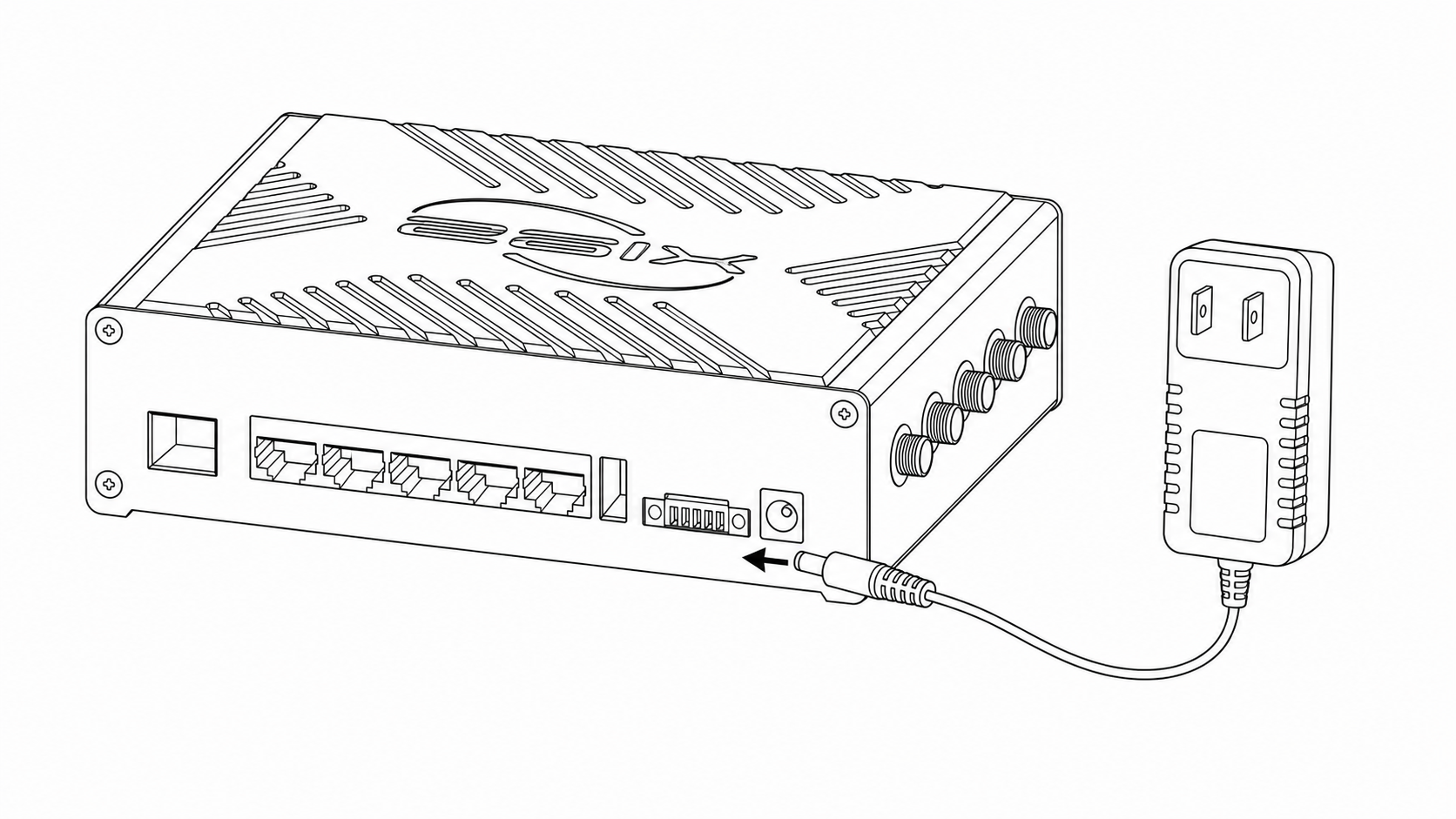
c. Connect the power adapter
Verify the Hardware Connection
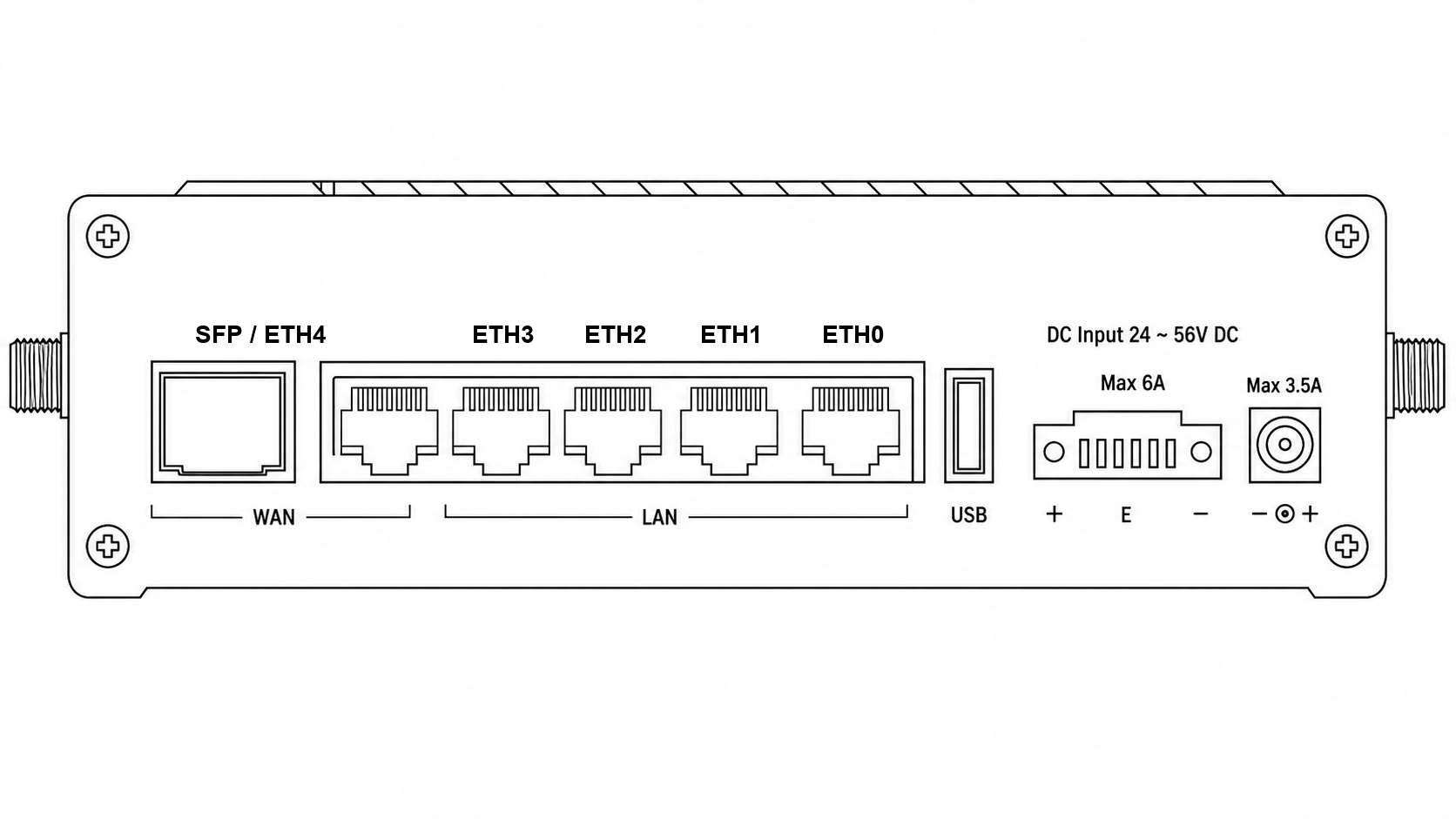
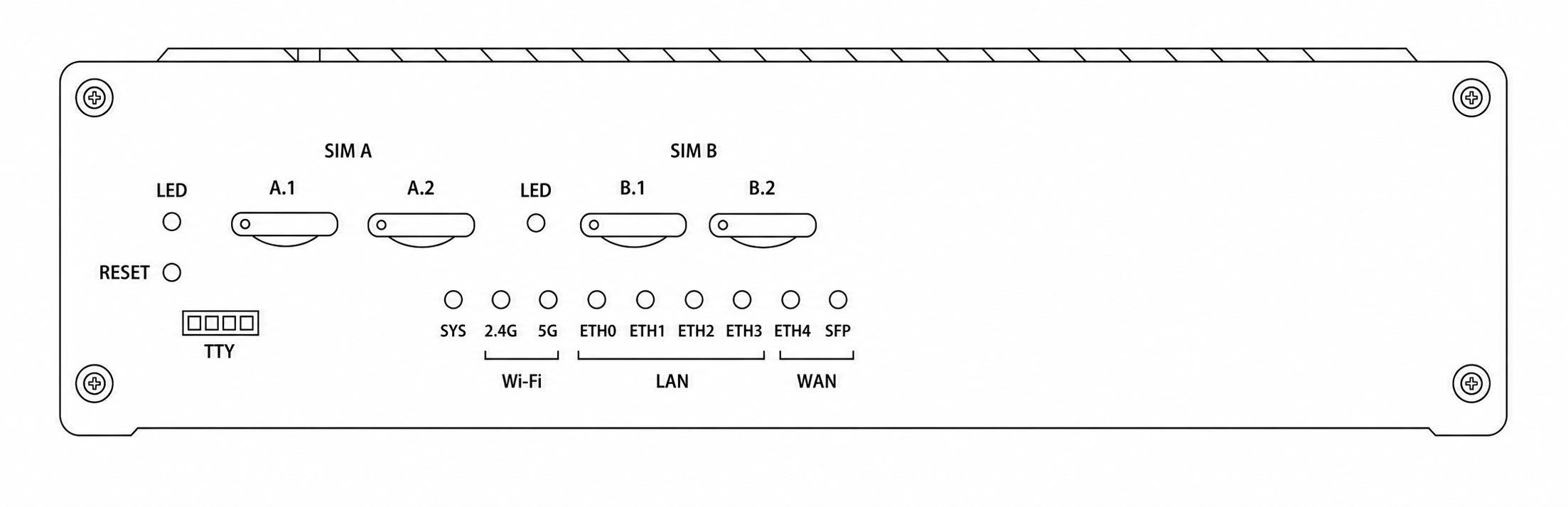
Enjoy the Internet
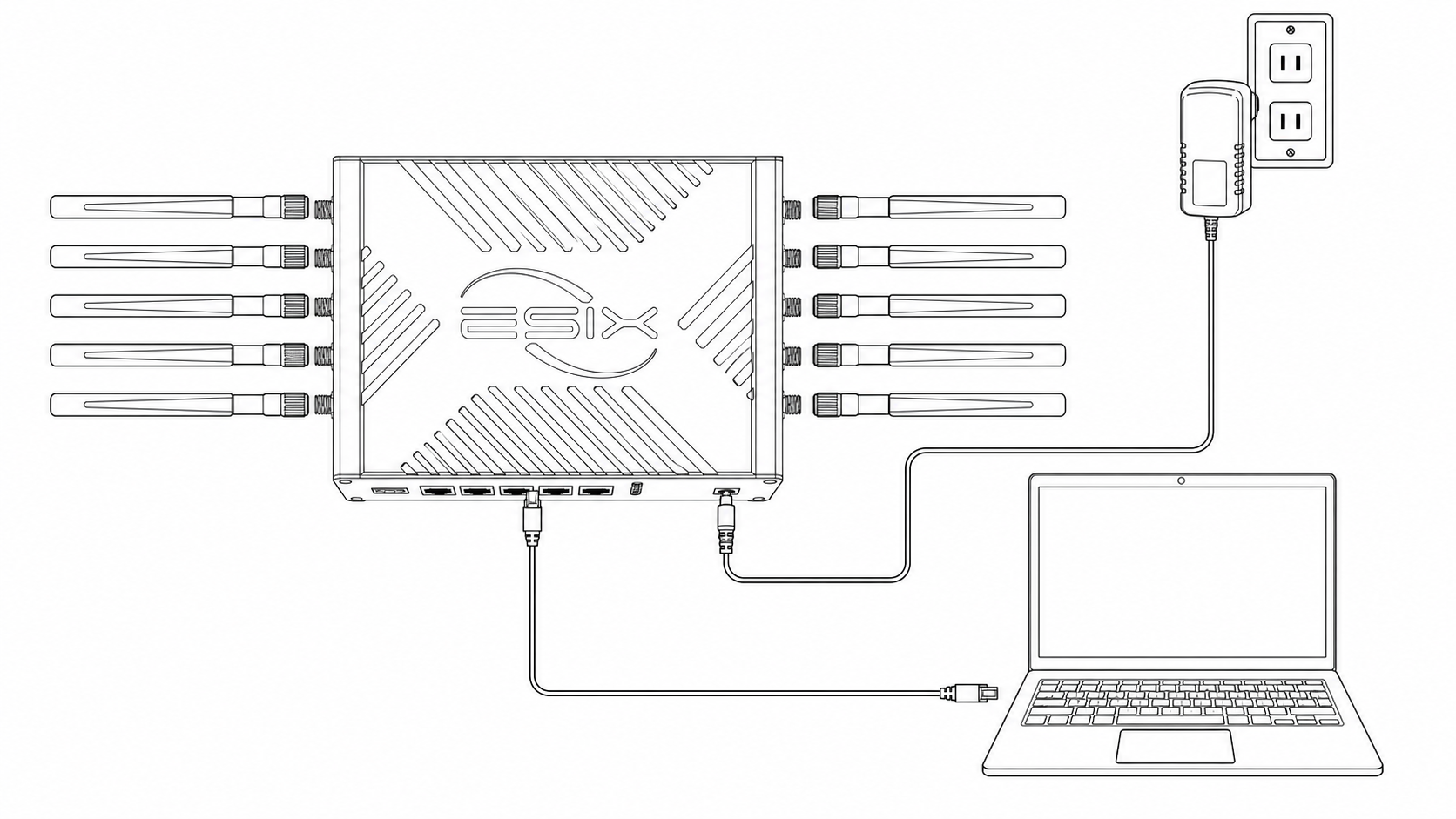
- Wired
Connect your computer to the router's LAN port with an Ethernet cable.
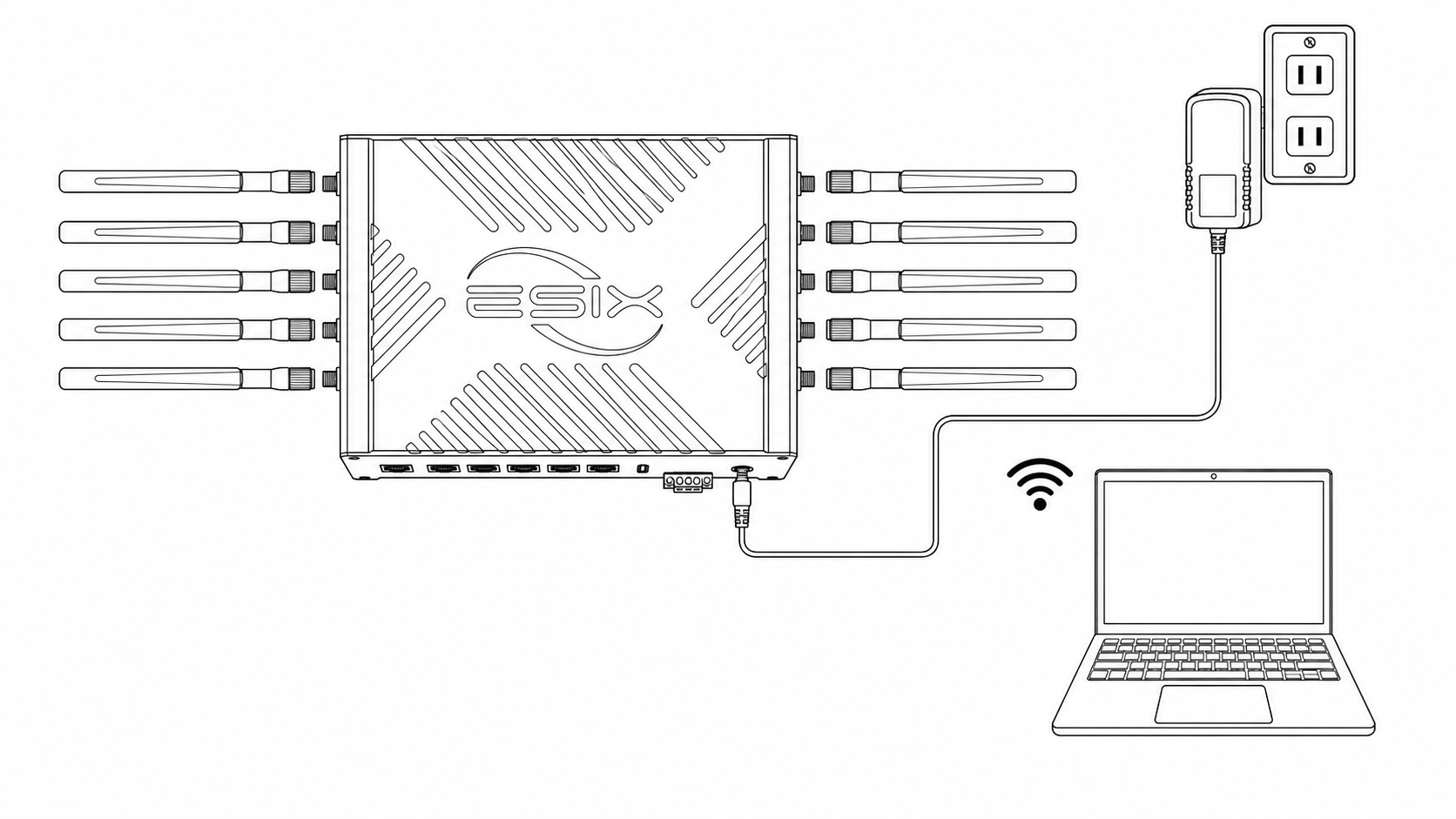
- Wireless
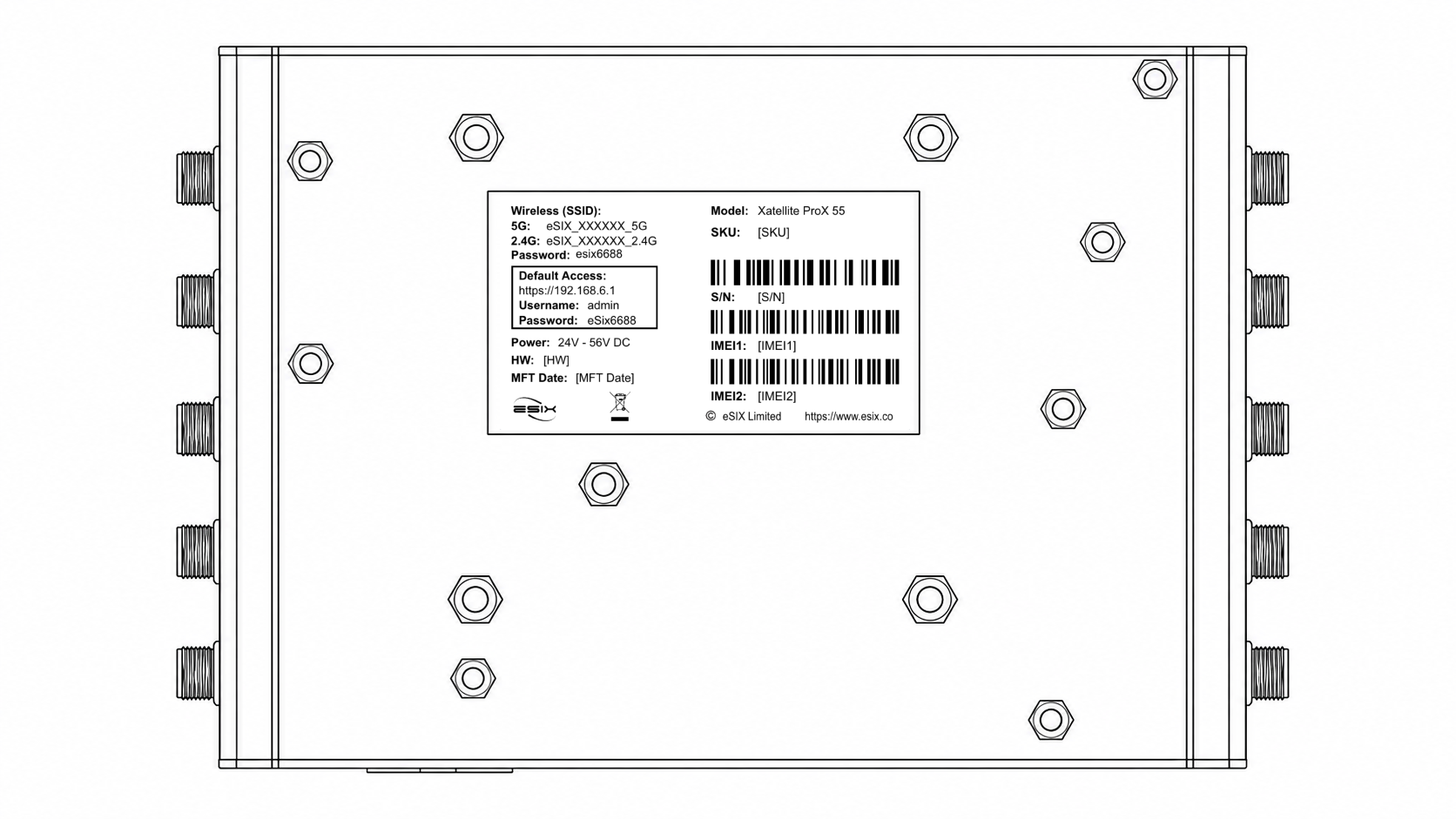
Find the SSIDs and wireless password printed on the label at the bottom of the router.
Click the network icon on your computer, or open Wi-Fi settings on your smart device, then select the SSID to join the network.
Customize the Xatellite ProX
Make sure your computer is connected to the router by Ethernet or Wi-Fi.
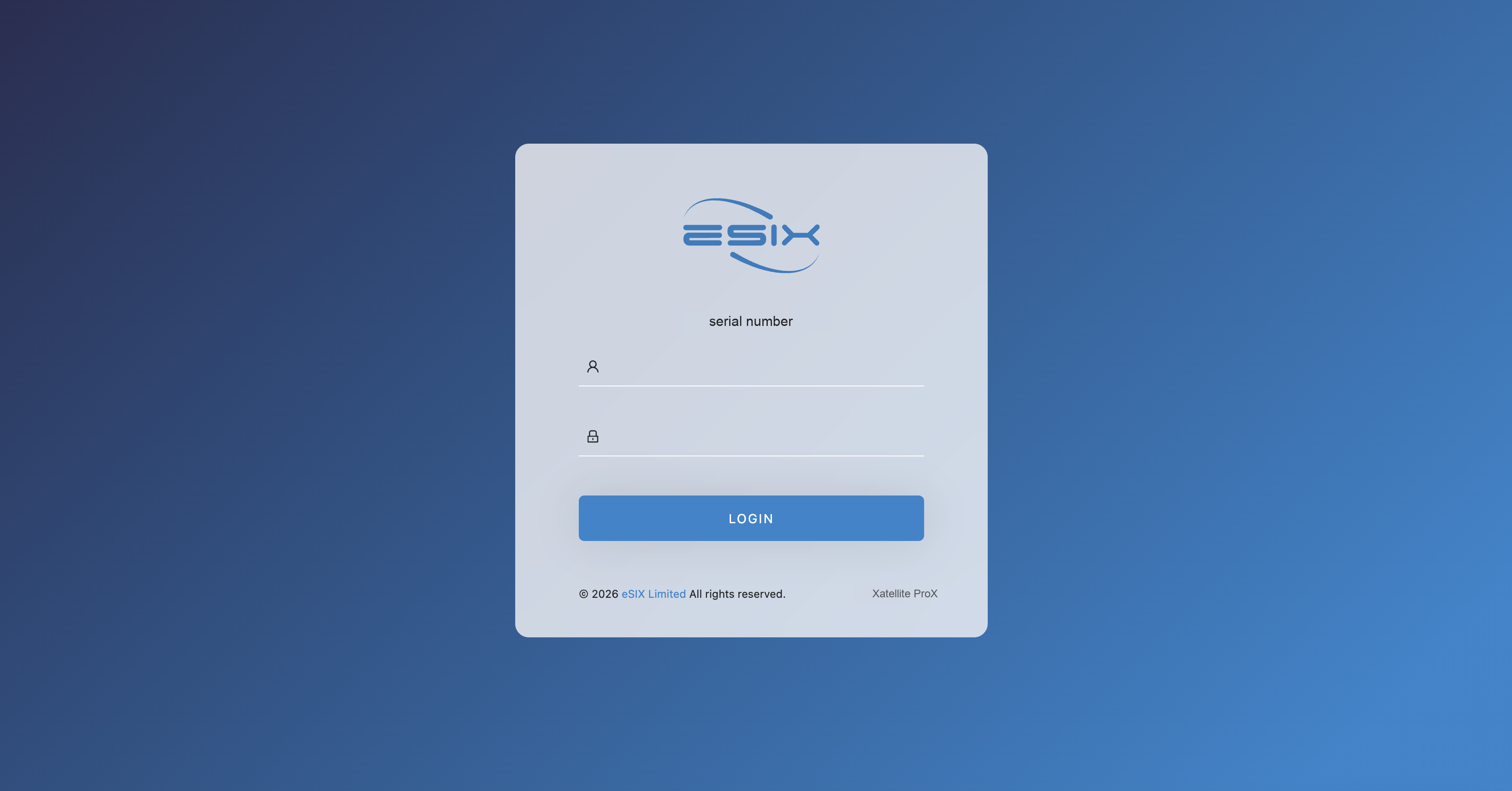
Launch a web browser and enter https://192.168.6.1.
- Username : admin
- Password : eSix6688
Xatellite ProX setting card slot
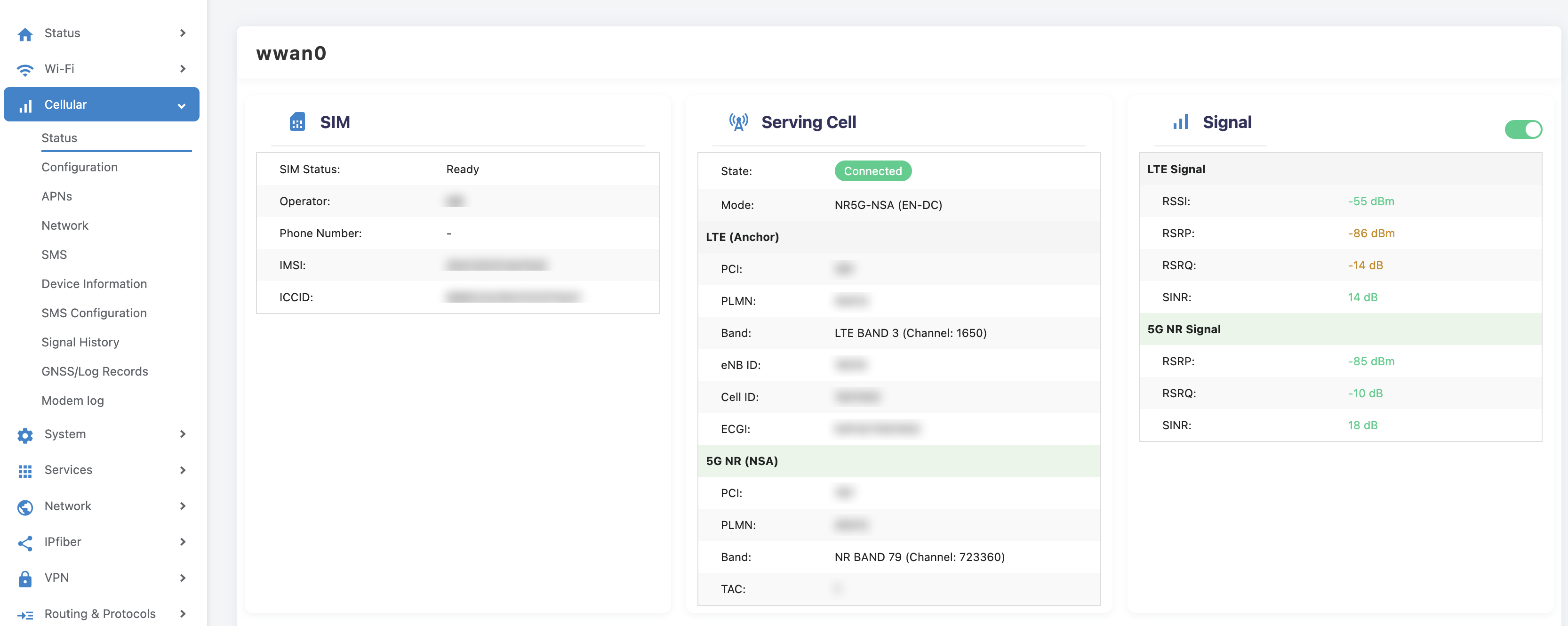
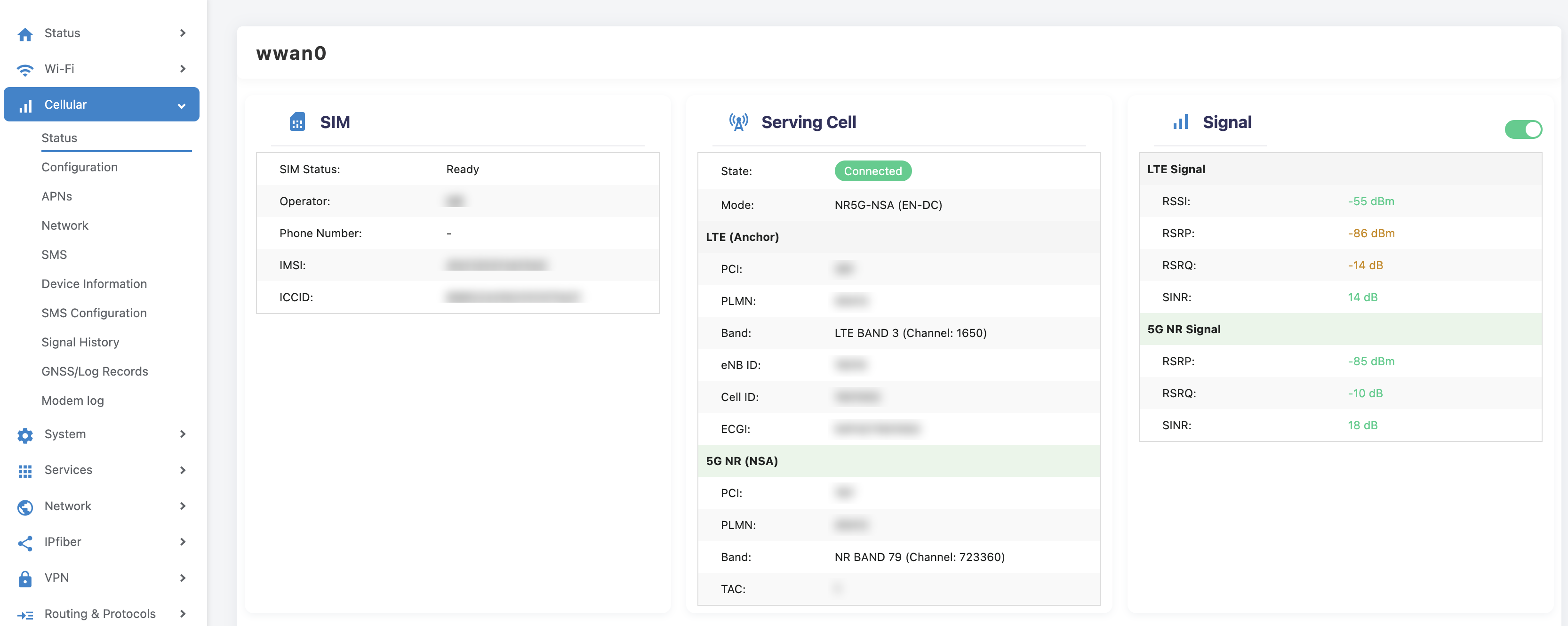
Under the "Cellular > Status" page, you can select the SIM card slot.
wwan0 corresponds to the tray A group card slot, and wwan1 corresponds to the tray B group card slot.
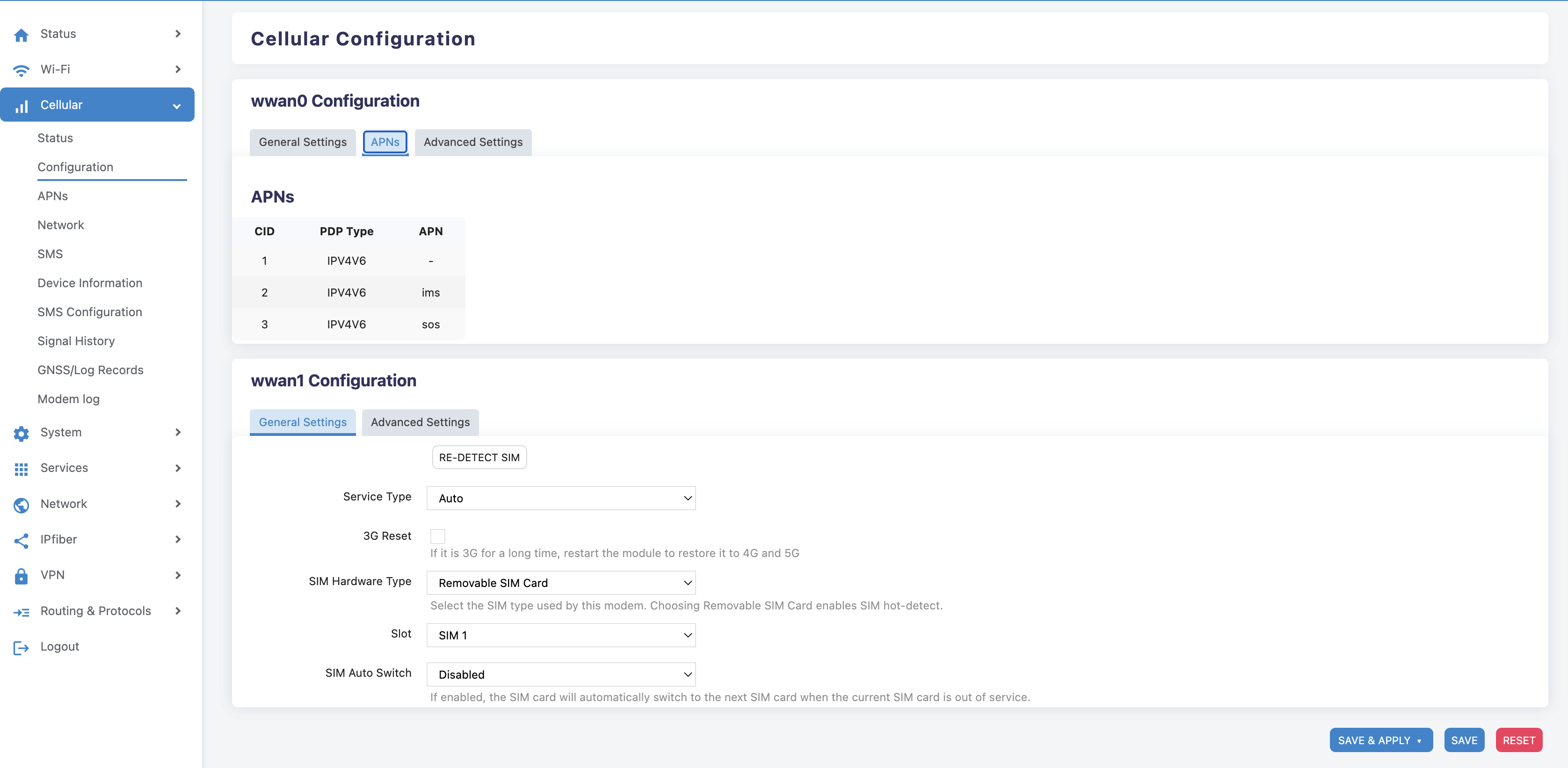
APN
Under the "Cellular > Configuration" page, you can configure the APN.
Successful Dial
Under the "Cellular > Status" page, when cellular dials successfully and obtains an IP address, the CPE can access the Internet normally.
Change Wi-Fi Password
Under the "Wireless" page, you can configure Wi-Fi settings.
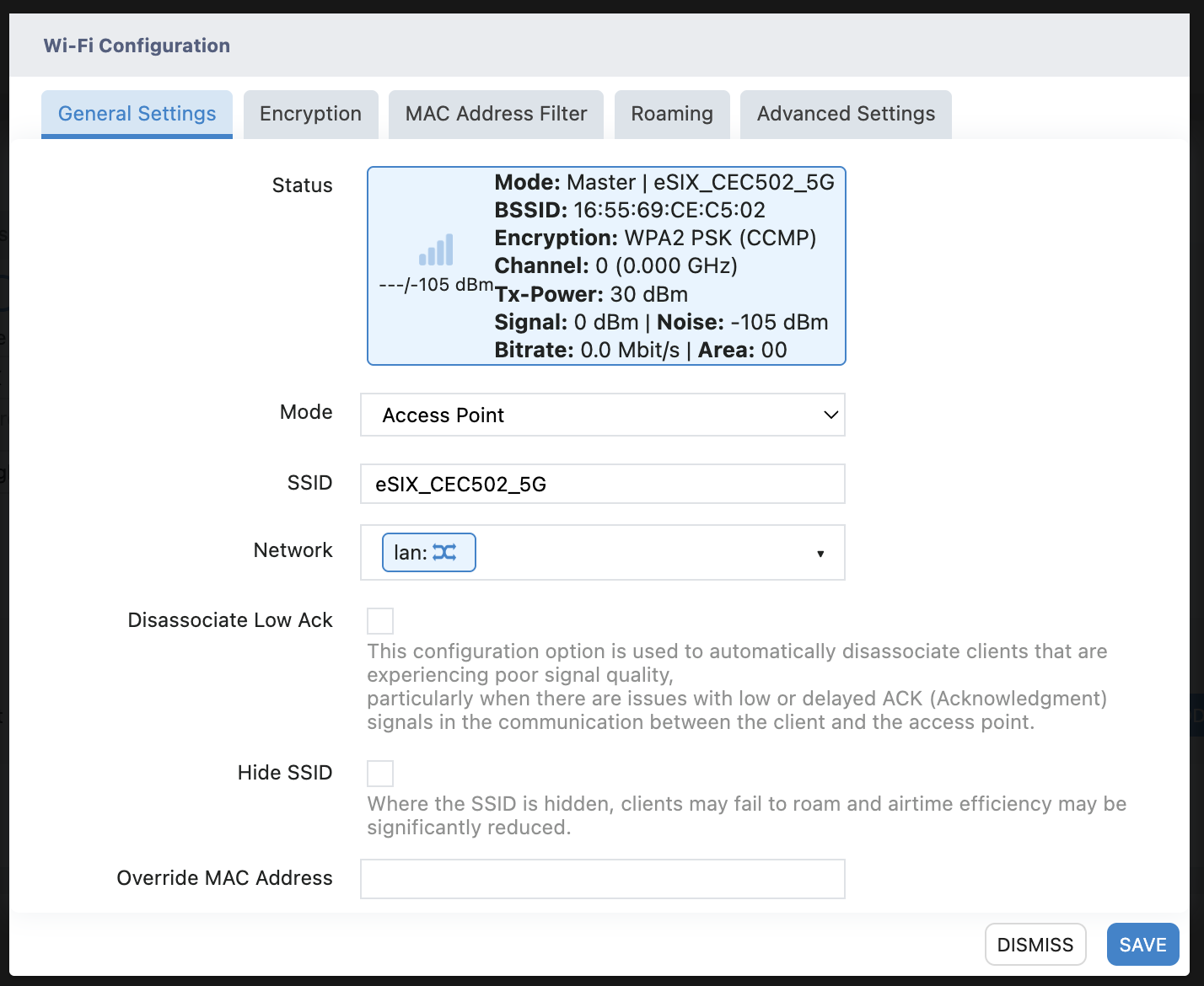
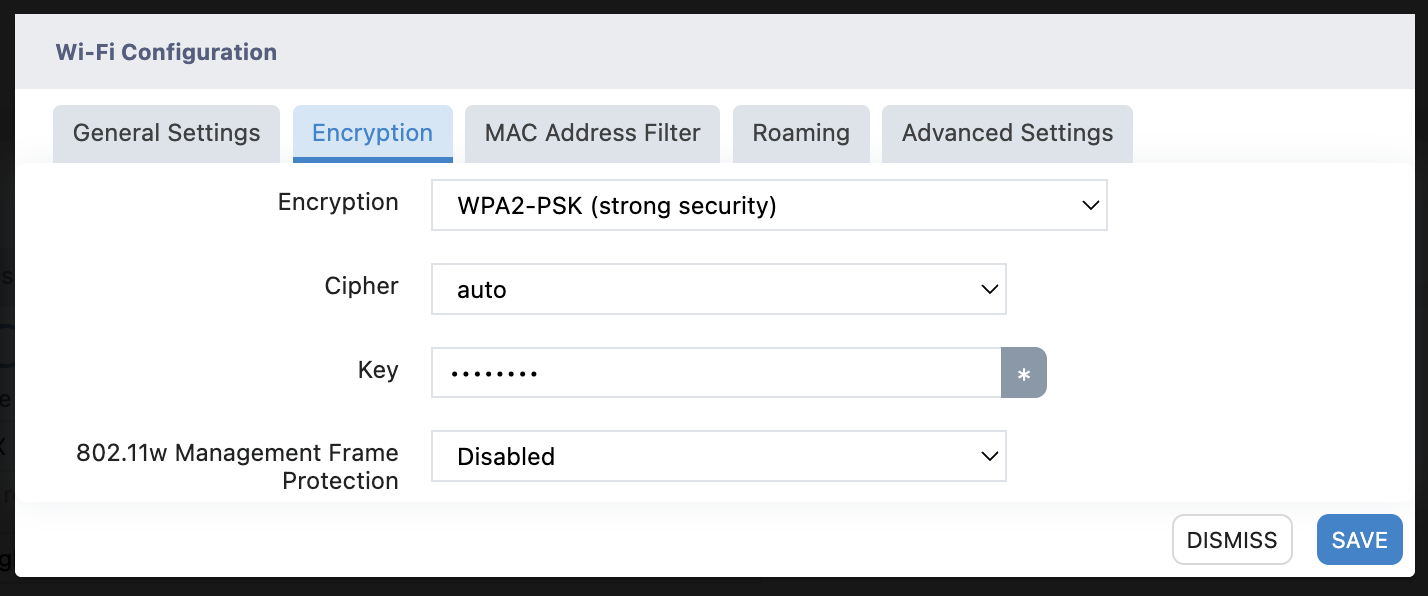
Click "Edit" to change the Wi-Fi SSID and password.
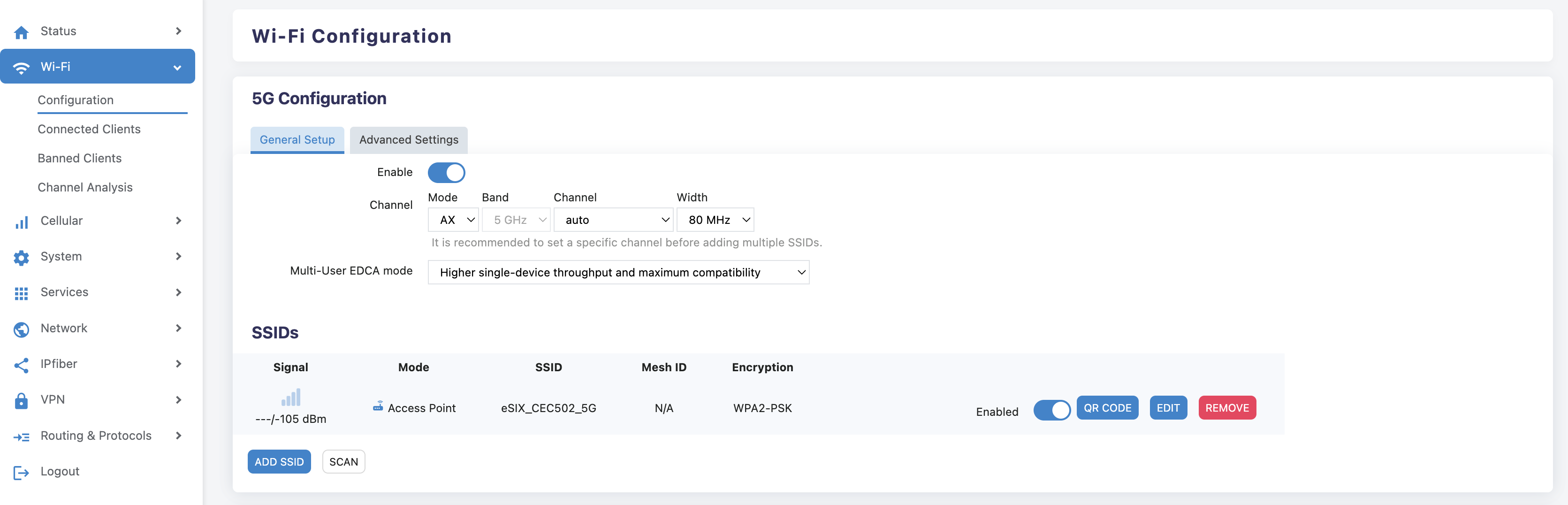
Change SSID:
Change password:
Safety Instructions
- Keep the device away from water, fire, humidity, and hot environments.
- Do not attempt to disassemble, repair, or modify the device.
- Do not use a damaged charger or USB cable.
- Do not use chargers other than those recommended.
- Do not use the device where wireless devices are not allowed.
- The adapter shall be installed near the equipment and shall be easily accessible.