
Xatellite B Quick Start Guide
Packing Items
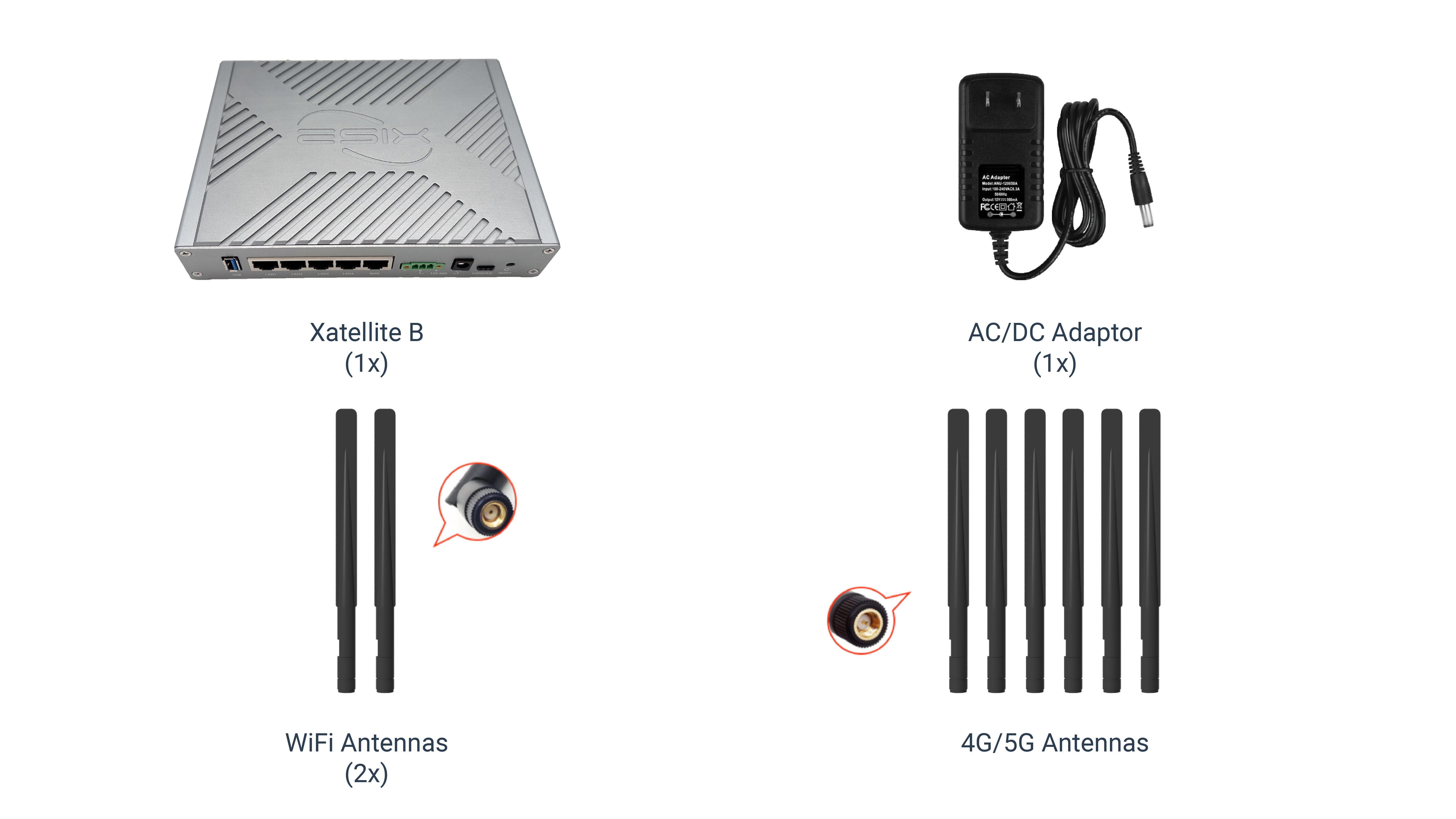
📝 NOTE
The number of antennas depends on what you order. Refer to the store for more information.
Connect the Hardware
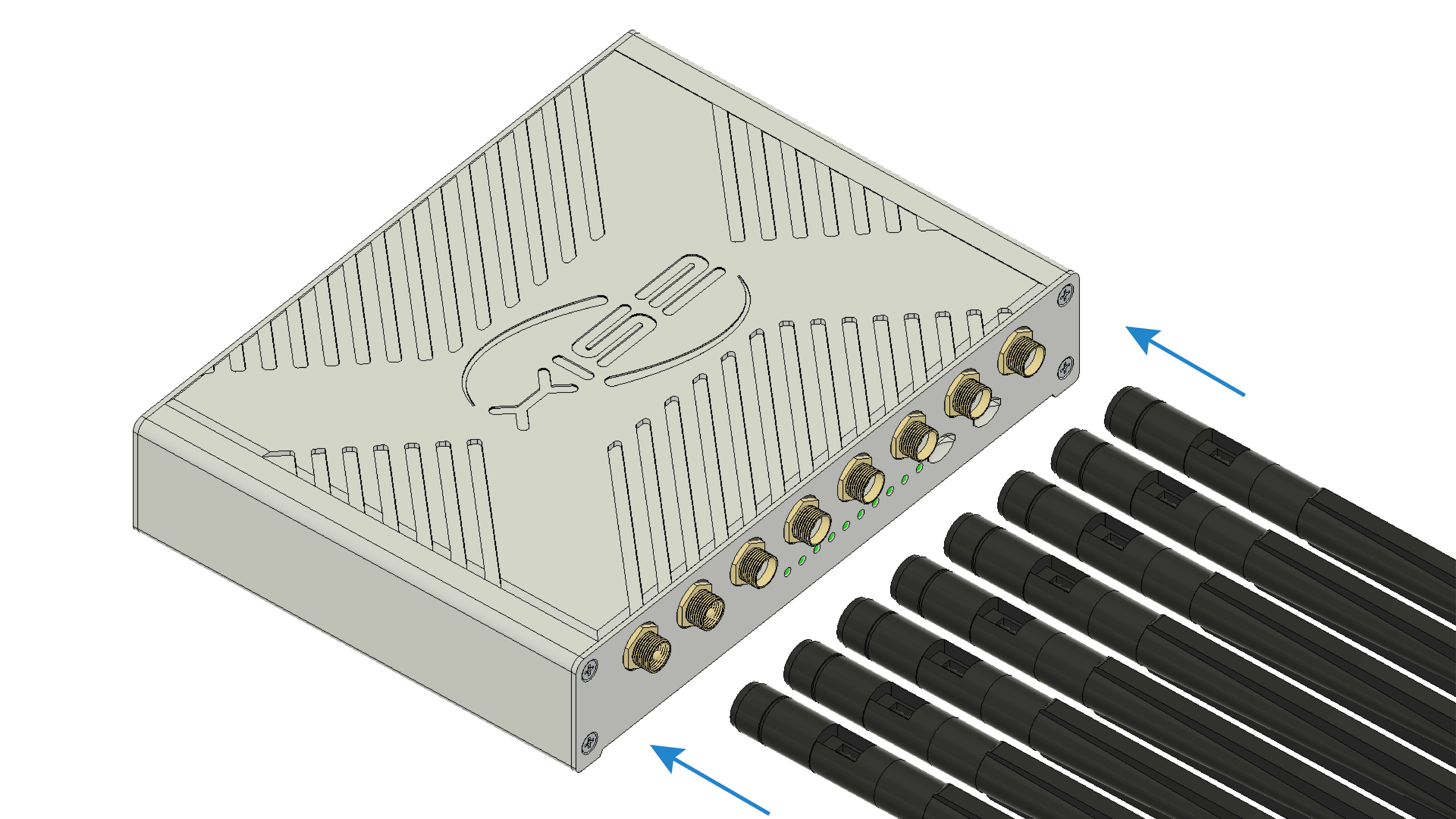
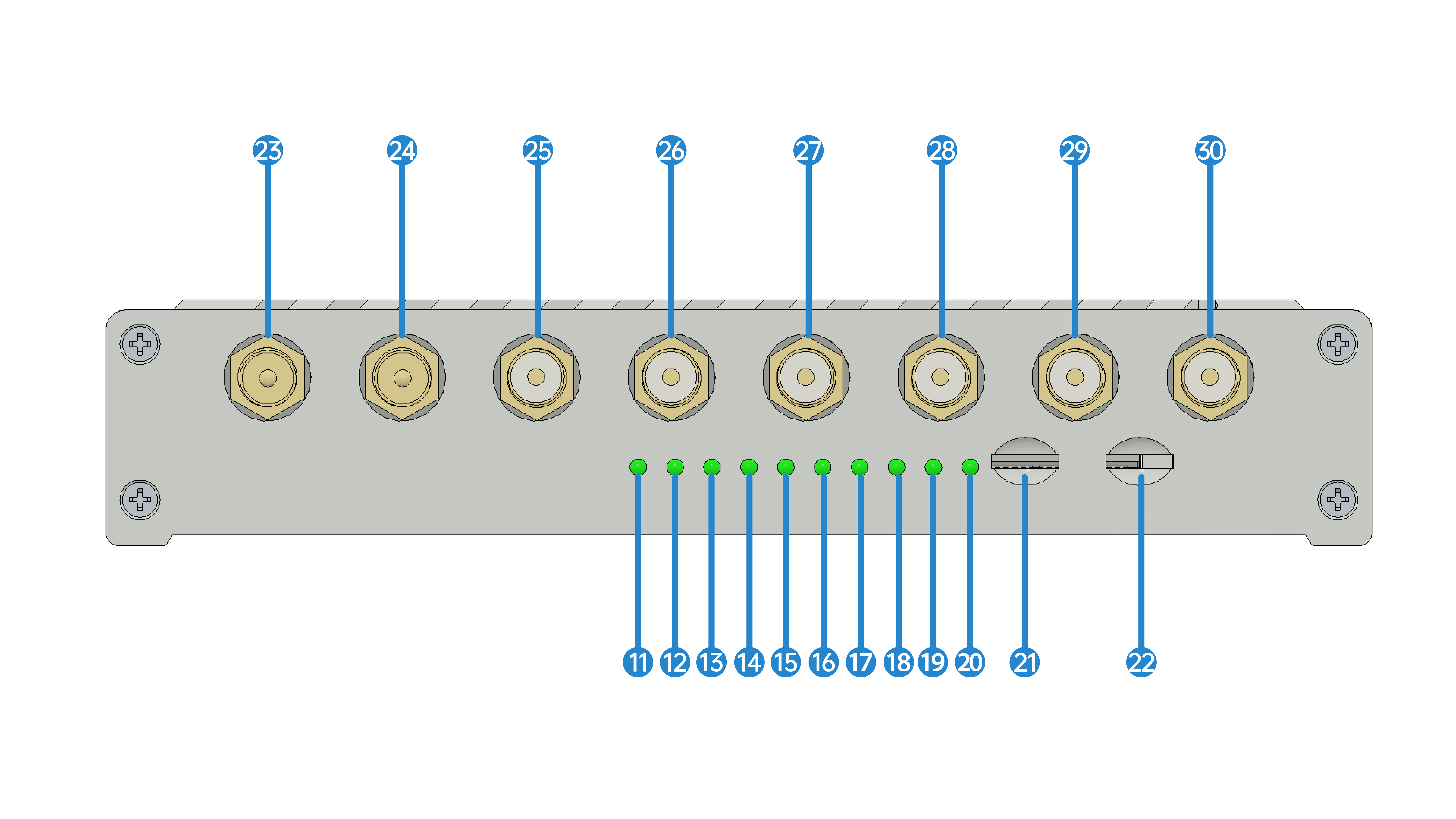
a. Install the antennas
⚠️ WARNING
The WiFi antenna and 4G antenna look similar. Please make sure the WiFi spot is connected with the antenna with negative connector and 4G spot with the positive connector.
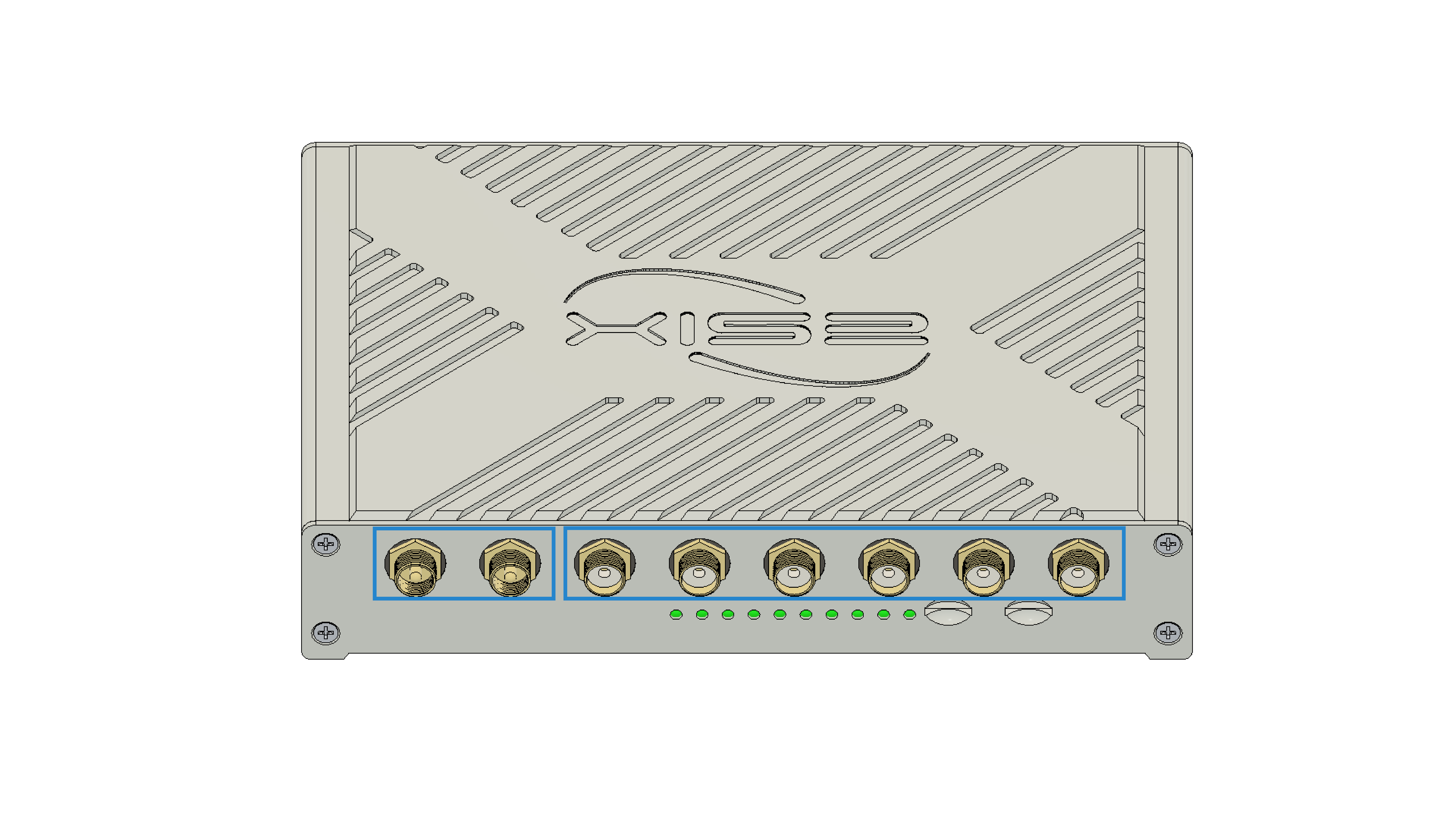
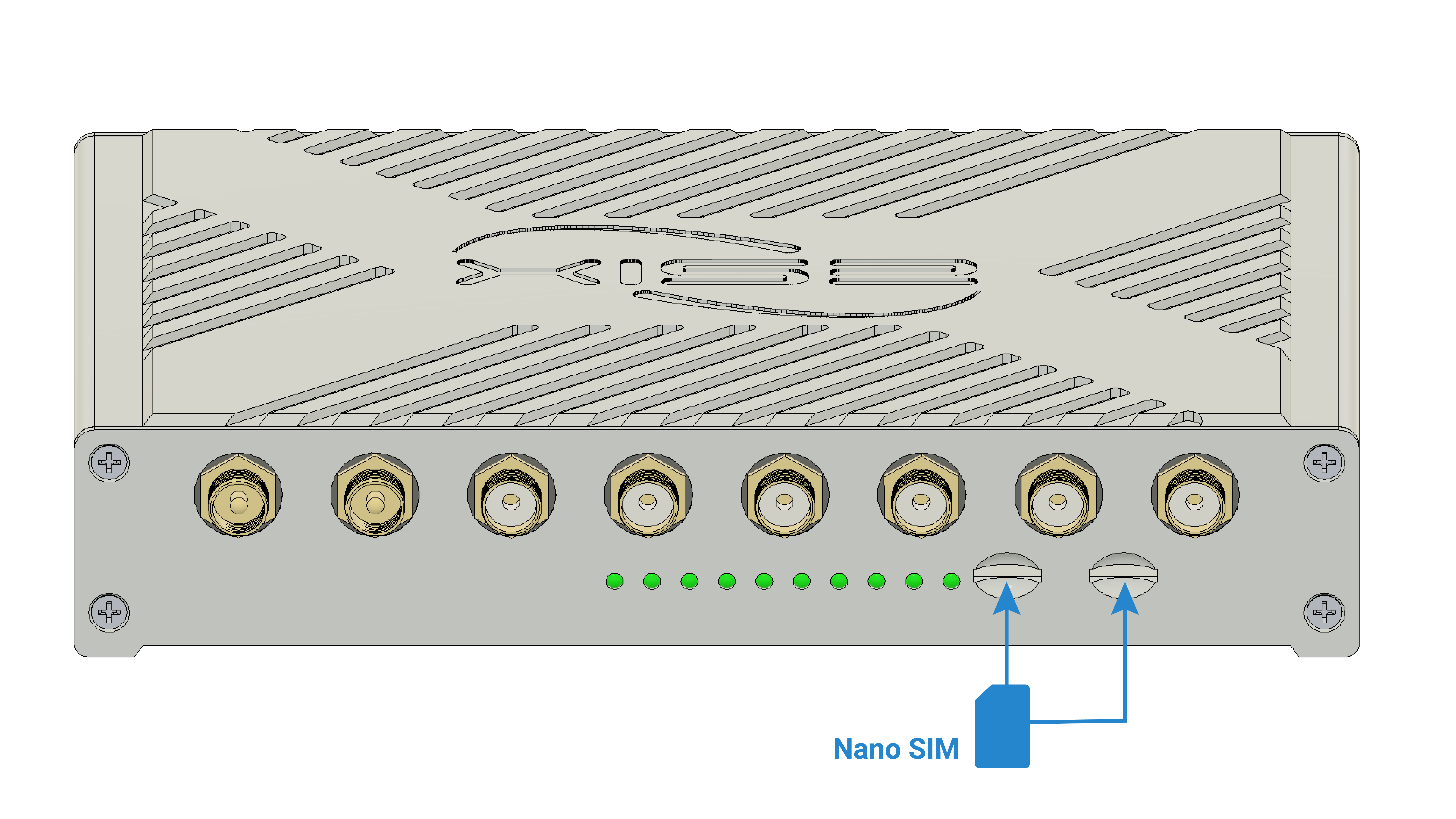
b. Insert the Nano SIM card
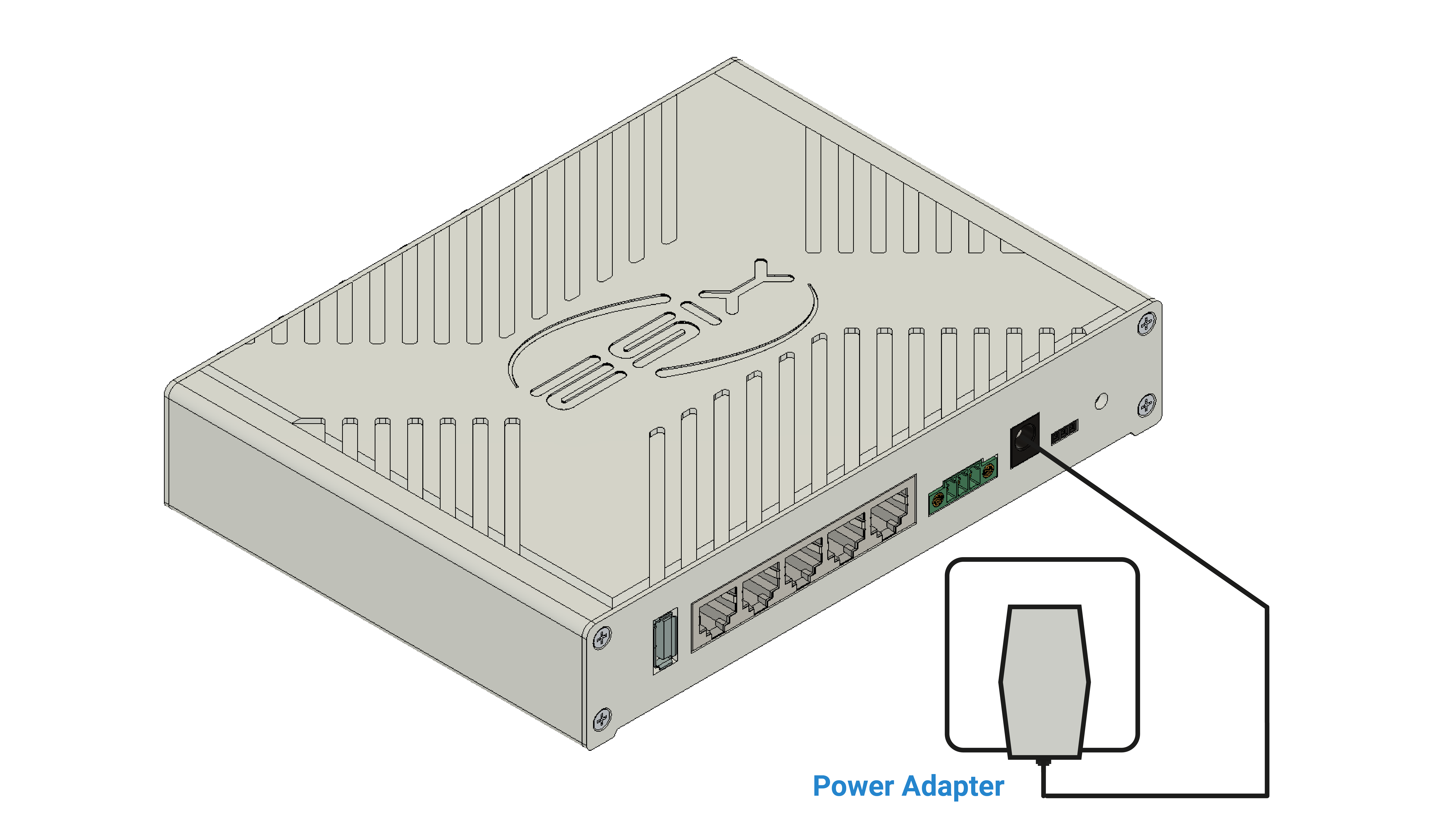
c. Connect the power adapter
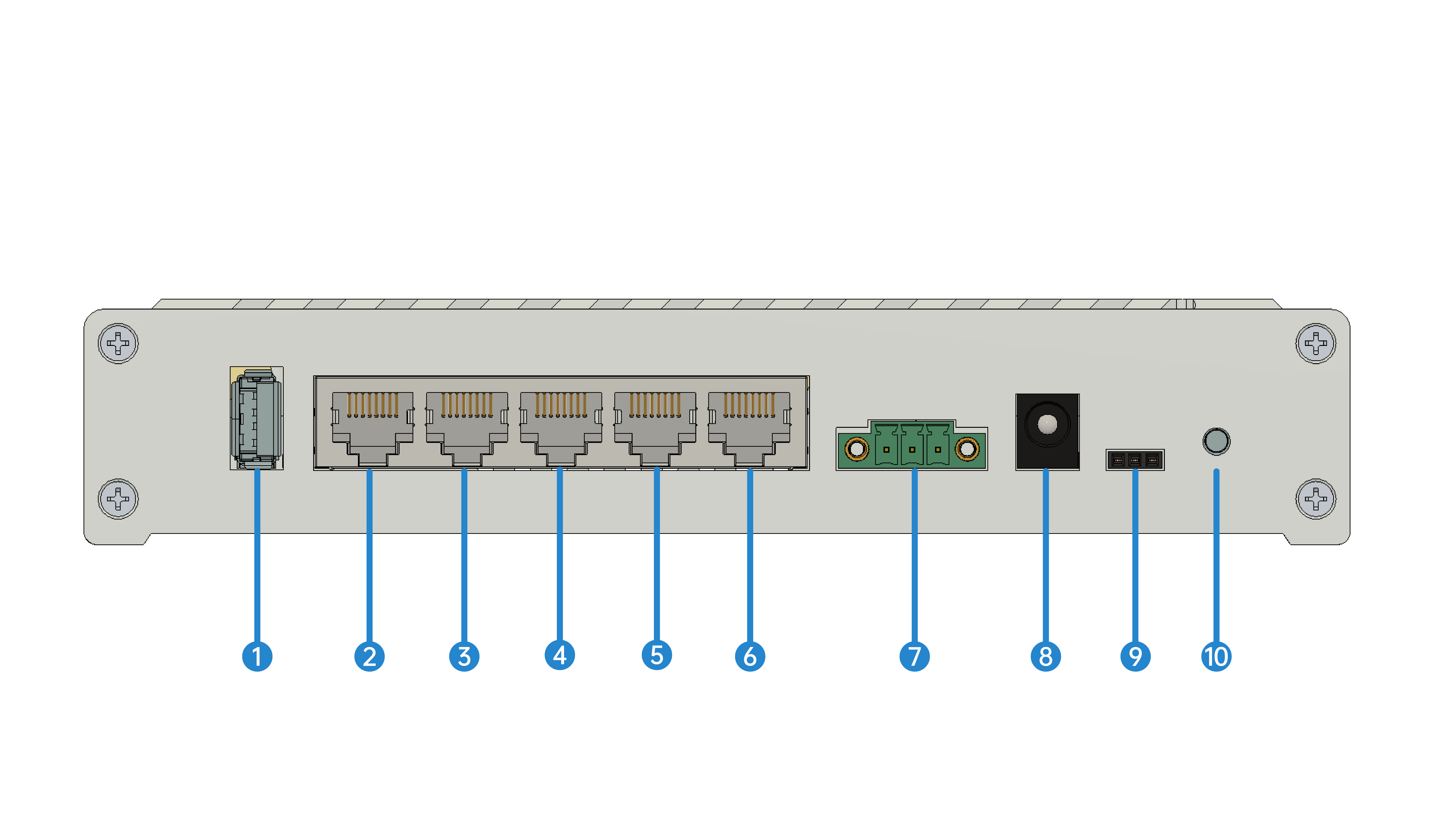
Verify the Hardware Connection
Tips
Enjoy the Internet
• Wired
Connect your computers to the router's LAN ports via Ethernet cables.
• Wireless
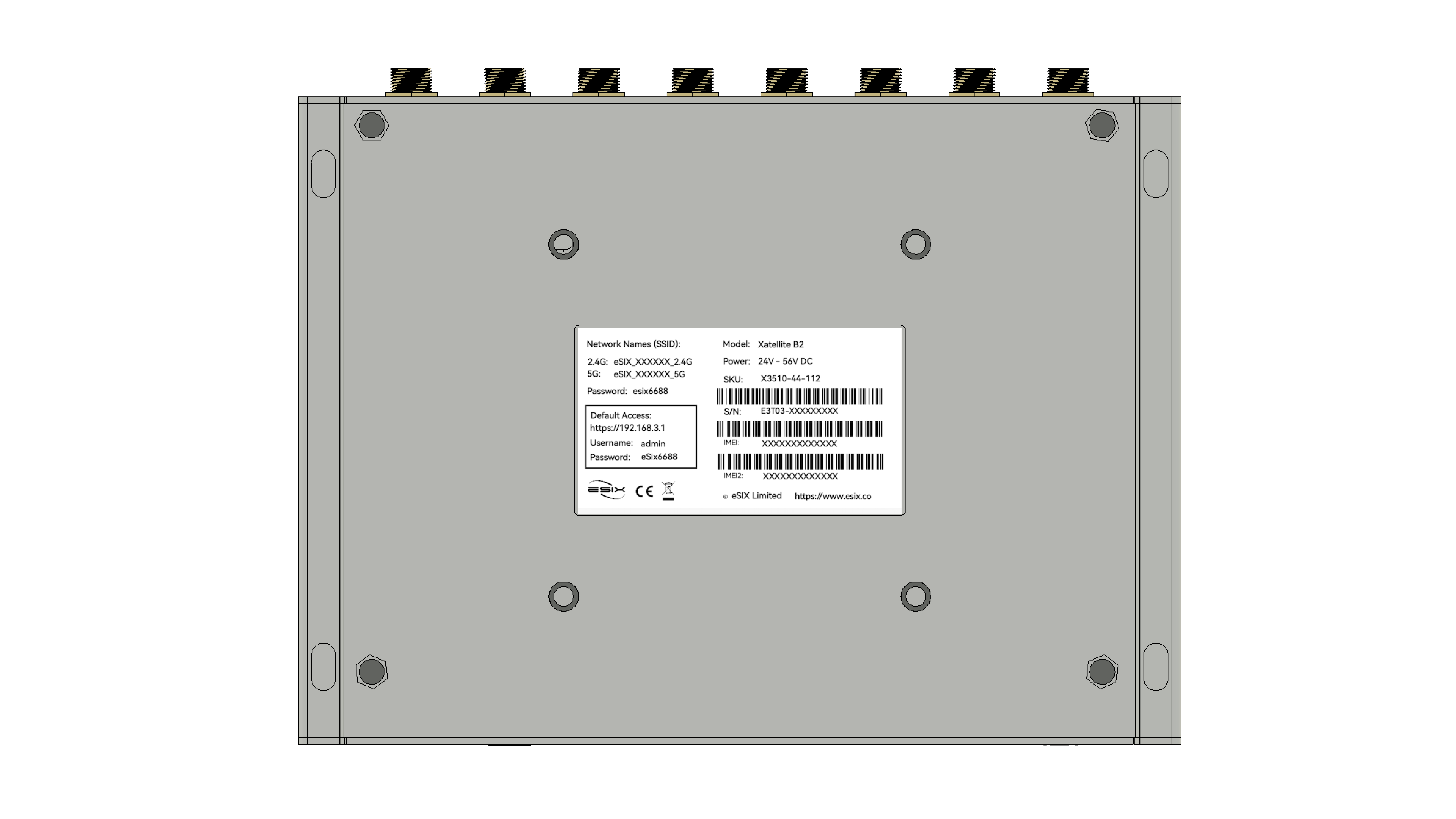
Find the SSIDs (network names) and wireless pass-word printed on the label at the bottom of the router.
Click the network icon of your computer or go to Wi-Fi settings of your smart device, and then select the SSID to join the network.
Customize the Xatellite B
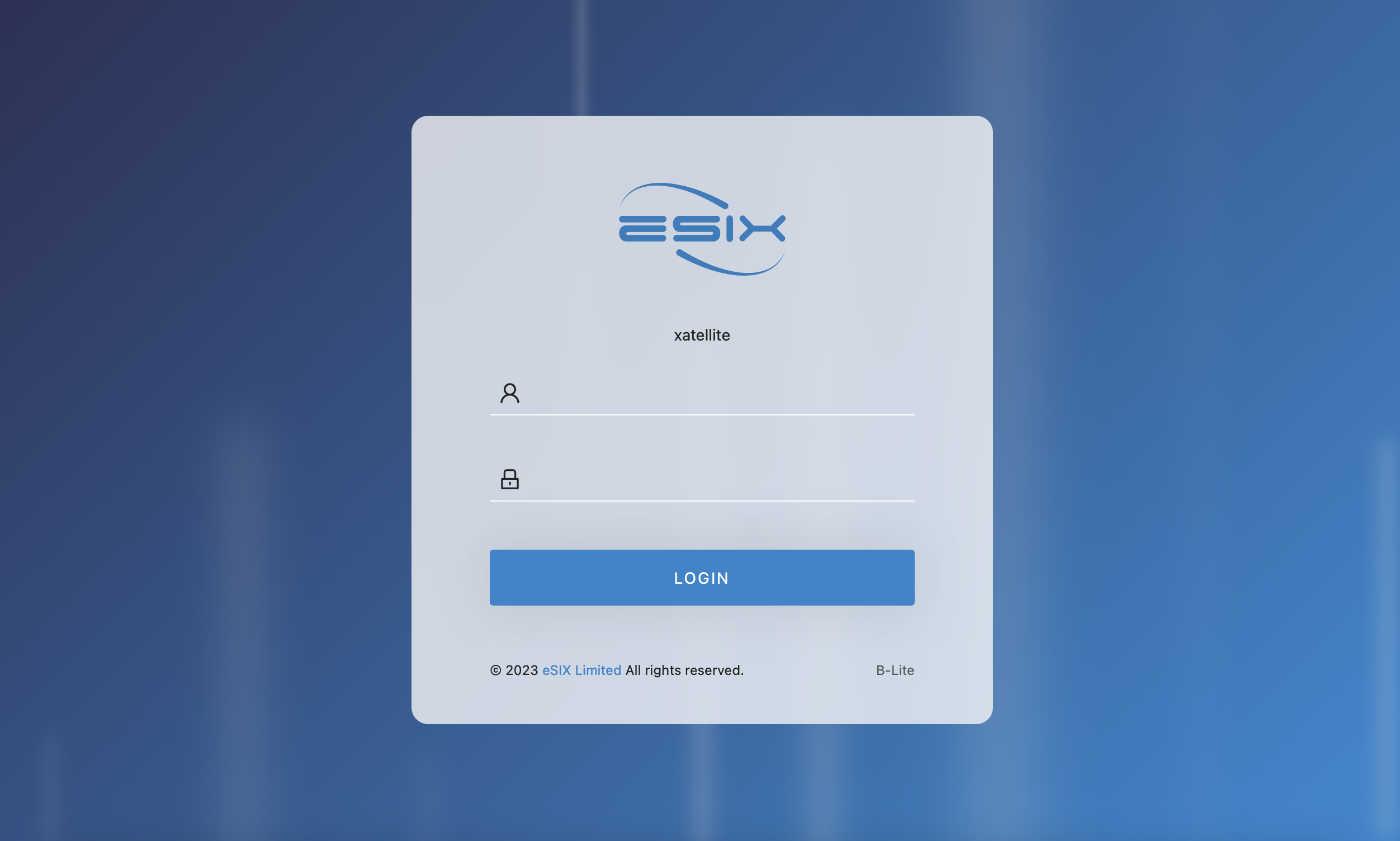
Login
Make sure your computer is connected to the router (wired or wireless).
Launch a web browser and type in https://192.168.3.1.
- Username : admin
- Password : eSix6688
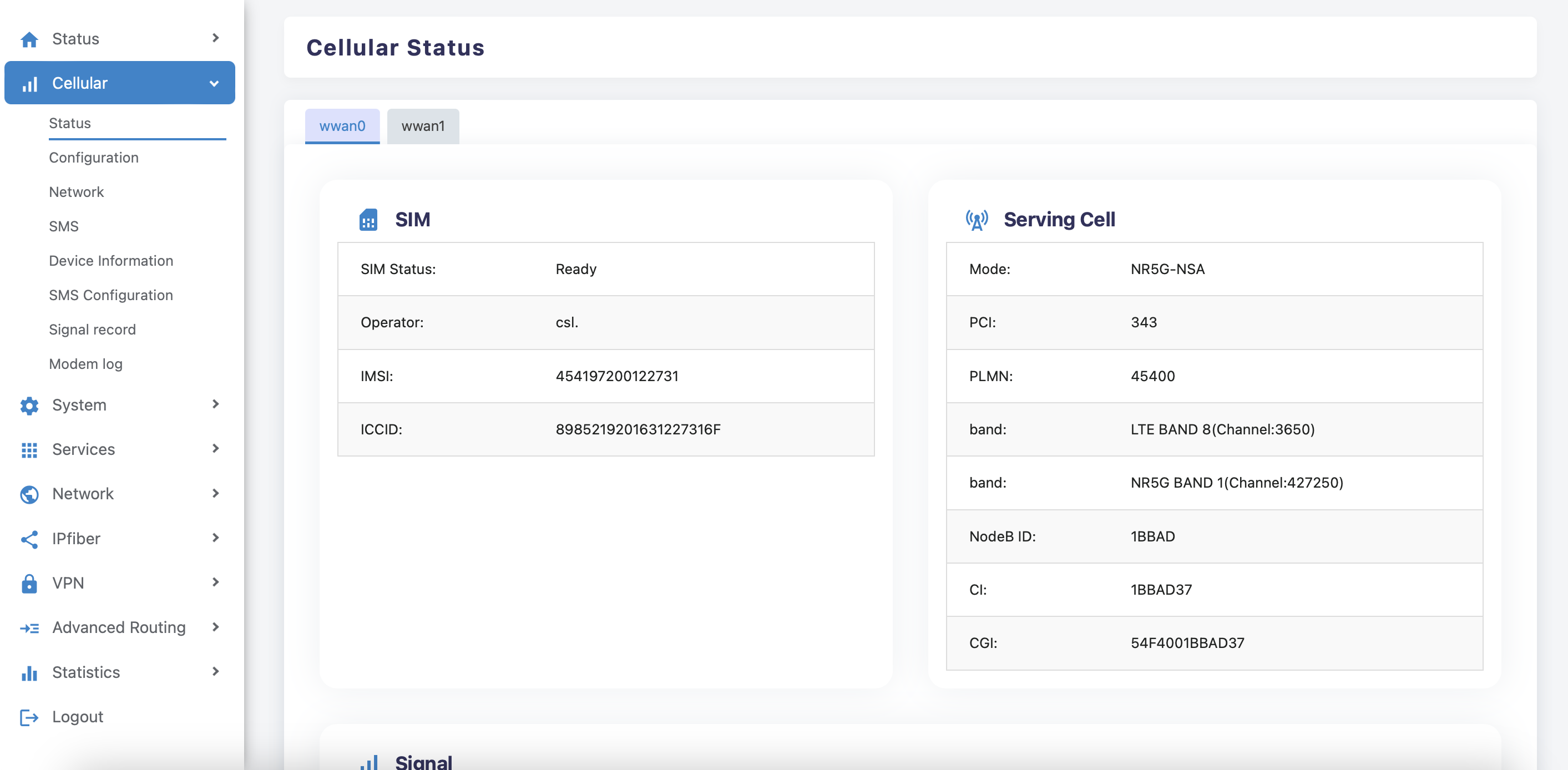
Xatellite B setting card slot
Under the "Cellular > Status" page, this page support card slot selection.
Wwan0 interface corresponds to SIM card slot.
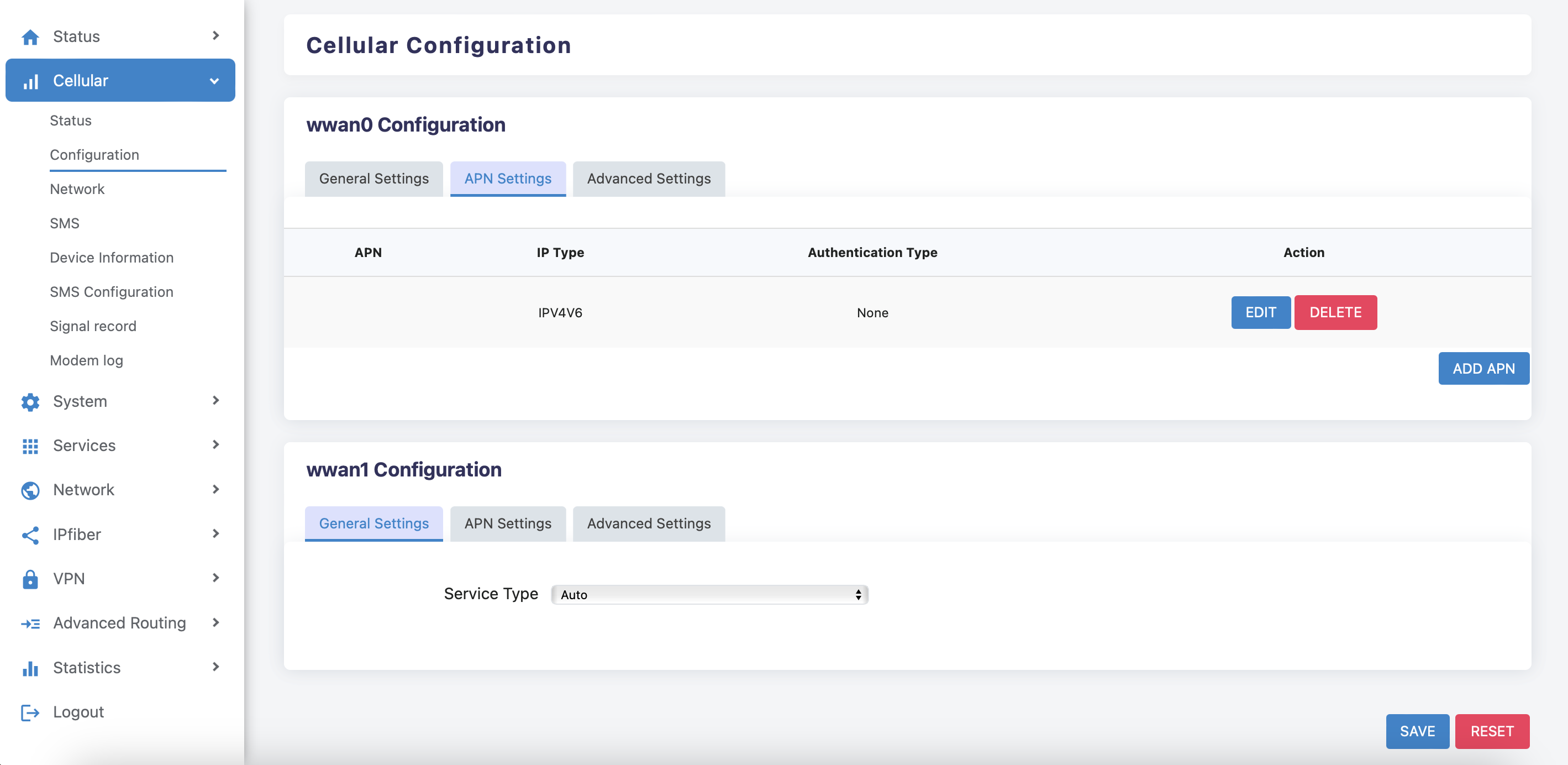
APN
Under the "Cellular > Configuration" page, this page support setting APN
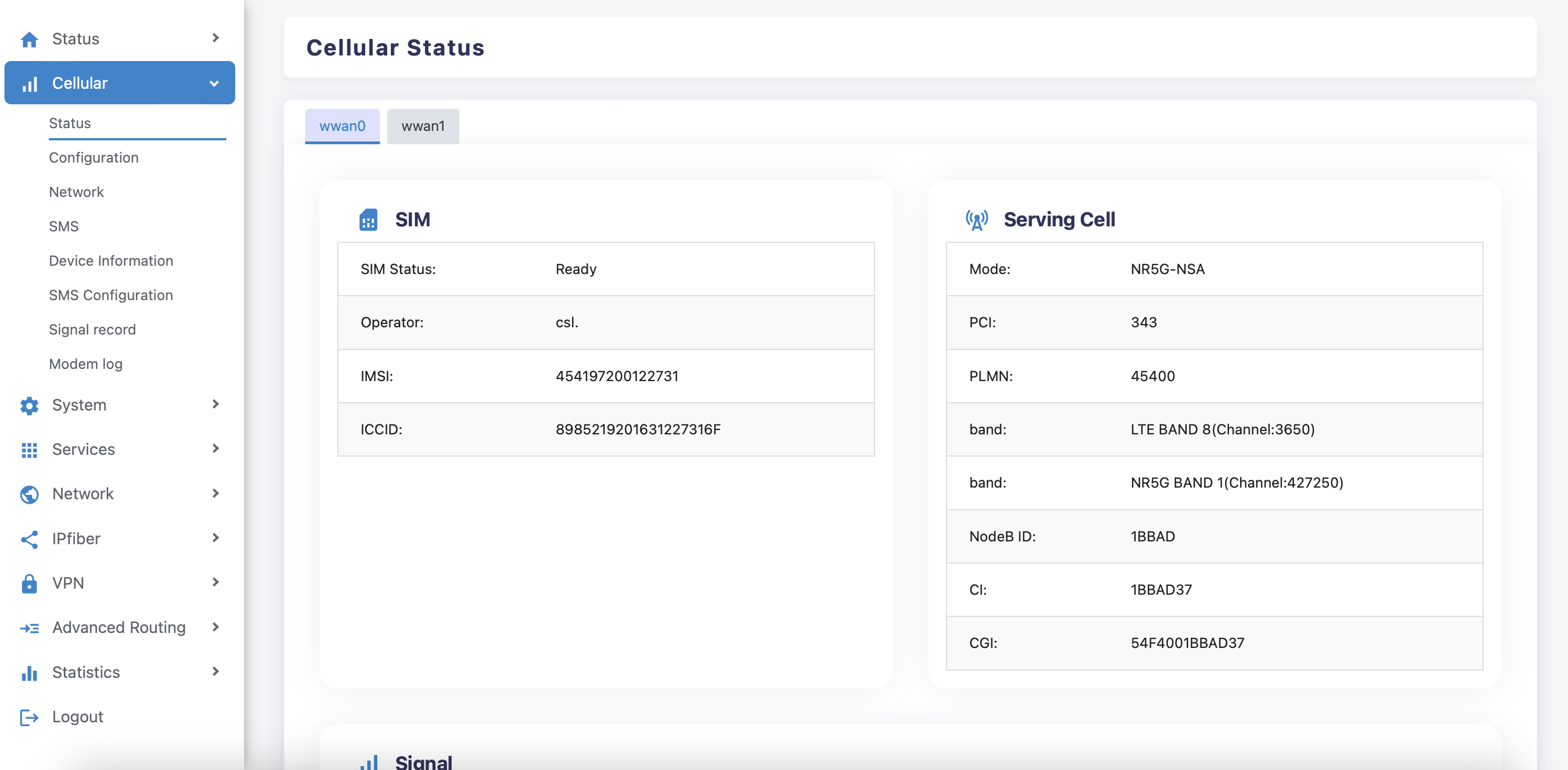
Successful dial
Under the "Cellular > Status" page, When cellular successfully dials up and obtains an IP address, it means that cpe can accessed the Internet normally.
Change Wi-Fi password
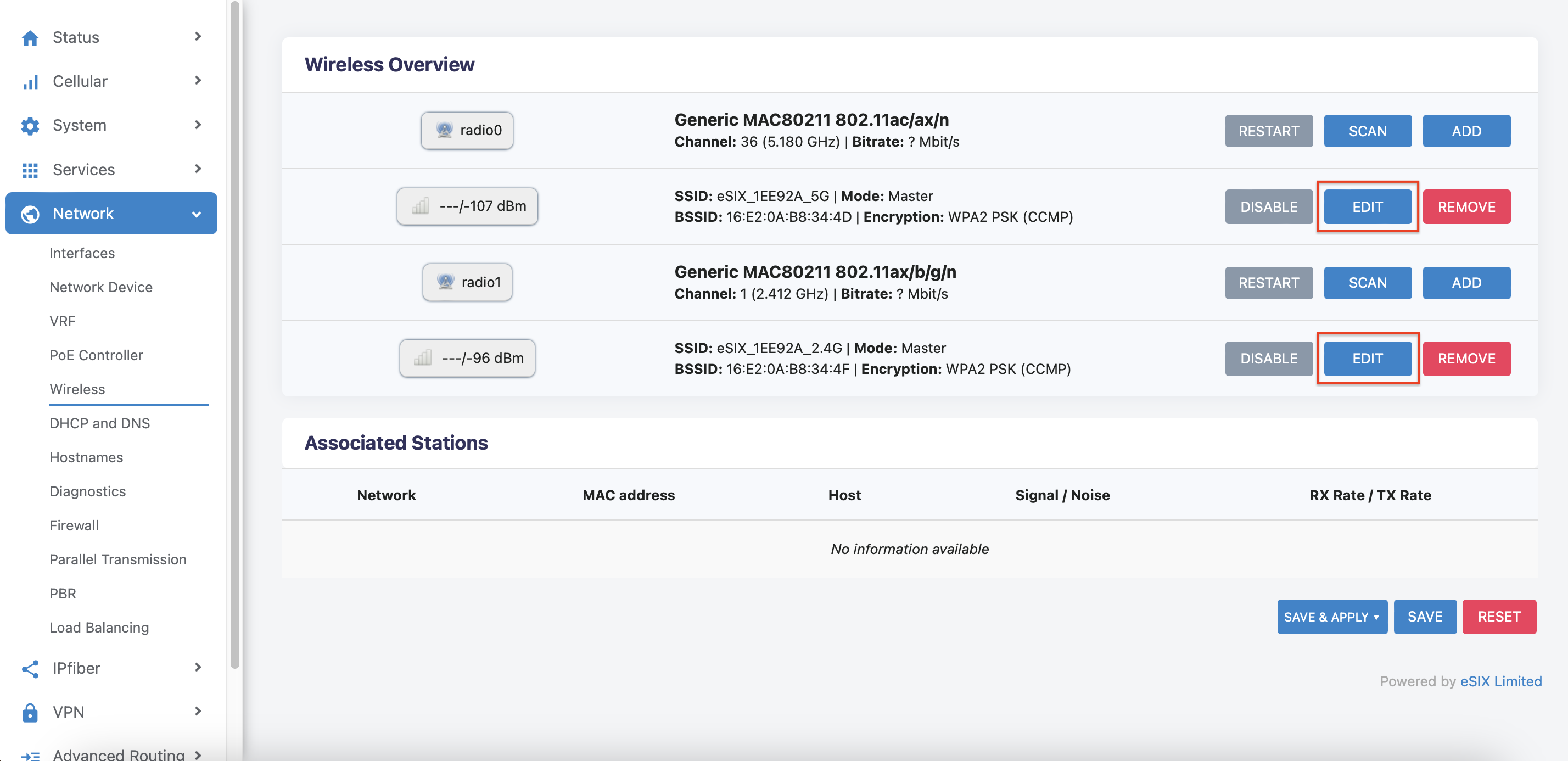
Under the "Network > Wireless" page,this page can setting about Wi-Fi Configuration.
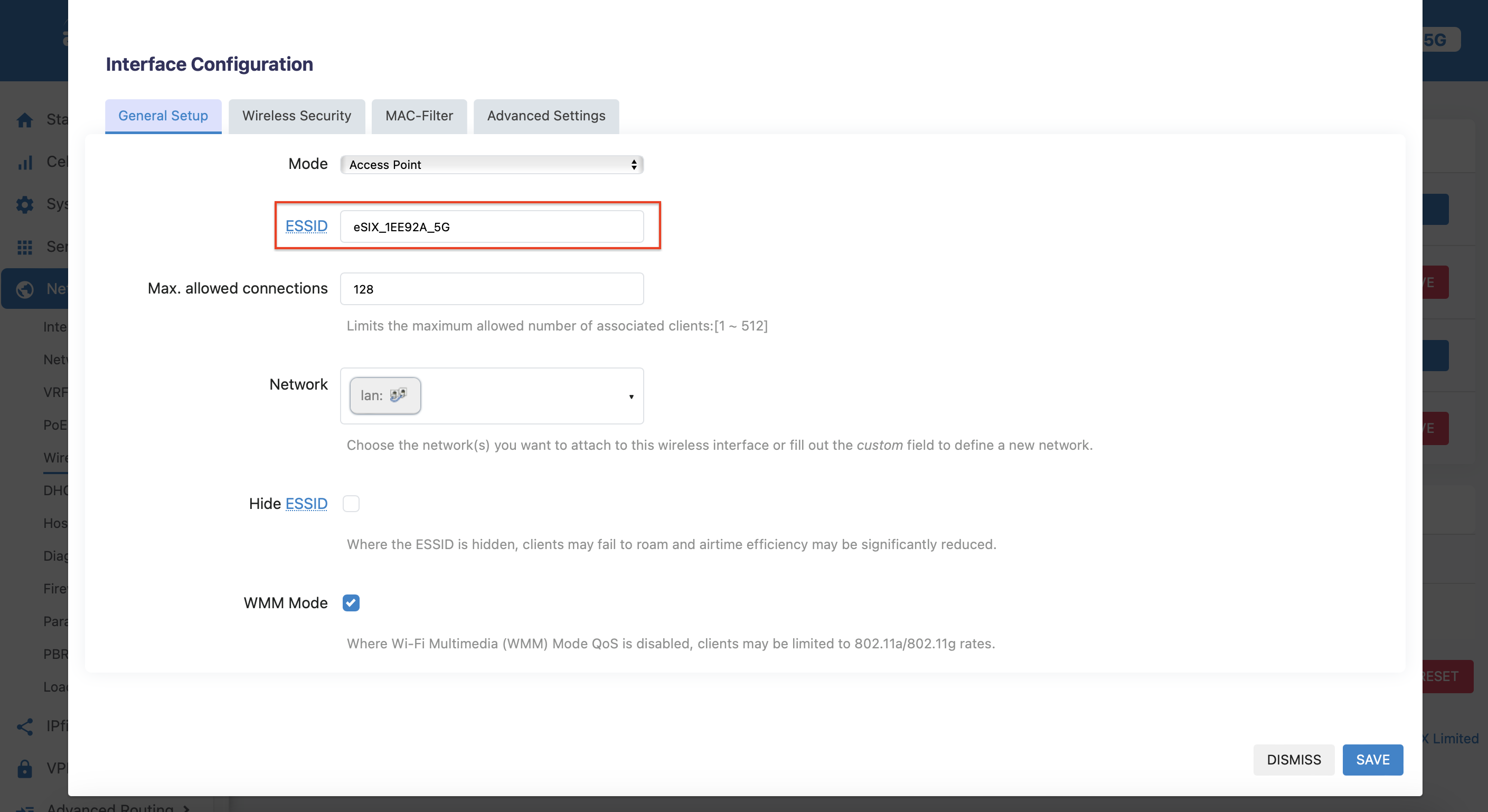
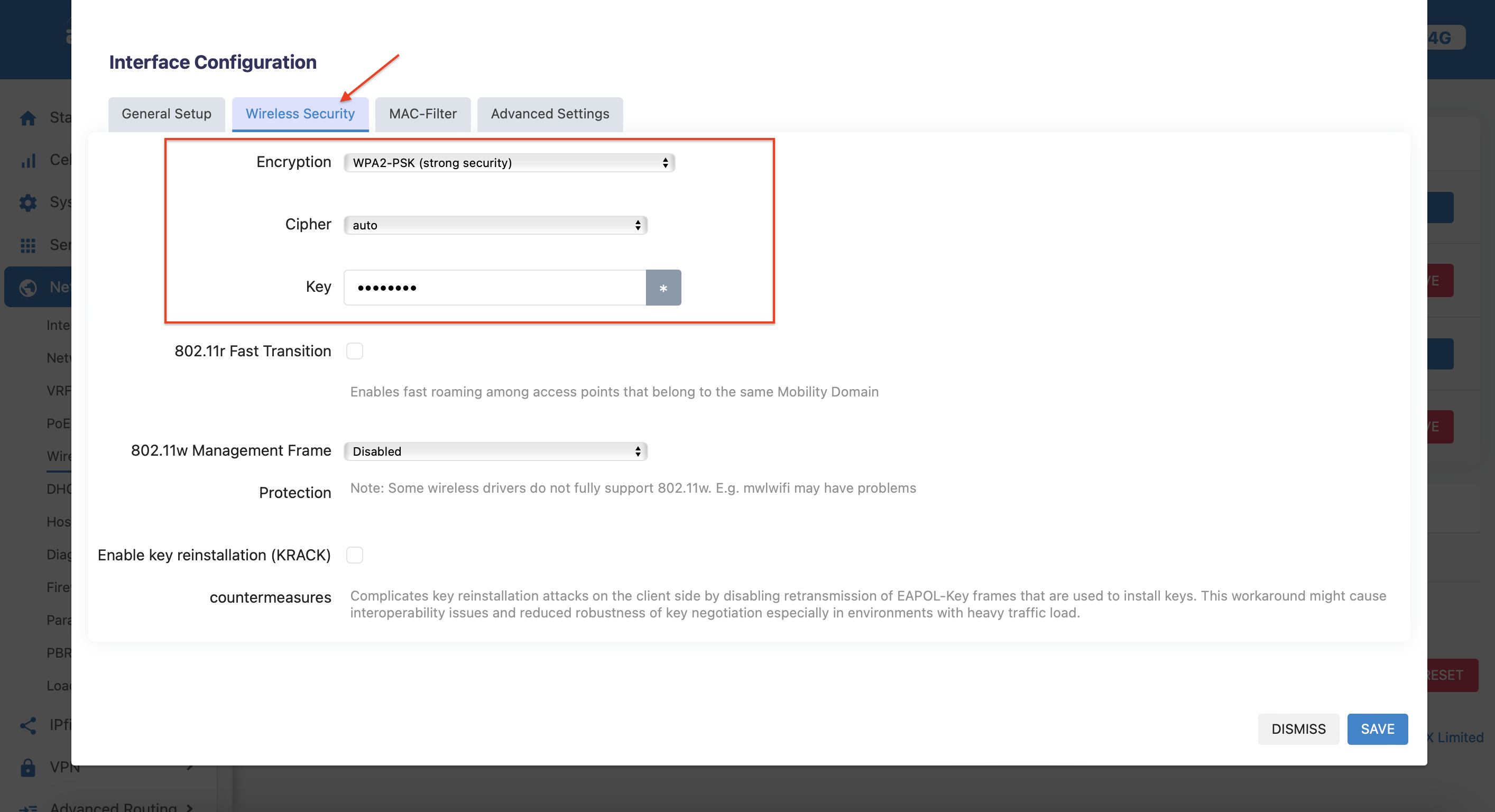
Click“Edit”,you can change the Wi-Fi SSID and password
Change ssid:
Change password:
Safety Instructions
- Keep the device away from water, fire, humidity or hot environments.
- Do not attempt to disassemble, repair, or modify the device.
- Do not use damaged charger or USB cable to charge the device.
- Do not use any other charger s than those recommended.
- Do not use the device where wireless devices are not allowed.
- Adapter shall be installed near the equipment and shall be easily accessible.